


Export layer group/folder as transparent PNG without trimming and change position
Hi everyone, sorry if I ask this question again...
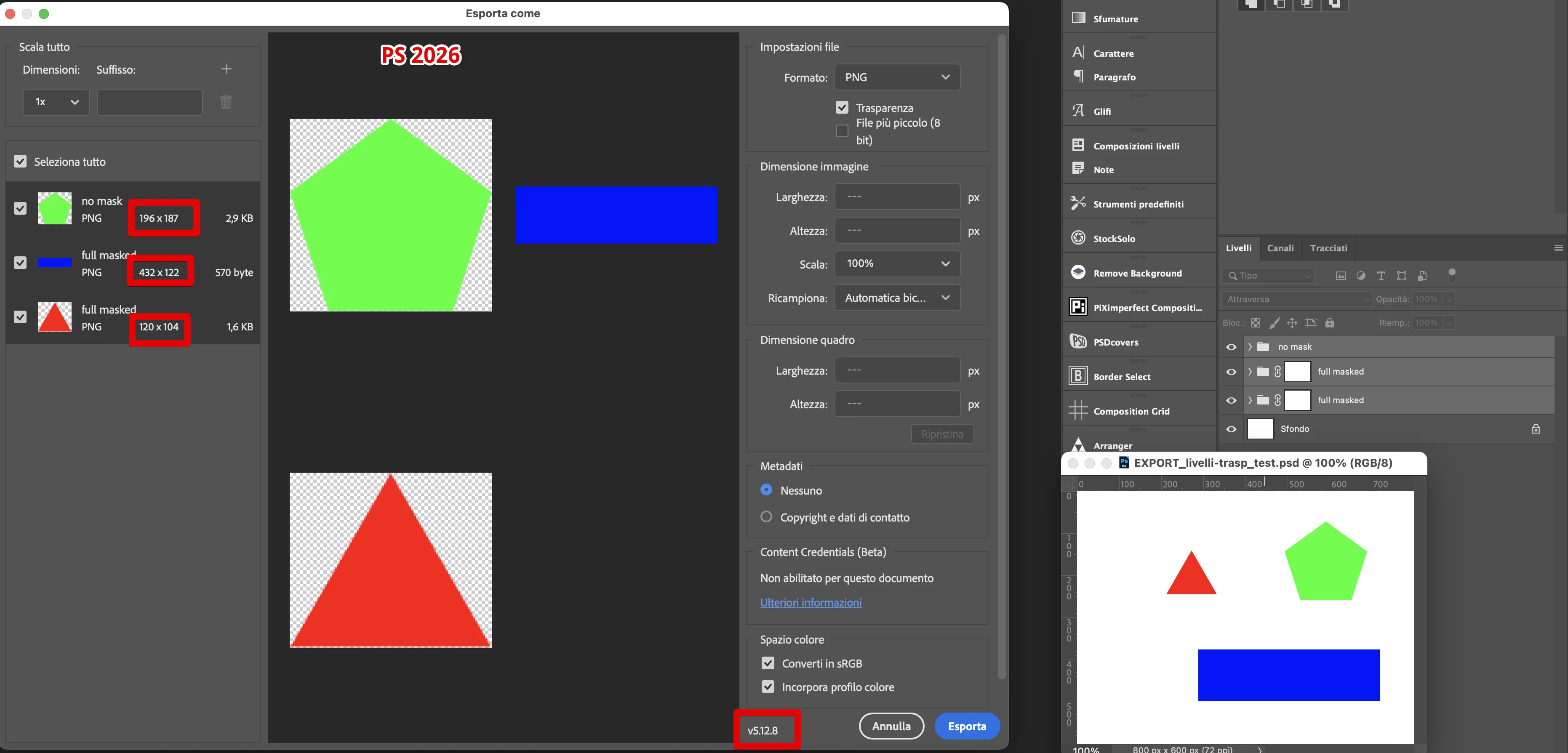
I know this topic has been discussed many times, but I can’t remember the post where there was maybe a solution... Because in Photoshop, if I do "Export As" from the Layers panel, it exports transparent layers cropped to their opaque pixels, and it doesn’t keep the overall canvas size or the position? Is there a way to export PNG from "Export As" in the Layers panel while maintaining the canvas/frame size and the opaque element’s position relative to it? If I set the canvas size in the export panel, Photoshop centers the opaque layer within the frame, so it doesn’t keep the actual position.
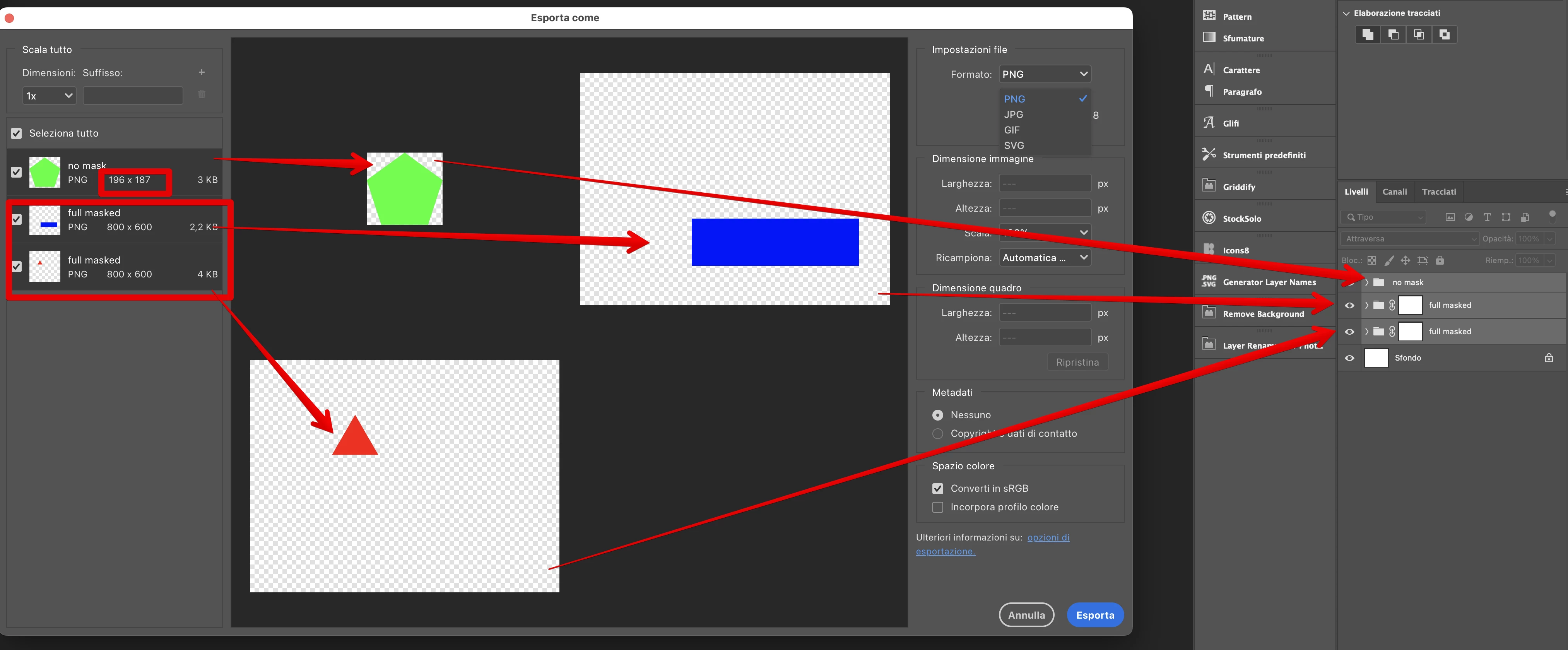
With Photoshop 2021, using "Export As..." from the Layers panel, it was possible to export layers keeping their position and canvas size (if the layer had a full layer mask, which was an acceptable workaround). But with Photoshop 2026, it’s no longer possible—it always crops layers to their opaque pixels and doesn’t keep the position on the canvas or the canvas size. It’s really, really frustrating...
Alternative methods (Layers as files, Generator, layer Comps) or the trick of adding almost transparent pixels to “force” the bounding box to match the canvas are not always useful and don’t always work... Especially because I want to export the entire contents of a group/folder as PNG, preserving its position and size relative to the canvas—that is, the actual file size like 800x600 and not the trimmed, centered element size. Also, with M2 Macs I can’t even use the legacy 'Export As' feature.
Is it possible they removed such an important and essential function with no solution available?
thank you all so much and sorry again!!!
 AdChoices