


Participant
September 21, 2021
Answered

Export Layer Groups as PNGs and retain artboard size

  • September 21, 2021
  • 6 replies
  • 8010 views

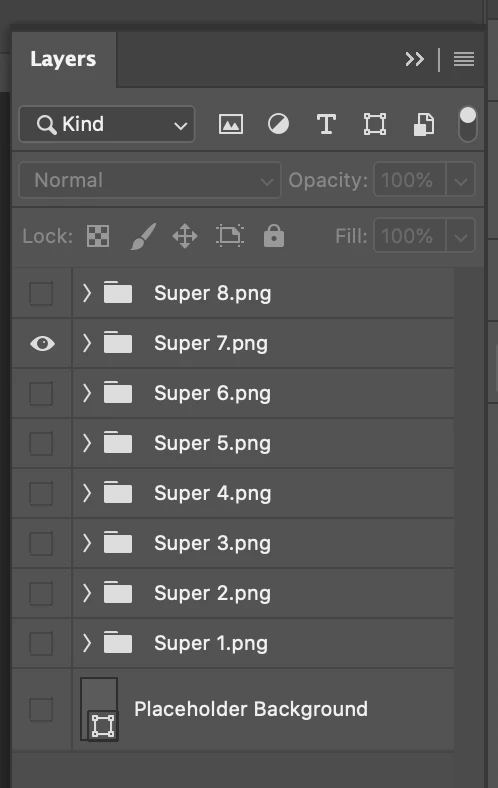
Is there a way to batch export these layer groups as pngs?

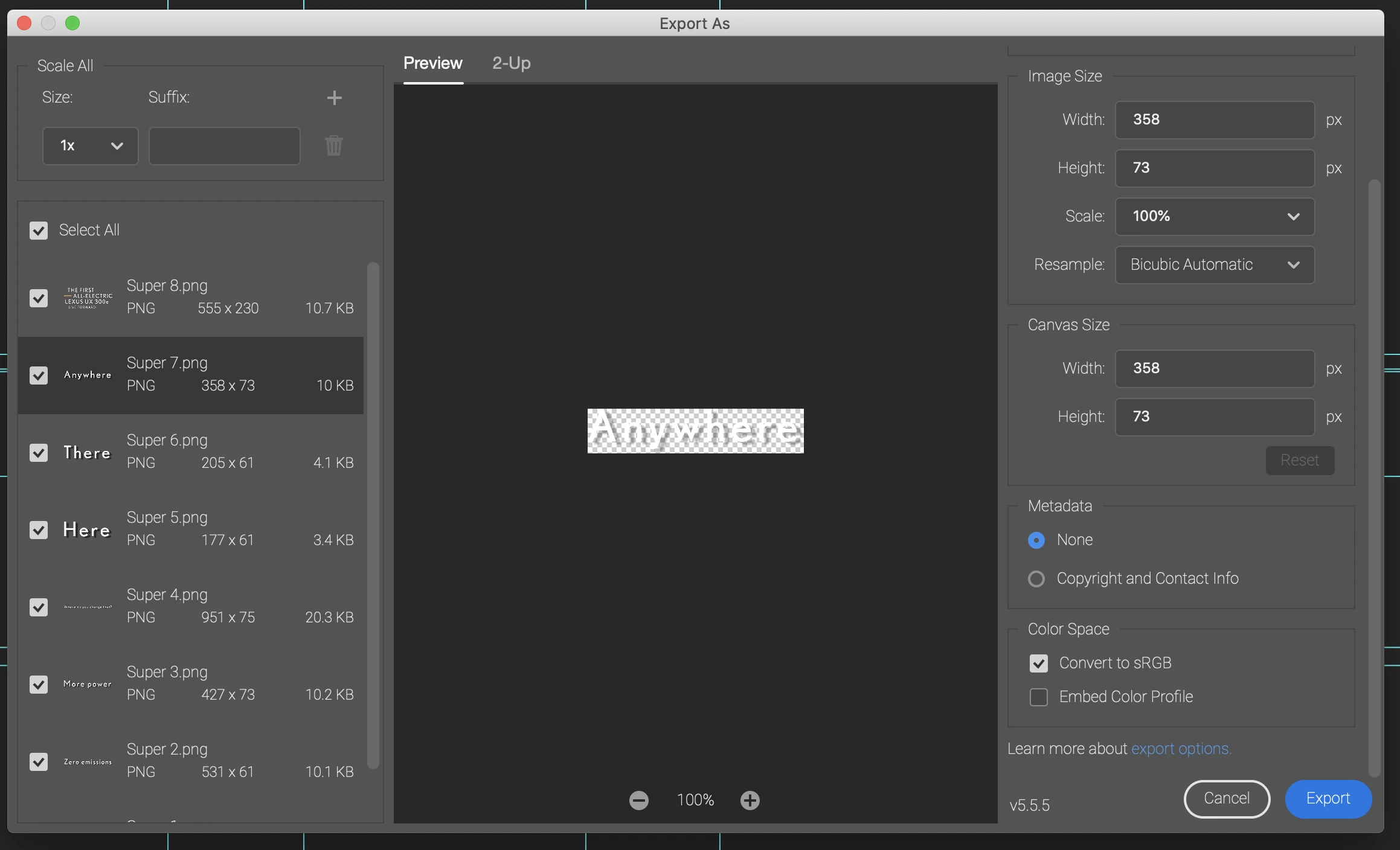
I've tried 'Export As' but it trims the images into just what is visible in the group. I want to retain the size of the artboard (1080x1920) and keep the placement of my text where it is.

My workaround is creating layer comps and then exporting those as PNGs but it can be tedious to create a multitude of layer comps sometimes.

Any suggestions or has someone written a script?


Correct answer Kristopher5E1B

Hey, Thanks so much for this! I appreciate you taking the time.

I've given it a go but I was hoping for something that would export all of them at the same time.

My solution so far is using Generate - Image assets. Then adding .png to all my group names. I also had to add a layer mask to each group to stop it from trimming them into just the text. 

But the result is a folder that automatically generates the PNGs without having to export them.

6 replies

Stephen Marsh
Community Expert
Community Expert
August 11, 2025
quote

...but it can be tedious to create a multitude of layer comps sometimes.

Any suggestions or has someone written a script?


By @Kristopher5E1B


The following script can be used to create a separate layer comp for each root/top-level group or artboard.


/*
Create a layer comp for each group or artboard.jsx
Stephen Marsh
https://community.adobe.com/t5/photoshop-ecosystem-discussions/export-layer-groups-as-pngs-and-retain-artboard-size/td-p/12394524
*/

#target photoshop

createLayerCompsForTopLevelGroups();

function createLayerCompsForTopLevelGroups() {
    if (!app.documents.length) {
        alert("No document is open!");
        return;
    }

    var doc = app.activeDocument;
    var layerComps = doc.layerComps;
    var topGroups = [];

    // Store original visibility state
    var visibilityState = [];

    // Collect only top-level layer sets or artboards
    for (var i = 0; i < doc.layerSets.length; i++) {
        if (doc.layerSets[i].parent == doc) {
            topGroups.push(doc.layerSets[i]);
        }
    }

    if (topGroups.length === 0) {
        alert("No top-level layer groups or artboards found!");
        return;
    }

    // Save original visibility of all top-level groups
    for (var i = 0; i < topGroups.length; i++) {
        visibilityState.push(topGroups[i].visible);
    }

    // Loop through each group and create a layer comp
    for (var i = 0; i < topGroups.length; i++) {
        var group = topGroups[i];

        // Hide all top-level groups
        for (var j = 0; j < topGroups.length; j++) {
            topGroups[j].visible = false;
        }

        // Show current group
        group.visible = true;

        // Create a Layer Comp
        var compName = group.name;
        layerComps.add(compName, group.name, true, true, true);
    }

    // Restore original visibility
    for (var i = 0; i < topGroups.length; i++) {
        topGroups[i].visible = visibilityState[i];
    }

    alert("Layer comps created for each top-level group/artboard.");
}


https://prepression.blogspot.com/2017/11/downloading-and-installing-adobe-scripts.html


schroef
Inspiring
August 11, 2025

@Stephen Marsh 


Do you have these scripts just lying around or do you custom build them here for people.


Kinda baffled you follow up so fast

Stephen Marsh
Community Expert
Community Expert
August 11, 2025
quote

@Stephen Marsh 


Do you have these scripts just lying around or do you custom build them here for people.


Kinda baffled you follow up so fast


By @schroef


Sometimes one or the other, but usually a bit of both. 

I have made scripts for processing all layers or all sets/artboards and I have also made scripts for layer comps. A lot of code can be reused. I liked Lego as a kid, so I tend to look at code like bricks.

schroef
Inspiring
August 11, 2025

Easiest the BG to use is "layer comps to files".. you need to make a layer comp of every group visible. Then export all or use selected. Pretty simple

nitnat
Participating Frequently
January 29, 2025

Same problem here. This would really help...


Stephen Marsh
Community Expert
Community Expert
January 29, 2025

@nitnat 


As this is a discussion, Adobe employees may not see this post.


You can create a new topic and label it as "Idea" rather than discussion or bug, then it can be voted on in a meaningful way.


BTW Adobe is aware that some users want better, flexible control of padding from within Export As (this has come up before), however, like many things to do with Export As – it's an unfinished work in progress.

Bojan Živković11378569
Community Expert
Community Expert
September 21, 2021

By the way, you can automate layer comps. Record action to create layer comps then export them. Collapse all groups before recording steps and before playing action. If you have different number of groups/layer comps per file then record action with two or three layer comps then play it multiple times or record action with lot of steps then exclude them from play, play only as much steps as you need.

After creating layer comps use Export > Layer Comps to Files. You can not record Export As as action step, by the way.


Lavish_Moonlight0D4C
Inspiring
September 21, 2021

Not sure how to automate it at the moment, but if you solo the group (alt+click the eyeball on windows, opt+click on Mac) so that only the layers you want are visible, you then deselect all the layers, and then do a quick export as png. You can adjust your "export as" extention in "Preferences/Export" to be png. Your exported file will maintain the canvas size and layer postion.

Fig. 1

Fig. 2


Lavish_Moonlight0D4C
Inspiring
September 21, 2021

I've created an action that will get you there partially.

You'll first want to save your file as it reverts back to it's starting point after each run. Then, in the layers panel,  select the group you want to export and run the action.

In short, it converts the group into a smart object to maintain the name of the group, and saves it as a png. You'll have to input your save location each time you run it, or follow the steps below to create a default save location. The link below has a video to the steps along with the action.

ACTION LINK

Kristopher5E1BAuthorCorrect answer
Participant
September 21, 2021

Hey, Thanks so much for this! I appreciate you taking the time.

I've given it a go but I was hoping for something that would export all of them at the same time.

My solution so far is using Generate - Image assets. Then adding .png to all my group names. I also had to add a layer mask to each group to stop it from trimming them into just the text. 

But the result is a folder that automatically generates the PNGs without having to export them.