Inspiring
November 6, 2019
Answered

Exporting as a GIF Properly (blurred edges)

  • November 6, 2019
  • 2 replies
  • 7587 views

Hi there,


I'm trying to export a PNG sequence as a GIF in Photoshop using Save for Web (Legacy).

The animation was made in After Effects, in which the top two layers have a very soft drop shadow.


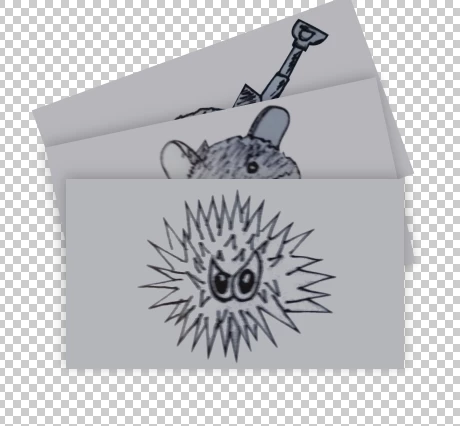
Here's what it looks like in After Effects and Photoshop (with and without a background):
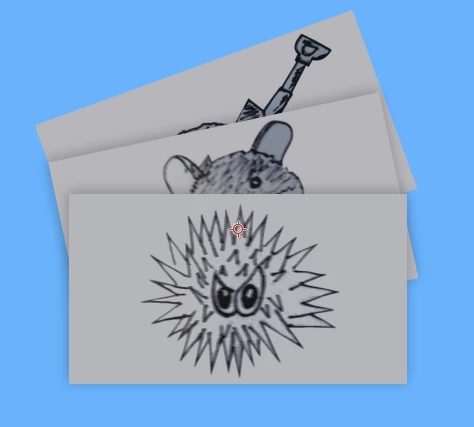


When I export it out of Photoshop, it looks like this:
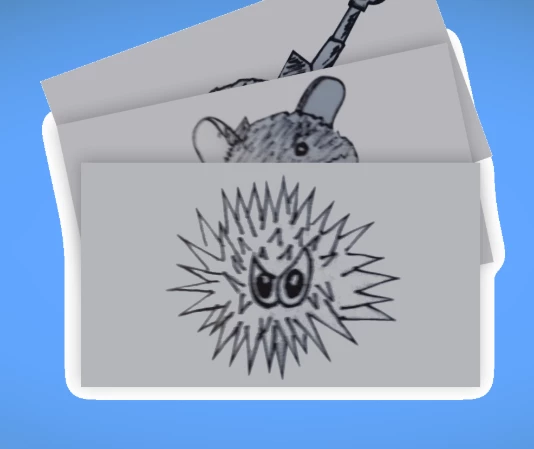
Somehow, the drop shadow is being turned into this white solid.

What are the optimal settings for exporting as a GIF?

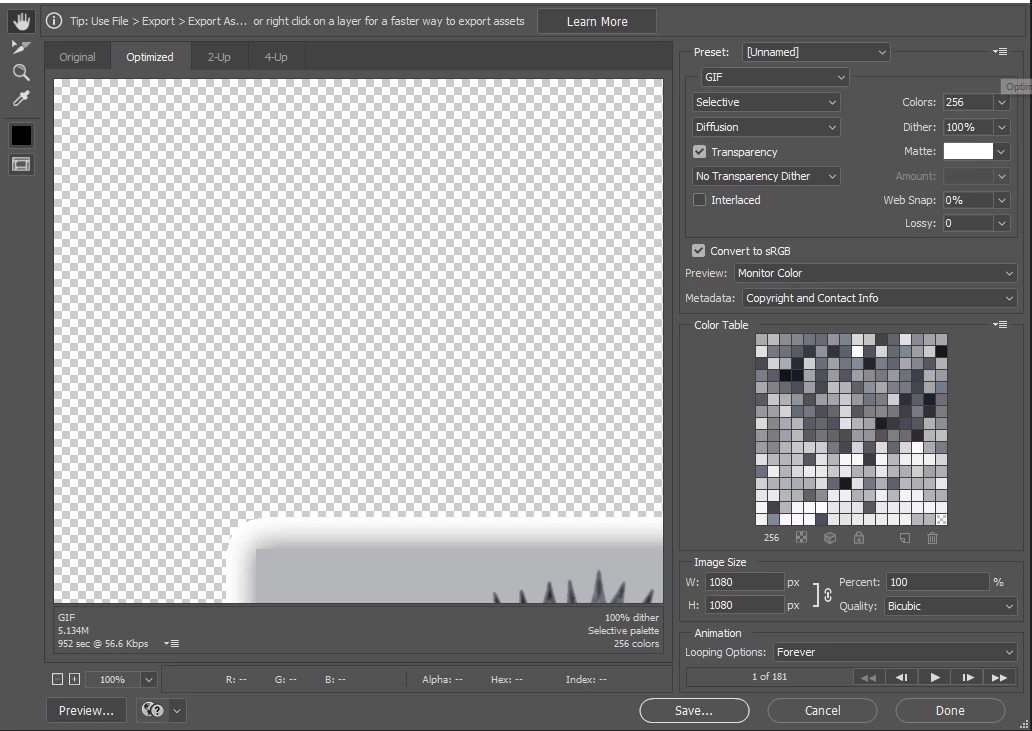
Here are my current settings:
 

Thank you in advance!

This topic has been closed for replies.
Correct answer davescm

If you are going to use the gif against a solid coloured background and you know what colour, e.g. the blue in your screenshot, change the matte colour from white to that blue colour.
If you have no idea of what background it will be against you could try turning matte to "none" and using transparency dither , but it rarely looks good and you may be better off without the shadow.


Dave


2 replies

WP275Author
Inspiring
November 7, 2019

Setting the matte to none and the dither to 0% made it export as I wanted it to. I didn't notice any significant lapse in quality because of it either.

Thank you for the response.

davescm
Community Expert
davescmCommunity ExpertCorrect answer
Community Expert
November 6, 2019

If you are going to use the gif against a solid coloured background and you know what colour, e.g. the blue in your screenshot, change the matte colour from white to that blue colour.
If you have no idea of what background it will be against you could try turning matte to "none" and using transparency dither , but it rarely looks good and you may be better off without the shadow.


Dave


Participant
March 19, 2024

I was having the same issue. Changing matte to the background color worked like a charm. Thanks for sharing!