Known Participant
November 27, 2025
Answered

Exporting Layers as JPG files without full canvas dimensions?

  • November 27, 2025
  • 2 replies
  • 279 views

Hi, folks. I have a roughly one-thousand-layer Photoshop file, and I'd like to export all the layers as files (even if I have to do it in small batches), but I do not want  Photoshop to grab the entirety of the canvas, which it currently does with each file. The result of my exports is that I'll have one huge canvas with a tiny layer exported each time. I would like my layer and canvas to match in size.


To be specific, my original document is about 150 inches by 92 inches. Each layer is roughly 2.5 inches by 3.5 inches. When I run Export Layers to Files, I end up getting files where the smaller layer is placed within the entire 150-inch canvas. But what I want is for each exported layer to match the layer size, not the canvas size. In other words, I want each exported layer to be roughly 2.5 by 3.5 inches. Is this possible? I'm using Photoshop for Mac, 27.1.0.


Thanks!

Correct answer D Fosse

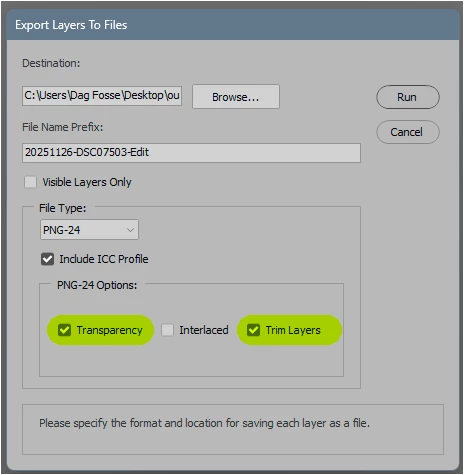
Export will strip/trim surrounding transparency - but you need to export to a format that supports transparency, like PNG.


If you export to jpeg, transparency is not supported. Transparency will be flattened to white pixels.


You'll get what you want, trimmed layers, if you export to PNG.

2 replies

D Fosse
Community Expert
D FosseCommunity ExpertCorrect answer
Community Expert
November 27, 2025

Export will strip/trim surrounding transparency - but you need to export to a format that supports transparency, like PNG.


If you export to jpeg, transparency is not supported. Transparency will be flattened to white pixels.


You'll get what you want, trimmed layers, if you export to PNG.

Anon1066Author
Known Participant
November 27, 2025

Ah, lovely. Thanks for the info. I'll give it a whirl.

Derek Cross
Community Expert
Community Expert
November 27, 2025

It may depend on whether the images are in the same position on each layer.  

You might experiment with the following two-stage process.

1) Export the individual layers: File > Export > Layers to Files

2)  Optimise and resize each file: File > Scripts > Image Processor

(you can also run an Action with the Image Processor).

Anon1066Author
Known Participant
November 27, 2025

Thank you, I will try this.