djile
Known Participant
January 3, 2020
질문

Extreme banding in photoshop CC 2020 Windows and macOS

  • January 3, 2020
  • 3 답변들
  • 5266 조회

Hi All,

This is the second time I've written about this problem, I thought I solved the problem but i didn't.
First of all I want to say, I have tried absolutely everything to solve this problem, and I failed.
- I tried all combinations Prefernces/performance/all combinations - failed
- I tried fresh installs,  windows, updates, drivers, without monitor calibration, and later with monitor calibration - failed 
- I tried windows 7 so it came back to windows 10 again... 
-  I tried with files 16 bits and 8 bits, converted 16 to 8 bits and vice versa... 
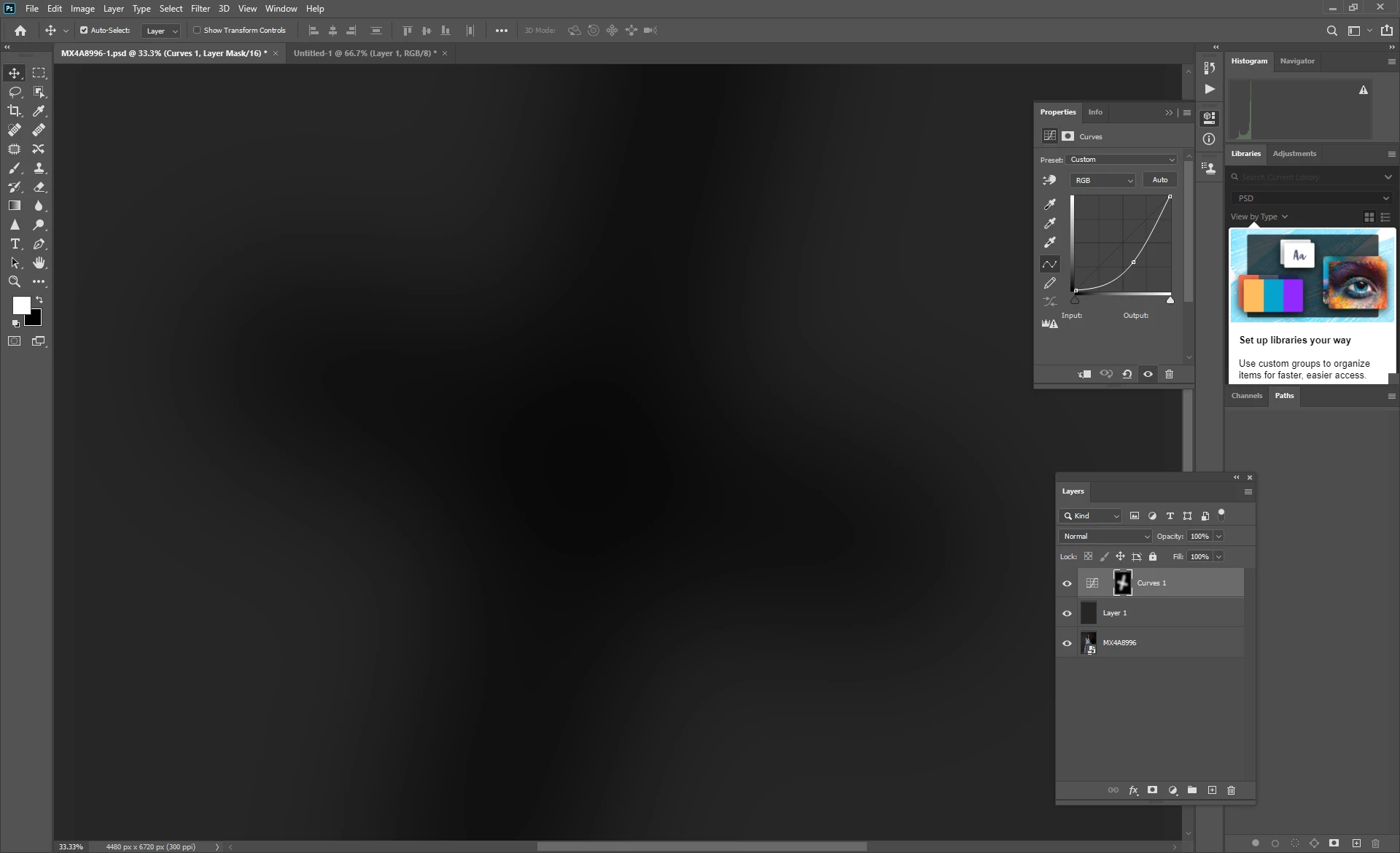
This is an example on the Solid color layer to make banding clearer, it is the same when I working with studio image 16 or 8 bits.
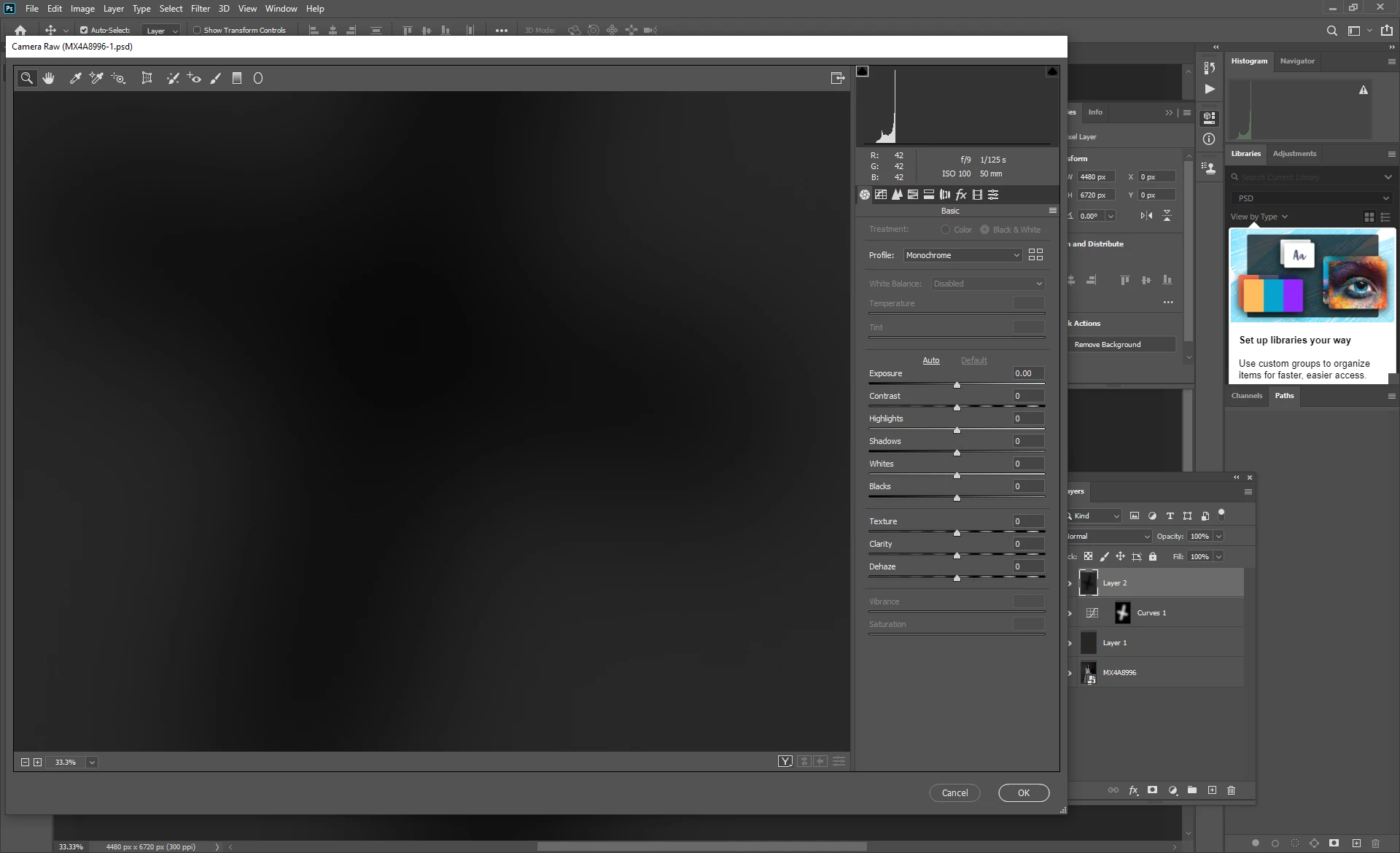
So banding appears in photoshop, but when I merge the layers and open in adobe camera raw, the banding disappears...
Therefore, it is more than obvious that some set-up is not good in photoshop so what's the problem?
Once again I have the same problem on windows PC and macbook pro, so the operating system is not a problem, drivers are not a problem, hardware is not a problem,...  (My Windows PC has a 10 bit monitor + radeon RX 580 )

Same problem on 2 operating systems!

https://drive.google.com/open?id=1uVutnGGf-PxOXmoKFN8PniDo6-Bzercf 
https://drive.google.com/open?id=1Ea1el5V3ei8WJFAJ0O-VpZ6pgGaxeiJS 
https://drive.google.com/open?id=14mEs9g1g4oFCMyHDykmhIDYdQLcV_RaI 


이 주제는 답변이 닫혔습니다.

3 답변

Participant
November 13, 2024

Hi,


I have taken a series of night frames with my Nikon Z8 and some dark bias frames. In photoshop with 30 of those frames loaded as layers I change the blend mode to lighten and then flattening the image I can see strange ellpitical banding. I can only see the banding in photoshop after I flatten it or try to save it as jpeg etc. If I reduce the resolusion of the image from 8256 to 5000 pixels I can barely see the banding after flattening it. I then looked at my dark bias RAW frames (shots to find hot pixels taken at the same ISO, aperture & shutter with the lens cap on so no light can enter to reveal hot pixels) I can reaveal the banding by pushing the exposure up by 5 stops. I can't see the banding in Nikon NX software or if I export the dark frames as DNG's from lightroom so it appears that there is some feature in Lightroom/Photoshop causing it. I would be very grateful for help with this issue. 

Thx

Gareth

silk-m
Community Expert
Community Expert
January 4, 2020

Hi,

I can display 10bit in the following environment.

Photoshop ver. 21.0.2

macOS Catalina 10.15.2
Mac mini (2018) 3 GHz 6-Core i5
Monitor EIZO CS2730 + ColorNavigator 7.0.8.3

Intel UHD Graphics 630:

  •   Chipset Model: Intel UHD Graphics 630
  •   Type: GPU
  •   Bus: Built-In
  •   VRAM (Dynamic, Max): 1536 MB
  •   Vendor: Intel
  •   Device ID: 0x3e9b
  •   Revision ID: 0x0000
  •   Metal: Supported, feature set macOS GPUFamily2 v1

  Displays: CS2730:

  •   Resolution: 2560 x 1440 (QHD/WQHD - Wide Quad High Definition)
  •   UI Looks like: 2560 x 1440
  •   Framebuffer Depth: 30-Bit Color (ARGB2101010)
  •   Main Display: Yes
  •   Mirror: Off
  •   Online: Yes
  •   Rotation: Supported
  •   Automatically Adjust Brightness: No
  •   Connection Type: DisplayPort


I turned on and off the 30 Bit Display and took screenshots.


And apply the following tone curve to that 8bit screenshot.

30 Bit Display is OFF

30 Bit Display is ON

From this result, I think 30 bit display is possible.

--Susumu Iwasaki
D Fosse
Community Expert
Community Expert
January 4, 2020

In that case it has to be somehow run by the Metal framework in MacOS, not by the Intel GPU driver which does not support 30 bits. Intel GPUs have never, ever, supported 30 bit display. But perhaps this is why the video driver is integrated into MacOS, as opposed to a discrete and separate component as in Windows.


On Windows the requirement is strictly Radeon Pro, or nVidia Quadro. Recently, nVidia started to offer a "studio" branch of drivers for GeForce cards, which also supports OpenGL 30 bit color. I don't know how reliably that works, but on Quadro cards it's rock solid.

D Fosse
Community Expert
Community Expert
January 3, 2020

With an 8-bit display pipeline there will always be banding in a narrow gradient like this. You many have a 10-bit capable monitor - but you also need a 10-bit capable video card, i.e. a Radeon Pro series card.


In addition you need to view at 66.67% zoom ratio or higher. At lower zoom ratios Photoshop uses 8 bit previews.


ACR/Lightroom use dithering to conceal banding, so you won't see it there. This led many people to believe it supports 10 bits, but it doesn't.


10 bit display works perfectly on both my Windows systems, both with NVidia Quadros. But it was a while before I discovered that it has to be enabled in the driver. I assume it is the same with Radeon Pros.

djile
djile작성자
Known Participant
January 3, 2020

Thanks for your reply but,
100% zoom

and? 🙂 and yes,  my graphic supports 10 bit

D Fosse
Community Expert
Community Expert
January 4, 2020

Hi there,
yes I used 8 bit on your example to make it clearer visible.
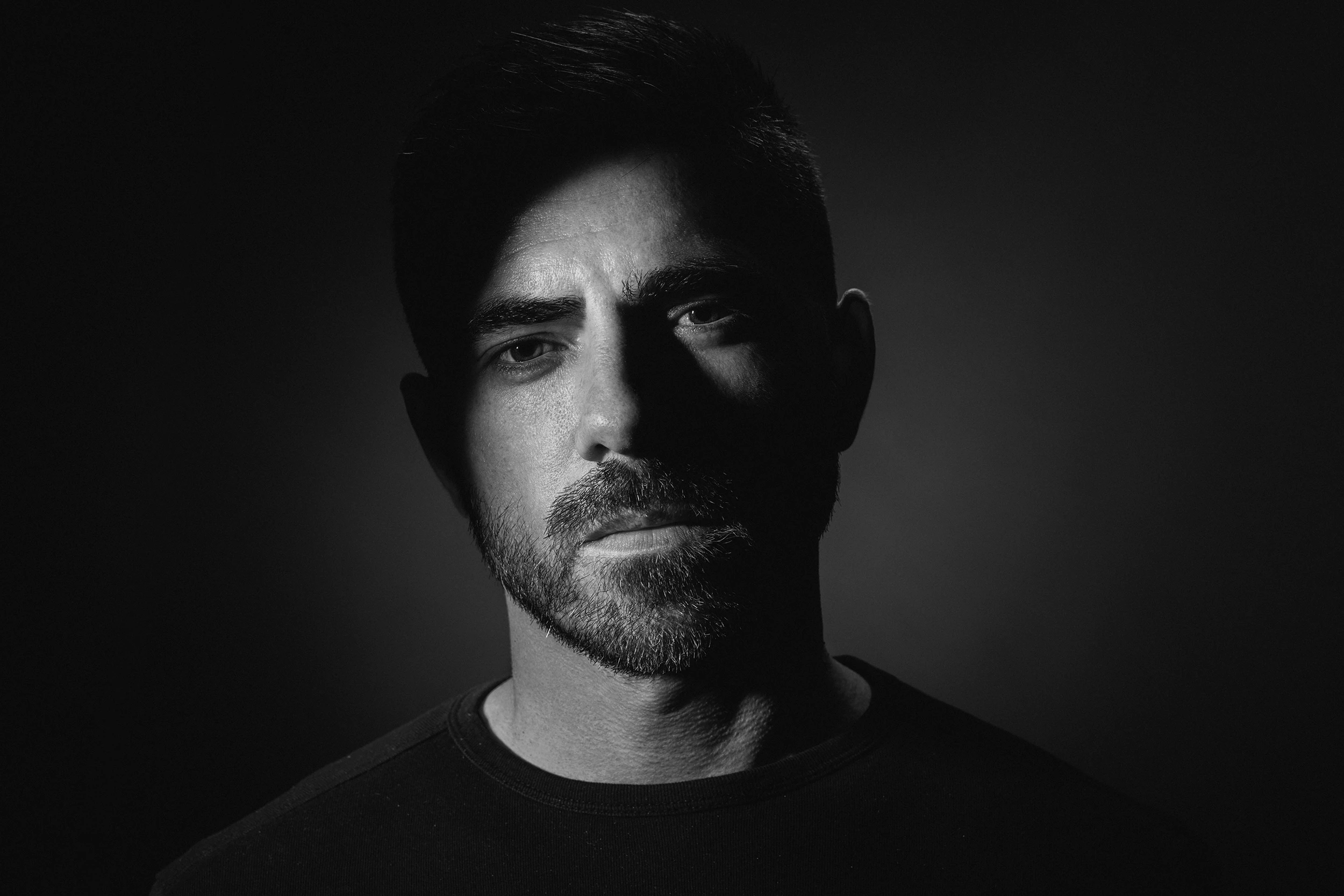
The problem is I have banding at the start when I open the raw image in 16bit (or 8 bit). I've never had a problem like this, but never,
Watch the video (video compression emphazise banding but banding is certainly noticeable when I work at PS)
download link:
https://drive.google.com/open?id=1voXAMNZHWIN770hjtS_6-qUKJTjt9Zh3 
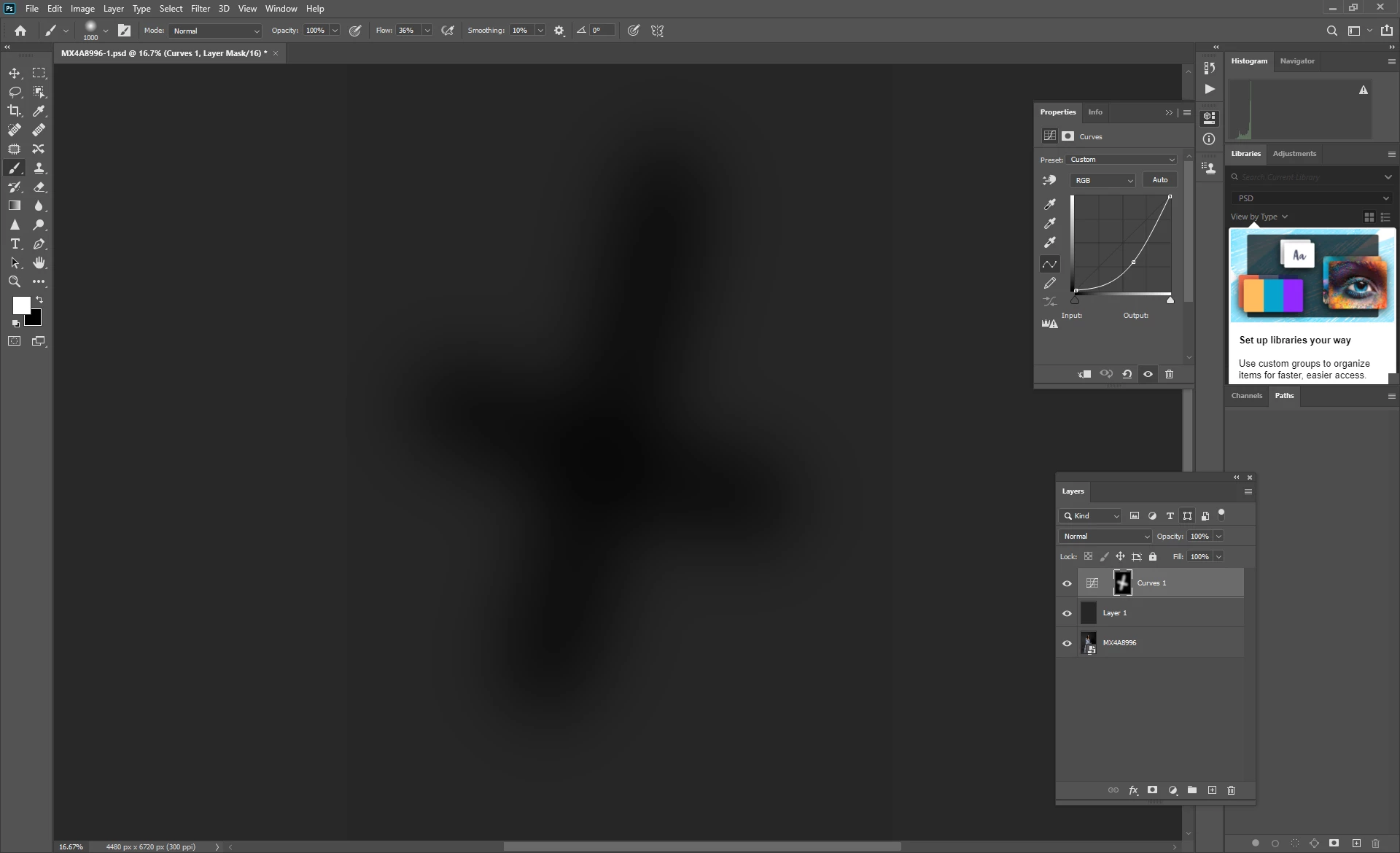
I deliberately played with exposure/offset/gamma sliders to see what's going on (I deliberately exaggerated)

I have a bending in the natural shadow that the model makes on the background


Do you realize that I can't develop a proper raw image conversion without banding or artifact at the very end.
If I just do some little editing in PS the photo falls apart.

photo of display taken with my phone


That doesn't look normal. It could be a v4 LUT profile from Colornavigator. Try making a version 2, matrix-based profile as I described above. I have a feeling that might behave better.


Is this a ProPhoto file? ProPhoto has its own problems in situations like this. There is a very long-standing bug that sometimes produces cyan/red shadow banding in ProPhoto files, if you have GPU set to "Normal" or "Advanced" mode in Preferences. I think I see a hint of cyan-red here.


It's not in the data, only display. The problem is likely in OpenGL code - but curiously MacOS, which no longer uses OpenGL, having replaced it with the native "Metal" framework, is equally affected. A theory is that Metal, for the sake of portability, uses the same calls and APIs. I don't know.


Anyway, digression aside - try an Adobe RGB file. Adobe RGB is not affected by this bug.