


Iuigidesu
Inspiring
April 27, 2024
Answered

Fix tilted text

  • April 27, 2024
  • 4 replies
  • 1013 views

Hi again, I was wondering, is there any way to fix tilted text? I got about a thousand text layers on psd files that have been tilted using the free transform tool, and I need those layers to be straight, normal, I can fix some of them manually, but some others are not so easy to spot and end up messing my work, so I was wondering if there's some kind of script that undoes(?) that. Maybe even a script that makes a new clean copy of the layer? I honestly dunno how this can be fixed, so I'd love some help here. Thanks.
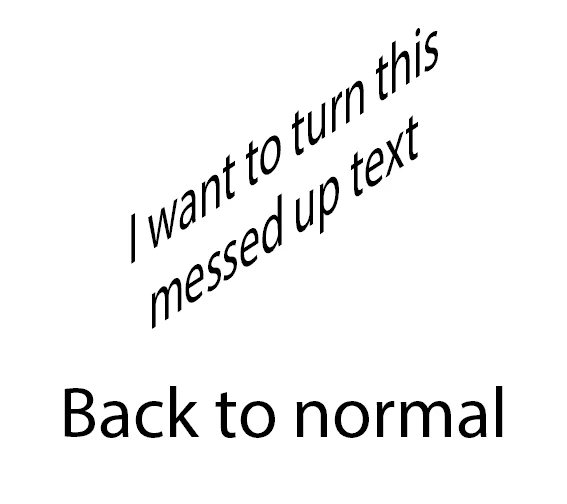
Here's a little visual representation of my problem. Thanks again 🙂

This topic has been closed for replies.
Correct answer r-bin
If you only need to cancel the transformation, then you can do this


var layer0 = app.activeDocument.activeLayer;

var r = new ActionReference();    
r.putProperty(stringIDToTypeID("property"), stringIDToTypeID("textKey"));
r.putEnumerated(stringIDToTypeID("layer"), stringIDToTypeID("ordinal"), stringIDToTypeID("targetEnum"));

var textKey = executeActionGet(r).getObjectValue(stringIDToTypeID("textKey"));
textKey.erase(stringIDToTypeID("transform"));

var r = new ActionReference();
r.putClass(stringIDToTypeID( "textLayer"));
var d = new ActionDescriptor();
d.putReference(stringIDToTypeID("null"), r);
d.putObject(stringIDToTypeID("using"), stringIDToTypeID("textLayer"), textKey);
executeAction(stringIDToTypeID("make"), d, DialogModes.NO);

layer0.remove();


4 replies

r-binCorrect answer
Legend
April 27, 2024
If you only need to cancel the transformation, then you can do this


var layer0 = app.activeDocument.activeLayer;

var r = new ActionReference();    
r.putProperty(stringIDToTypeID("property"), stringIDToTypeID("textKey"));
r.putEnumerated(stringIDToTypeID("layer"), stringIDToTypeID("ordinal"), stringIDToTypeID("targetEnum"));

var textKey = executeActionGet(r).getObjectValue(stringIDToTypeID("textKey"));
textKey.erase(stringIDToTypeID("transform"));

var r = new ActionReference();
r.putClass(stringIDToTypeID( "textLayer"));
var d = new ActionDescriptor();
d.putReference(stringIDToTypeID("null"), r);
d.putObject(stringIDToTypeID("using"), stringIDToTypeID("textLayer"), textKey);
executeAction(stringIDToTypeID("make"), d, DialogModes.NO);

layer0.remove();


Stephen Marsh
Community Expert
Community Expert
April 27, 2024

The following "Undeform" script automates this and works on multiple selected layers:


https://www.mightyplugins.cc/magic-scripts

https://www.youtube.com/watch?v=Y0ZWyNQvAbQ

Iuigidesu
IuigidesuAuthor
Inspiring
April 28, 2024

WHAAAAT!?!?!?!? It does exactly what i want, and even keeps the effects, so it's perfect.
Thank you so much!!!!

Trevor.Dennis
Community Expert
Community Expert
April 27, 2024

Double click the text layer to load it all, and select it with Ctrl/Cmd C

That puts the text with same font, settings, and original size (if size was changed with the Free Transform) into the clipboard.

Click in the document window with Type tool selected, and use Ctrl v to paste the text from the clipboard.  That works if you are OK with it being the original size and aspect ratio.

Iuigidesu
IuigidesuAuthor
Inspiring
April 27, 2024

This is actually working, is doing pretty much what I wanted, but i gotta do it layer by layer, any idea on how to automate this?

barbara_a7746676
Community Expert
Community Expert
April 27, 2024

If the text is a Smart Object, you can right click on the text layer in the Layers panel and choose Reset Transform from the list of commands.

If the text is not a Smart Object, there's no easy way to reset it.