
Participant
May 12, 2022
Answered

Fonts Photoshop appear thicker. HELP

  • May 12, 2022
  • 1 reply
  • 6875 views

Hey Peeps!


Got a problem. Whe i try to use text and I'm done typing and deselect the layer the font seems to get a outline (a few pixles) and it makes thin font unusable. While the same font works perfectly in premiere and others.
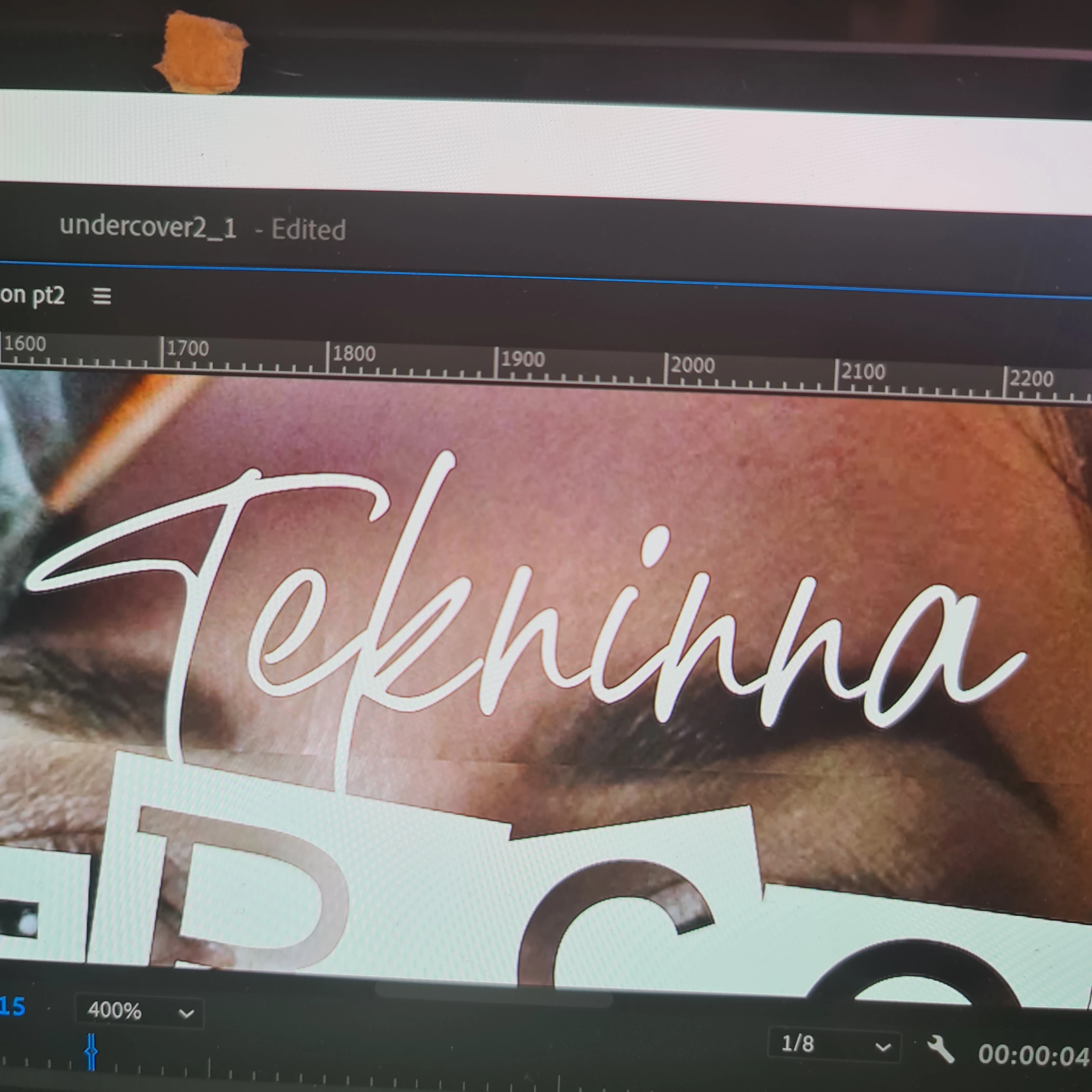
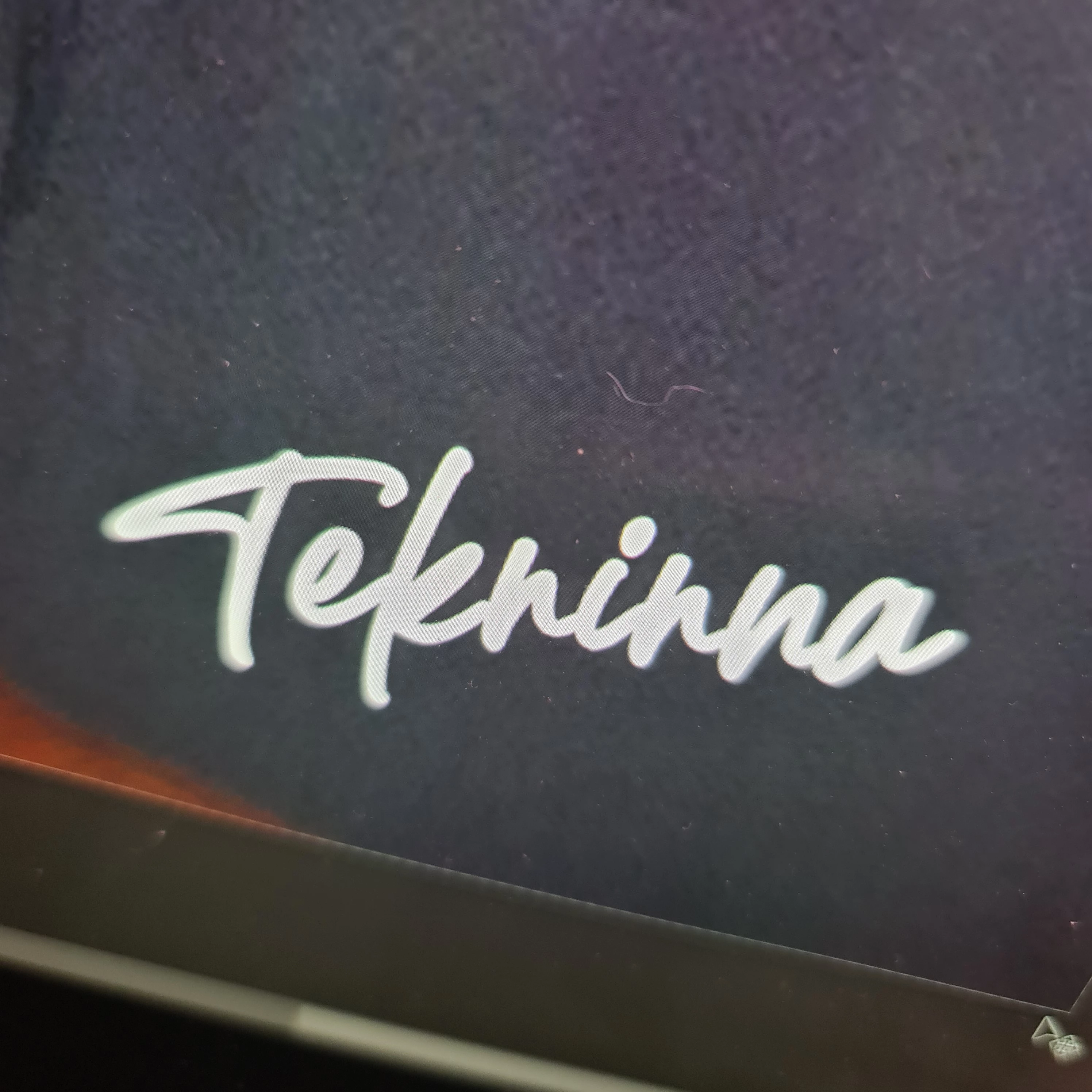
Can't find this problem or a solution to it anywhere.


Thanks

DAVE

Correct answer jane-e

@dave242114299lhi 


How does the text look when you change the view from 400% to 100%?


If there is still an issue, highlight some of the text with the type tool and share a screenshot with the selected text and the Character panel (Window menu). Screenshots and photos from your phone are not the same thing. Please take a screenshot instead of a photo:


Jane


1 reply

Ranjisha Sengupta
Legend
May 12, 2022

Hi there,


We're sorry to hear that the font looks different in Photoshop. Thanks for reaching out. We're here to help.

Which version of Photoshop are you using? Is Anti-Aliasing ON? What is the file size you are working on?
Did you drag-drop the Text layer or create one in the file?

The most common reason for pixelated text on Photoshop is Anti-Aliasing. This is a setting on Photoshop that helps jagged edges of images or text to appear smooth. Selecting this tool will help blur the edges of your text, giving it a smoother appearance. So, in this case, you need to change it to Crisp.


Check this video for more details: https://learn-photoshop.club/resources/pixelated-text-easy-fixes/#:~:text=The%20most%20common%20reason%20for,giving%20it%20a%20smoother%20appearance.


Let us know how it goes.


Regards,

Ranjisha


jane-e
Community Expert
jane-eCommunity ExpertCorrect answer
Community Expert
May 12, 2022

@dave242114299lhi 


How does the text look when you change the view from 400% to 100%?


If there is still an issue, highlight some of the text with the type tool and share a screenshot with the selected text and the Character panel (Window menu). Screenshots and photos from your phone are not the same thing. Please take a screenshot instead of a photo:


Jane


Participant
September 15, 2023

All responses helped me find the solution. 

Select the text so you're able to type the text you want, then right-click on your text, and in the dropdown menu, I found (Faux Bold) selected/ticked. Select this at the bottom of the dropdown menu to unselect/untick this option to resolve your issue. 

Worked for me, but this article got me there, so thank you all!