



Question
Foreground Composite Caching causes viewport compositing artifacts while painting beneath semi-transparent groups (Photoshop 27.x)
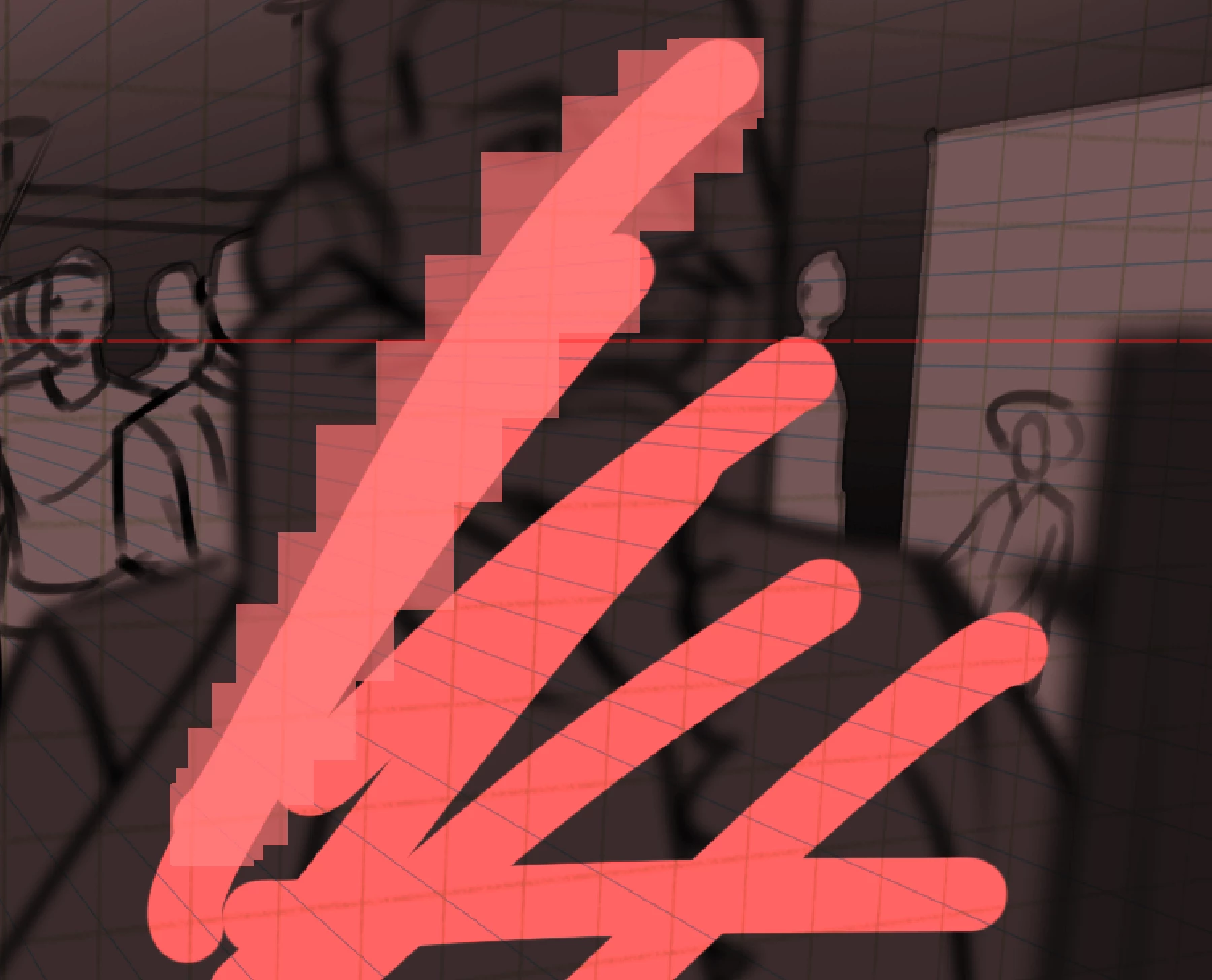
Since Photoshop 27.x, painting or erasing beneath a semi-transparent group produces temporary viewport compositing artifacts when Foreground composite caching (found under the Performance menu) is enabled.
The problem is completely reproducible and was not present in Photoshop 26.x.
Disabling Foreground composite caching immediately resolves both the artifacts and, on my system, actually improves responsiveness. No restart is required.
System
- Photoshop 27.x (all tested 27.x versions)
- Windows 11 Home
- Intel Core i9-13900
- 64 GB RAM
- NVIDIA GeForce RTX 3070 Ti
- NVIDIA Studio Driver (latest available)
- GPU Acceleration ON
- Multithreaded Compositing ON
Steps to reproduce
- Enable Use Graphics Processor.
- Enable Foreground composite caching.
- Create a Group.
- Set the Group Opacity to less than 100%.
- Place two or more Normal layers inside the Group. There must be artwork on at least one of the layers.
- Paint or erase on a layer below the Group.
Result
Temporary square or tiled viewport artifacts appear along the brush stroke.
The artifacts:
- only affect display,
- disappear after panning or beginning another brush stroke,
- disappear immediately when Foreground composite caching is disabled.
During testing I found:
- One Normal layer inside the Group → No artifacts
- Two or more Normal layers inside the Group → Artifacts
- Group Opacity at 100% → No artifacts
- Lower Group Opacity → More pronounced (Screen-like) artifacts
- Fill Opacity behaves differently (Multiply-like appearance), suggesting different compositing paths.
- GPU disabled → No artifacts.
- Photoshop 26.x → No artifacts.
- Photoshop 27.x → Reproducible.
Workaround
Disable:
Preferences → Performance → Foreground composite caching
No restart required.
 AdChoices