Known Participant
November 28, 2024
Answered

Generativ fill - is it possible to transform the generated background

  • November 28, 2024
  • 1 reply
  • 403 views
  • Unfortunately I can't find an answer to my question resp. a discussion that helps.

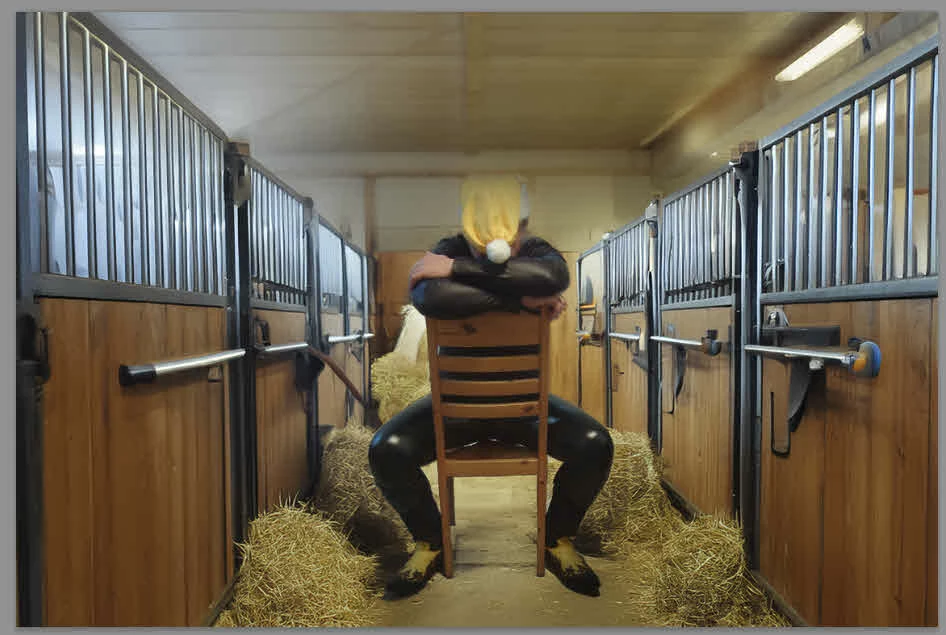
    I have used the generative filling to get a new background for my image. KI has generated some that i like to use, but the proportions/ration of my motiv and the background don't fit. So I would like to transform either the generated background or my motiv, but I don't know if or how it is possible.

    So at first I want to ask in the community is that possible?

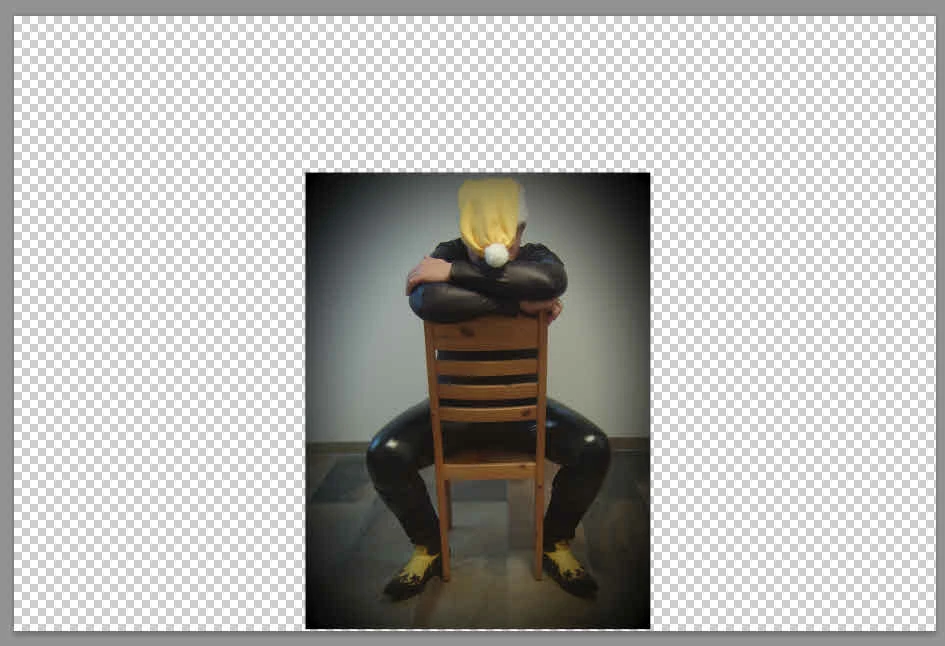
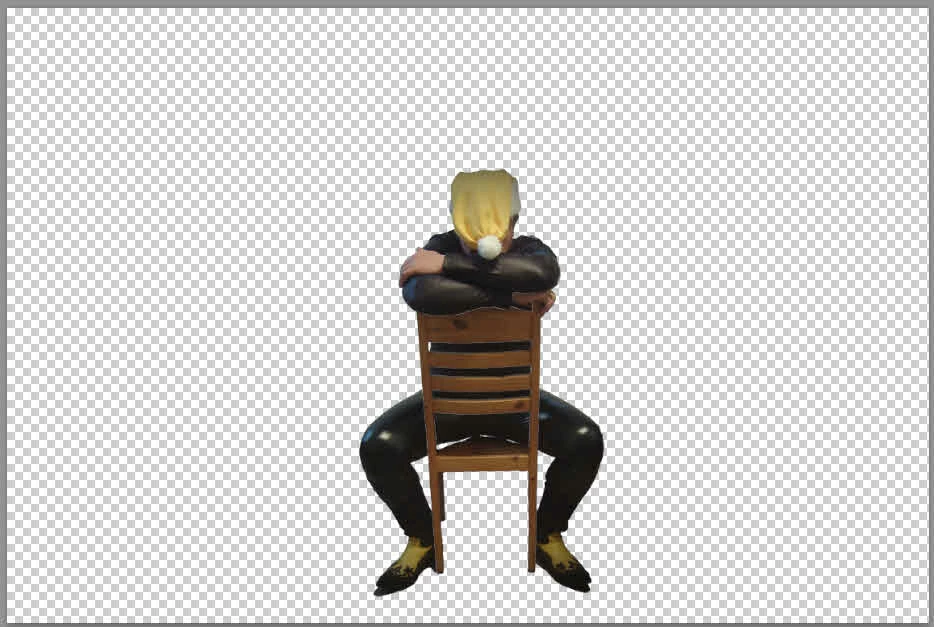
    Attached you will see three screenshots:
  • my original photo
  • my selection/masked motive
  • result of generative filling

Many thanks in advance for any answer/tipp.

PS:

I'm not a native speaker, but I hope you understand my question
This topic has been closed for replies.
Correct answer Myra Ferguson

Yes, you can adjust the proportions of the subject to better match the generated background. The process would be the same as if you were adjusting the scale of the subject in its original background.


Here's how:

  1.  Select the layer with the subject
  2. Duplicate that layer (Layer > New > Layer via copy)
  3. Select the subject on the top copy of the layer using either Select Subject or the Object Selection Tool and refine the selection as needed
  4. Invert the selection (Select > Inverse)
  5. Create a Layer Mask based on the selection (click the 3rd icon from the left at the bottom of the Layers panel or go to Layer > Layer Mask > Reveal Selection)
  6. Use Free Transform (Edit > Free Transform) to proportionally scale the subject to an appropriate size
  7. Hide this layer and select the duplicate layer below it
  8. Use Content Aware Fill, Generative Fill, the Remove Tool, and or the Clone Tool to completely remove the subject from the layer--focusing mainly on the area that will show when the subject has been scaled down

1 reply

Myra Ferguson
Community Expert
Myra FergusonCommunity ExpertCorrect answer
Community Expert
November 28, 2024

Yes, you can adjust the proportions of the subject to better match the generated background. The process would be the same as if you were adjusting the scale of the subject in its original background.


Here's how:

  1.  Select the layer with the subject
  2. Duplicate that layer (Layer > New > Layer via copy)
  3. Select the subject on the top copy of the layer using either Select Subject or the Object Selection Tool and refine the selection as needed
  4. Invert the selection (Select > Inverse)
  5. Create a Layer Mask based on the selection (click the 3rd icon from the left at the bottom of the Layers panel or go to Layer > Layer Mask > Reveal Selection)
  6. Use Free Transform (Edit > Free Transform) to proportionally scale the subject to an appropriate size
  7. Hide this layer and select the duplicate layer below it
  8. Use Content Aware Fill, Generative Fill, the Remove Tool, and or the Clone Tool to completely remove the subject from the layer--focusing mainly on the area that will show when the subject has been scaled down
PeterB.Author
Known Participant
November 30, 2024

Many thanks Myra,

your instructions helped me much. I still don't have the result I wish to have, but now I know which tools could help. I have shrinked the motive succesfully, but I have still to work on background and to find the best tool to fill the now empty area so it looks a bit more realistic.

Myra Ferguson
Community Expert
Community Expert
November 30, 2024

You're very welcome. 🙂


When you work on filling in the area behind the subject, remember that the portion that gets covered up by the subject doesn't have to be perfect. Concentrate on edges. Good luck!