Participant
August 13, 2026
Answered

Generative AI Inpainting not working

  • August 13, 2026
  • 4 replies
  • 35 views

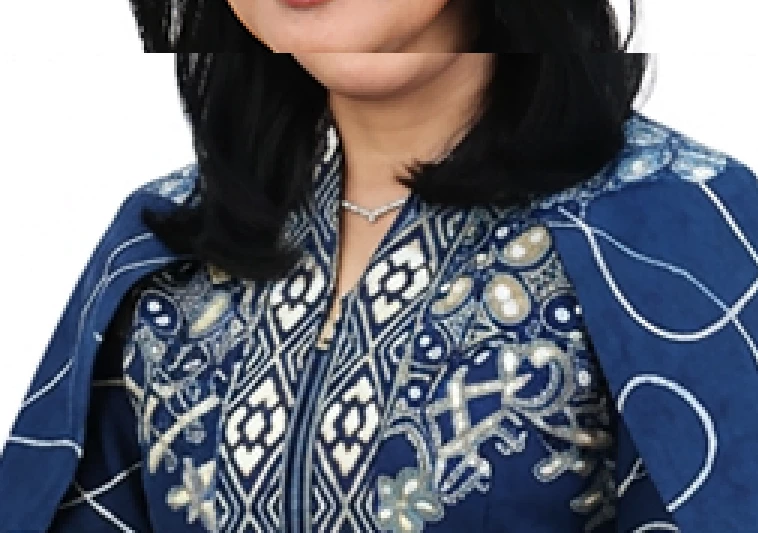
Hello, I have a question about inpainting with Generative Fill in Adobe Photoshop. Two months ago, I could simply use a rectangular selection tool on a photo, and the AI would inpaint it flawlessly, with seamless continuation of clothing color and skin tone. Now, however, the results are messy the inpainting doesn't match the surrounding image, and sometime generates an entirely new, different-looking person within the selection.

 

    Correct answer c.pfaffenbichler

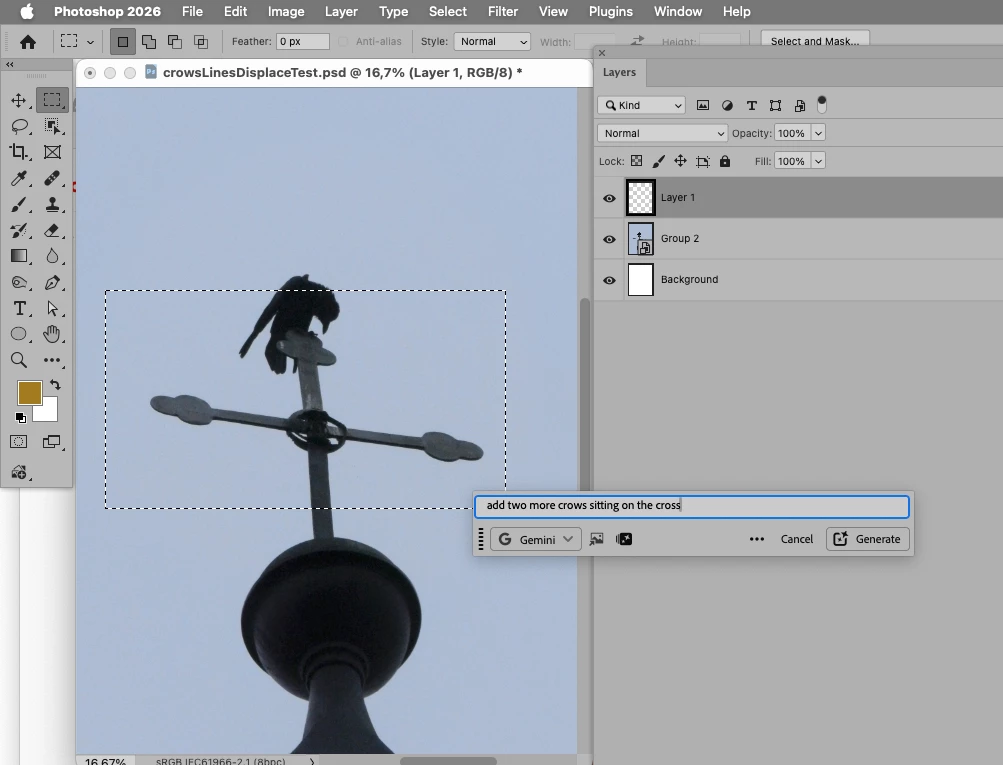
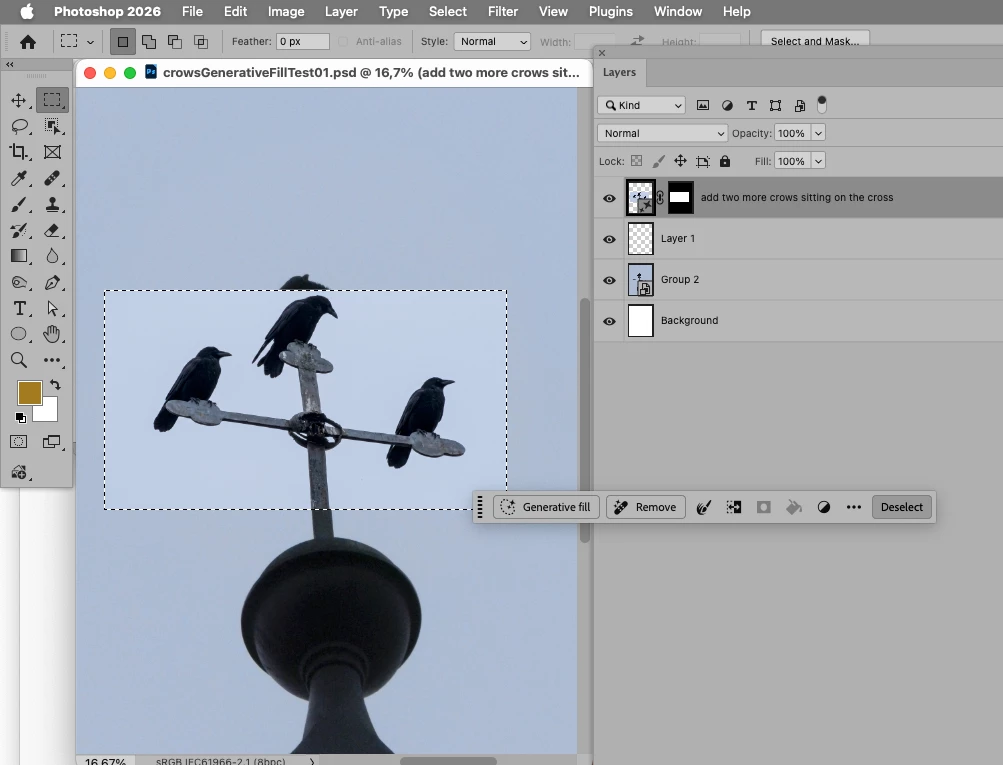
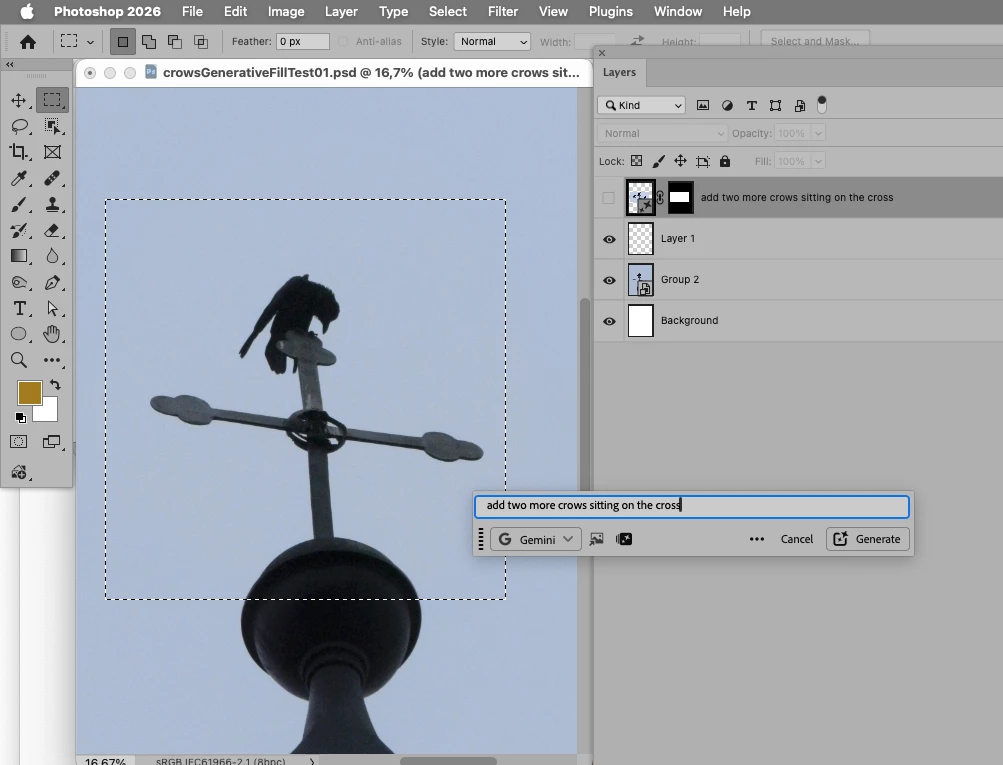
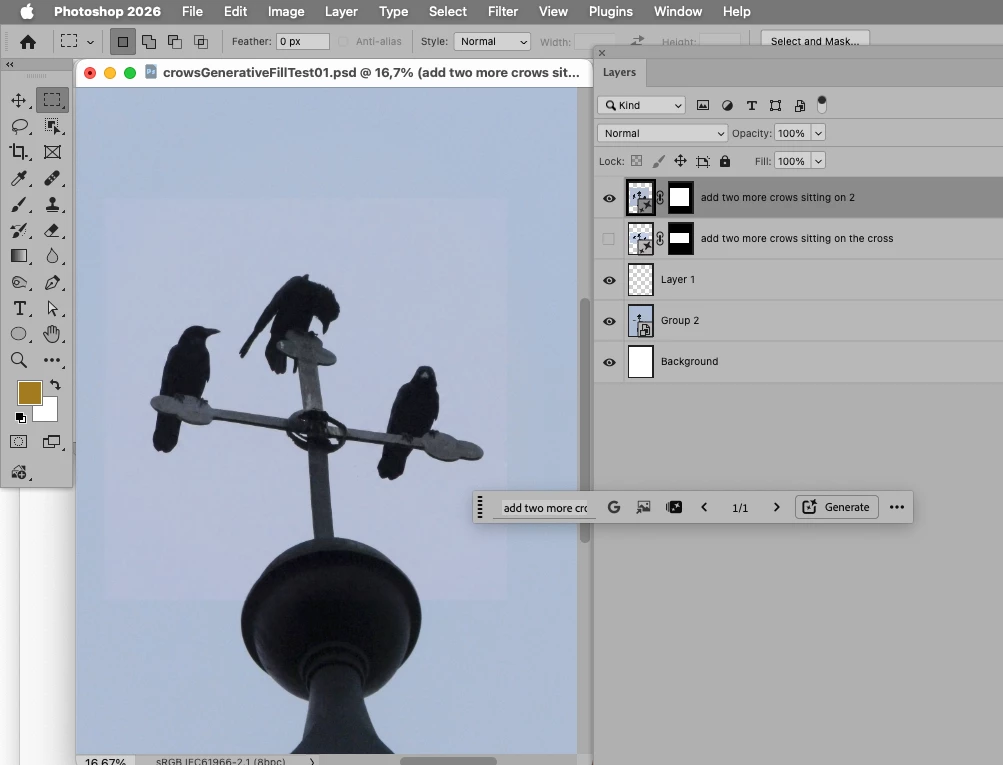
    If you are using one of the partner Models (Nano Banana, …) try making sure the Selection is square. 


    Edit: 

    rectangular non-square selection: 


    square selection: 


    4 replies

    Participant
    August 13, 2026

    I've noticed the same drop in quality recently, mostly on shots where the selection isn't square, so the square-selection tip above matches my experience too. Also worth trying: shrink the selection so it hugs the area you actually want changed instead of leaving a lot of clean background inside it, that seemed to give me more consistent skin tone and color matching than a loose selection.

    c.pfaffenbichler
    Community Expert
    Community Expert
    August 13, 2026

    In my experience the non-square Selections only cause problems with the partner models, though, whereas Firefly seems to do fine with those. 

    Obviously Firefly may not fully meet certain expectations … 

    c.pfaffenbichler
    Community Expert
    c.pfaffenbichlerCommunity ExpertCorrect answer
    Community Expert
    August 13, 2026

    If you are using one of the partner Models (Nano Banana, …) try making sure the Selection is square. 


    Edit: 

    rectangular non-square selection: 


    square selection: 


    c.pfaffenbichler
    Community Expert
    Community Expert
    August 13, 2026

    Which Model/s are you using – Firefly Fill > Expand, Firefly Image 5, …? 

    Could you please post screenshots with the pertinent Panels (Toolbar, Layers, Properties, Options Bar, …) visible that show the Selection, your prompt, the result, …?