December 20, 2025
Answered

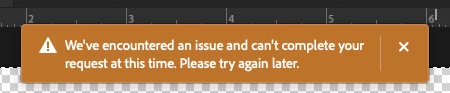
Generative fill error again today

  • December 20, 2025
  • 1 reply
  • 179 views

Correct answer Srishti_Bali

Hi @steel_man_161


Thanks for reporting this and for sharing the screenshot. I’m sorry you’re running into repeated Generative Fill errors. To help us investigate further, could you please share a few details?

  • Photoshop version (Help > About Photoshop)

  • macOS version

  • Whether this happens with all files or only a specific document.

  • Does the error occur consistently, or does it work after retrying later?


In the meantime, you can try the following steps and let us know if anything helps:

  1. Sign out of your Adobe account and sign back in.
  2. Restart Photoshop and your system.
  3. Check your internet connection and try switching networks (for example, a mobile hotspot).
  4. Disable any VPN or firewall temporarily and test again.
  5. Try the same action in a new, smaller test document to see if the behavior changes.
  6. Make sure Photoshop is updated to the latest version via the Creative Cloud app.


Once we have the details above, we’ll be in a better position to narrow down the cause. Thanks for your patience, and we’ll look into this with you.


Regards,

Srishti

1 reply

Srishti_Bali
Srishti_BaliCorrect answer
Legend
December 22, 2025

Hi @steel_man_161


Thanks for reporting this and for sharing the screenshot. I’m sorry you’re running into repeated Generative Fill errors. To help us investigate further, could you please share a few details?

  • Photoshop version (Help > About Photoshop)

  • macOS version

  • Whether this happens with all files or only a specific document.

  • Does the error occur consistently, or does it work after retrying later?


In the meantime, you can try the following steps and let us know if anything helps:

  1. Sign out of your Adobe account and sign back in.
  2. Restart Photoshop and your system.
  3. Check your internet connection and try switching networks (for example, a mobile hotspot).
  4. Disable any VPN or firewall temporarily and test again.
  5. Try the same action in a new, smaller test document to see if the behavior changes.
  6. Make sure Photoshop is updated to the latest version via the Creative Cloud app.


Once we have the details above, we’ll be in a better position to narrow down the cause. Thanks for your patience, and we’ll look into this with you.


Regards,

Srishti