
Participant
September 14, 2023
Answered

Getting artifacts while converting PNG to JPEG format in Photoshop

  • September 14, 2023
  • 1 reply
  • 341 views

Hi, I am having trouble with this dashed lines when converting to PNG and JPEG. I just want to know how to fix this, or is it a computer issue?
 

This is my  computer spec
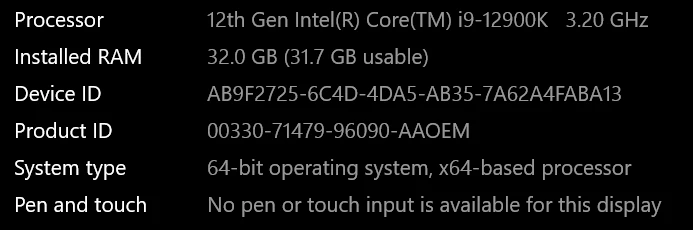


Photoshop is up to date too.


Thanks!


{Edited the thread title by the moderator}
This topic has been closed for replies.
Correct answer Sameer K

Hey, @DiplomatBlades. I'll need specific info to help you figure this out. Will separate your response to a separate thread for now.


Please share the system info from Photoshop Help > System info > Copy & paste into a text document > upload & attach here.


Send us the screenshot of your Export As or Save as workflow that you use to save the PNG files.

Ensure Photoshop is in the default state, go to the location of the preference folder below, and rename it to backup. https://helpx.adobe.com/photoshop/using/preferences.html


  • Windows 10/11: Users/[user name]/AppData/Roaming/Adobe/Adobe Photoshop [version]
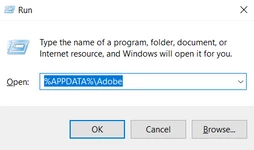
  • Press Windows + R & type this is the Run Window - %APPDATA%\Adobe


  • Rename the Adobe Photoshop folder by adding a .old at the end. (Adobe Photoshop 2024 > Rename > Adobe Photoshop 2024. old)


These changes will give a fresh start to Photoshop as a fresh install. Let me know if the issue exists.

Thanks!

Sameer K

1 reply

Sameer K
Community Manager
Sameer KCommunity ManagerCorrect answer
Community Manager
October 4, 2023

Hey, @DiplomatBlades. I'll need specific info to help you figure this out. Will separate your response to a separate thread for now.


Please share the system info from Photoshop Help > System info > Copy & paste into a text document > upload & attach here.


Send us the screenshot of your Export As or Save as workflow that you use to save the PNG files.

Ensure Photoshop is in the default state, go to the location of the preference folder below, and rename it to backup. https://helpx.adobe.com/photoshop/using/preferences.html


  • Windows 10/11: Users/[user name]/AppData/Roaming/Adobe/Adobe Photoshop [version]
  • Press Windows + R & type this is the Run Window - %APPDATA%\Adobe


  • Rename the Adobe Photoshop folder by adding a .old at the end. (Adobe Photoshop 2024 > Rename > Adobe Photoshop 2024. old)


These changes will give a fresh start to Photoshop as a fresh install. Let me know if the issue exists.

Thanks!

Sameer K