

Known Participant
Nov 5, 2026 9:02 AM UTC
Question

glare

Hello!

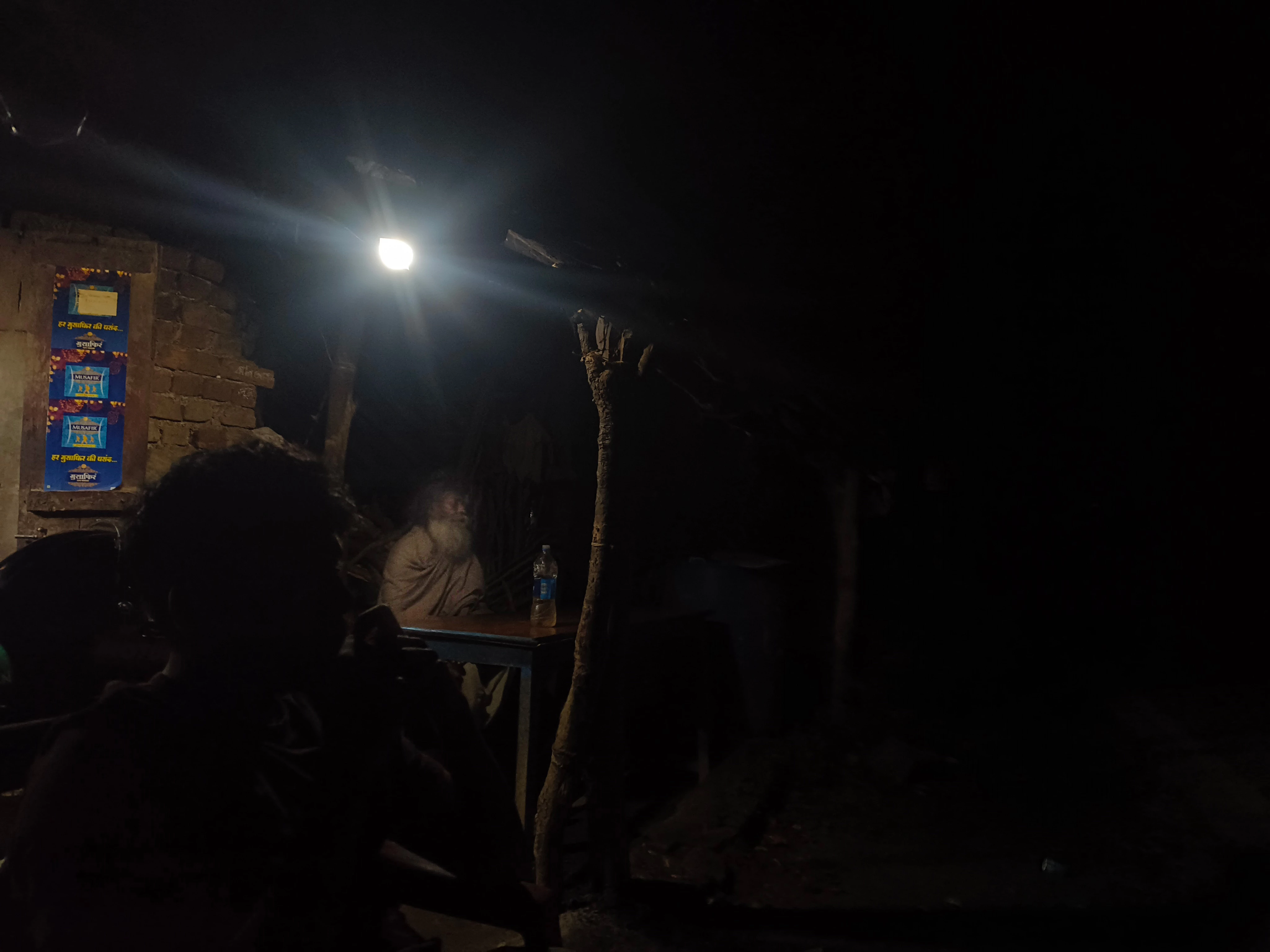
Is there a way to reduce the glare from the bulb above?

Thank you

    3 replies

    Conrad_C
    Community Expert
    Community Expert
    Nov 5, 2026 9:47 PM UTC

    Another way is to take advantage of the newest adjustment layers. The demo below adds just two of them.

    In the Light layer, Exposure is increased so you can see more of the rest of the image, then Highlights is reduced to cut the light bulb glare. Then a Clarity and Dehaze layer is added; increasing Clarity helps reduce the glare a little but increasing Dehaze helps a lot more (so you might not even bother with Clarity). At the end I toggle between the original image only, and with the added adjustment layers, so you can see the difference.


    If you want to have more control, like restricting the adjustments to the ceiling light area, you can mask the adjustment layers.

    Translate
    davescm
    Community Expert
    Community Expert
    Nov 5, 2026 4:10 PM UTC

    A simple black fill layer, set to multiply blend mode and masked should remove the light. Then add a curve to brighten the wanted detail and perhaps a crop.


    Dave

    Translate
    CORCTON34033231
    Community Expert
    Community Expert
    Nov 5, 2026 11:58 AM UTC

    Hi Adooby-doobie — yes, you can reduce it, though the bulb itself is fully blown out, so there is no detail to recover there. The aim is to rebuild that area so it blends in.


    The quickest way: select the bulb and the streaks of glare with a selection tool (for example the Selection Brush), then choose Generative Fill in the Contextual Task Bar and leave the prompt blank — Photoshop fills the selection to match its surroundings. Check the variations in the Properties panel and pick the one that looks most natural.


    For more control, use the Clone Stamp tool instead: Alt/Option-click a clean dark area nearby to sample it, then paint over the glare. Work on a new layer with Sample set to Current & Below, so you can lower the layer opacity if the repair looks too flat.

    Translate