


Participant
September 10, 2024
Answered

Gradient mask tools/handles keep disappearing. How to turn on gradient mask tools/handles?

  • September 10, 2024
  • 1 reply
  • 2178 views

Hello Photoshop users,


I'm looking for a solution to this problem relating to the Gradient tool. Many thanks for anyone's input in advance!


I've created a blur mask using: ( Layer > Layer Mask > Reveal All ), applying a Gaussian Blur smart filter, and using the Gradient tool on the Layer Mask.


My Layer Mask in Layers panel:
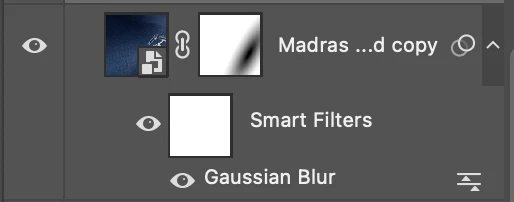
 

But when trying to edit the gradient layer mask by clicking on it, with the Gradient tool selected and active, the handles for editing radius, size, midpoint etc don't show. This means I have to click and drag out another gradient every time I want to make a minor edit.


The edit handles I'm reffering to for Gradients:
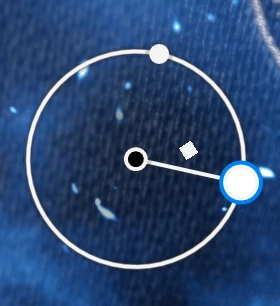
 

So the question is, how can I make the Gradient handles/corners/buttons appear when I need to make a change to my gradient?


Thanks for your time!


Let me know if there's a more suitable forum to ask this question. I couldn't find an asnwer to this online so far which worked.


Cheers,

Ciaran
Correct answer Semaphoric

The controls only stay there for Gradient Fill layers; masks use "Classic" gradients. To do what you want, put a Gradient Fill layer below the blurred layer, using Foreground to Transparent, with the Reverse box checked.


Hold down the Option key and position the cursor between the Gradient and Blurred layers; you should see the cursor change to a small box and a bent arrow. Click to create a Clipping Mask. The blurred layer will now use the Gradient as a mask and the Gradient maintains the editing controls.

1 reply

Semaphoric
Community Expert
SemaphoricCommunity ExpertCorrect answer
Community Expert
September 10, 2024

The controls only stay there for Gradient Fill layers; masks use "Classic" gradients. To do what you want, put a Gradient Fill layer below the blurred layer, using Foreground to Transparent, with the Reverse box checked.


Hold down the Option key and position the cursor between the Gradient and Blurred layers; you should see the cursor change to a small box and a bent arrow. Click to create a Clipping Mask. The blurred layer will now use the Gradient as a mask and the Gradient maintains the editing controls.

Participant
September 10, 2024

Brilliant, that worked great. Thanks for your help!