Inspiring
September 24, 2023
Answered

Gradient overlay is shifting during export to jpg

  • September 24, 2023
  • 6 replies
  • 5129 views

Hi All,

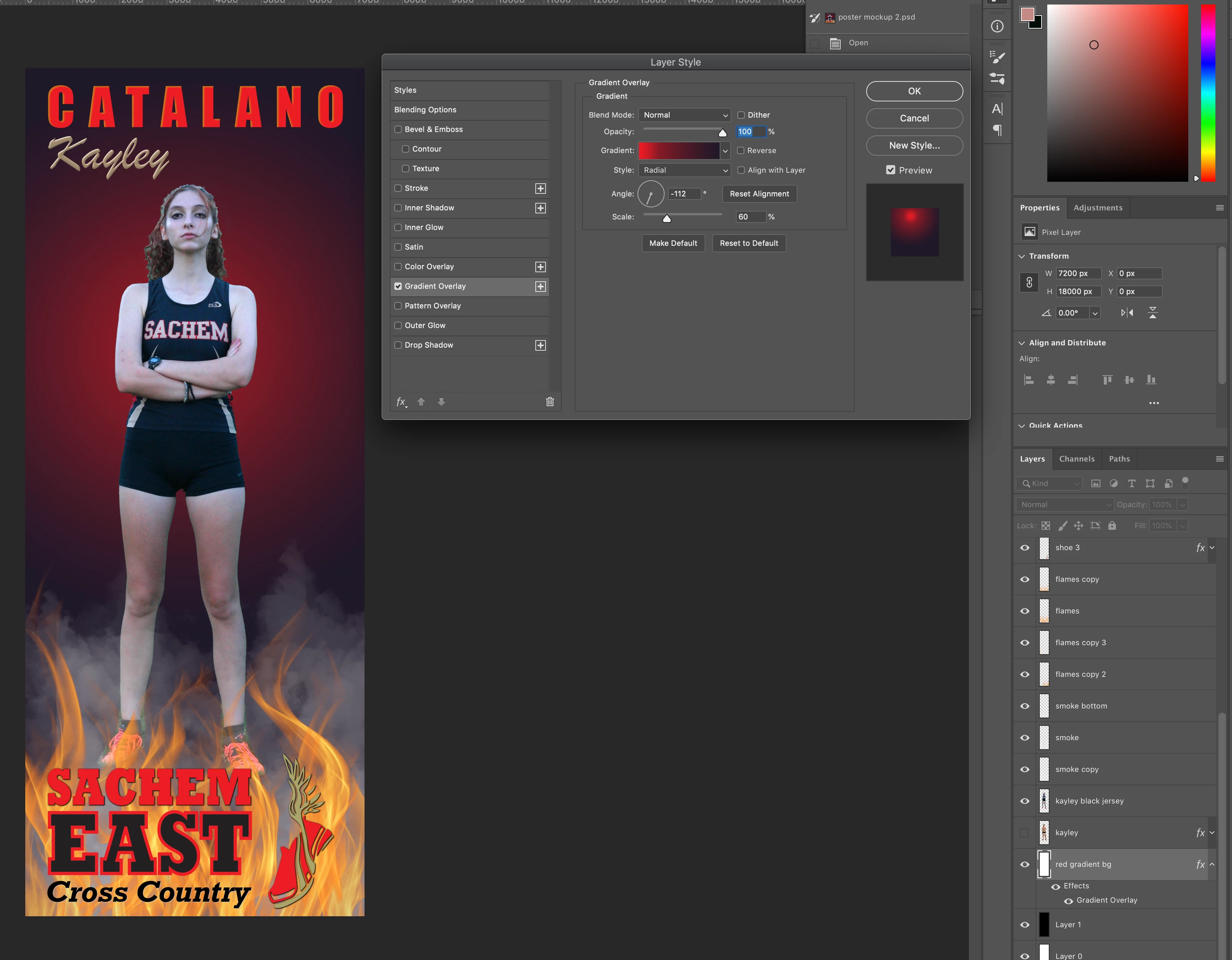
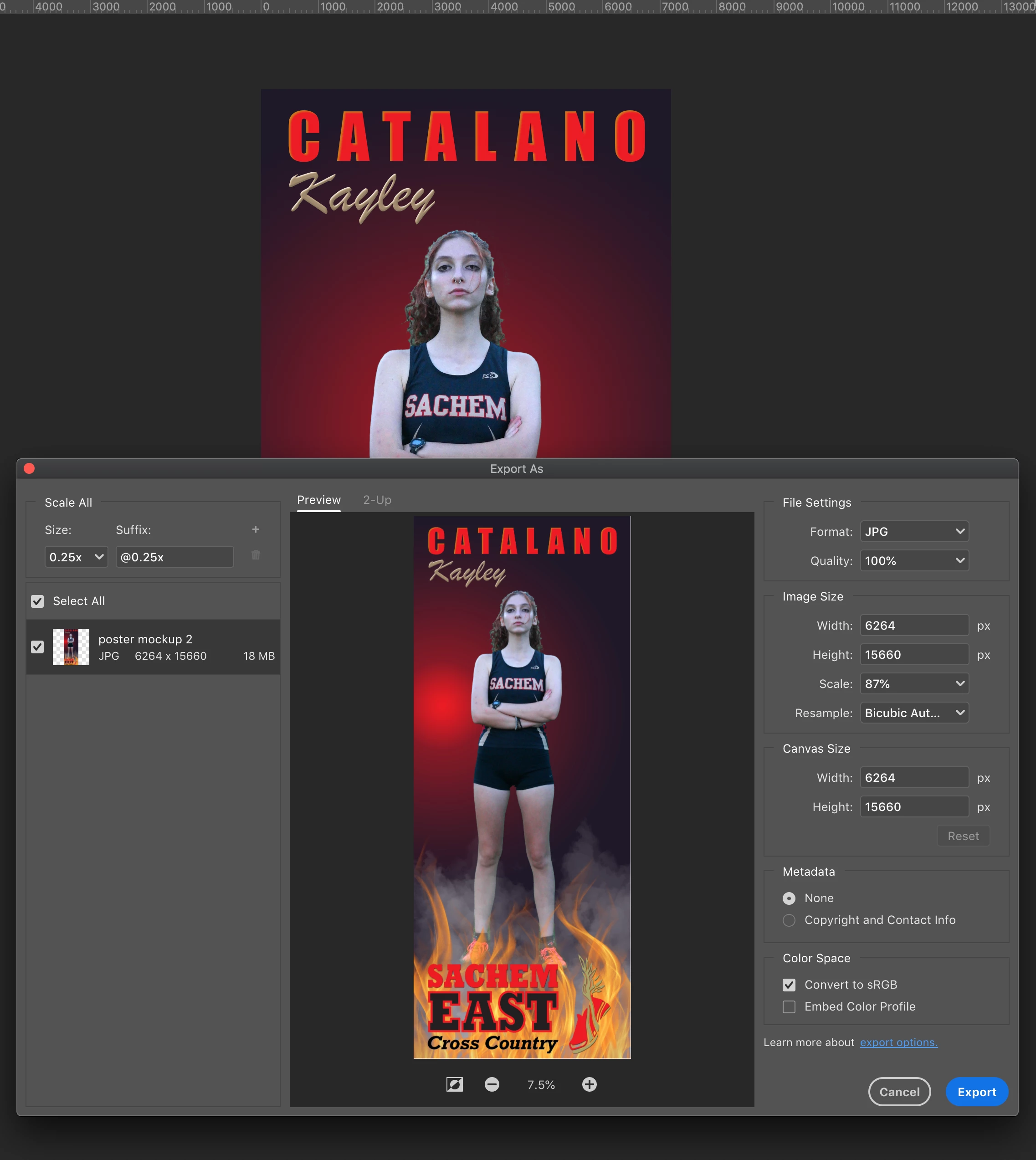
I've been working on this image for a while and it's been exporting fine for numerous revisions. Today for some reason when I go to Export As -> jpg the red/black gradient overlay is shifting to the left significanly. I've attached some screenshots to show what is happening. Any ideas why this suddenly happened?
 

Correct answer chriscatalano

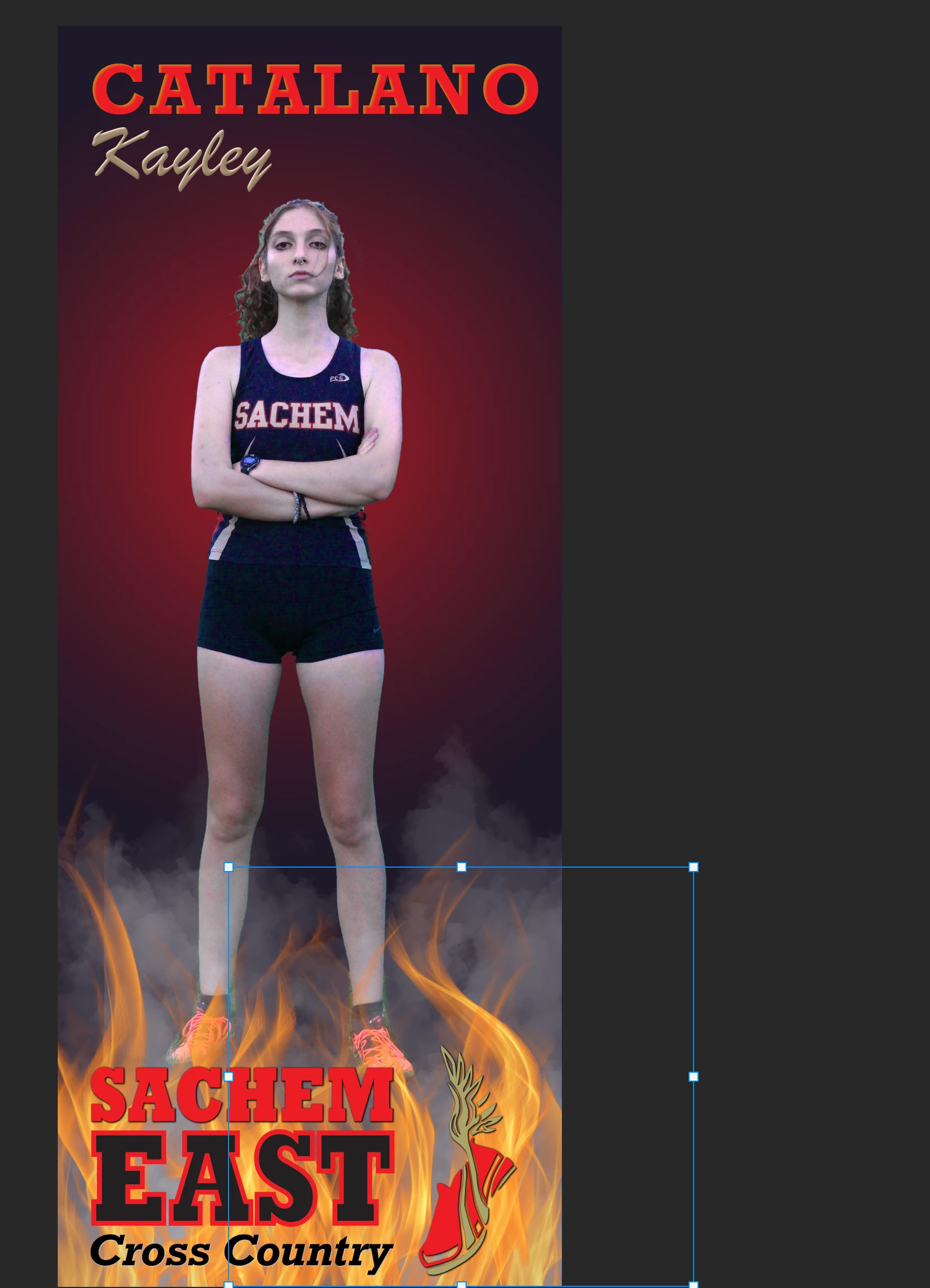
I just wanted to follow up on my own question. I found the culprit with this file. I had recently duplicated a layer and moved it so only a portion of it was within the canvas. (see attachment). That was 100% the cause of the problem. Once I cropped that layer to the canvas boundries the export problem was solved.

6 replies

Participant
May 6, 2024

Hi, I read your comment and tried something myself...I selected all the layers and hit CTRL+A (select all) then C for crop and sized it to the size of my canvas. After that it was able to export how I had it designed, your comment was so helpful thank you 

Participant
January 26, 2024

I have also that issue in gradient. I used a trick to correct this is we can duplicate that layer or group and then merge the previous layer or group by pressing CTRL+E.  In this way you have also the ability to change or update the gradients etc.


chriscatalanoAuthorCorrect answer
Inspiring
September 25, 2023

I just wanted to follow up on my own question. I found the culprit with this file. I had recently duplicated a layer and moved it so only a portion of it was within the canvas. (see attachment). That was 100% the cause of the problem. Once I cropped that layer to the canvas boundries the export problem was solved.

Earth Oliver
Legend
September 25, 2023

good that you solved it, but that's definitely still a bug.

mglush
Community Expert
Community Expert
September 24, 2023

Hi!

I don't have a fix for the problem, but I do have a workaround.

Before you export your image, merge all your layers into a top layer (keeping all the working layers in tact) by choosing Command-Option-Shift-E (Mac), Control-Alt-Shift-E (Windows). This will merge everything toghether into one layer and hopefully stop any colorshifting from happening in the Export process.

Let us know if that works or if you are still having the issue,

Michelle

Inspiring
September 25, 2023

Thank you. I believe on the Mac that Shift is not part of the key combo, however. 


@mglush wrote:

Hi!

I don't have a fix for the problem, but I do have a workaround.

Before you export your image, merge all your layers into a top layer (keeping all the working layers in tact) by choosing Command-Option-Shift-E (Mac), Control-Alt-Shift-E (Windows). This will merge everything toghether into one layer and hopefully stop any colorshifting from happening in the Export process.

Let us know if that works or if you are still having the issue,

Michelle


mglush
Community Expert
Community Expert
September 26, 2023

Hi!

I just wanted to clarify that when you want to create a new layer from all of your existing vidible layers and keep all of them in tact, shift is needed--holding down the shift key is important in the creation of a new layer. Holding just Option and Command-E will merge the selected layer with the layer underneath.

Michelle


Earth Oliver
Legend
September 24, 2023

and can i suggest that you warm up your photo before finalizing? Her complexion is incredibly blue and in the industry, we call that corpse skin.

Inspiring
September 24, 2023

Yes, that's not the final photo of the girl. That was just a quick test shot with no lighting. This was just to get some feedback on the overall layout/design. Thanks though!

Earth Oliver
Legend
September 24, 2023

yes, this is a bug with Export As and Adobe is aware of it. Hopefully a fix will be included with the next update. Until then, flatten first, then Export.

Inspiring
September 24, 2023

That's interesting because it had been working for several revisions of this document. The only thing I did today was to duplicate one of the flame and one of the smoke layers to give some more depth. Could it be the overall document size that 'broke' the function?


@Earth Oliver wrote:

yes, this is a bug with Export As and Adobe is aware of it. Hopefully a fix will be included with the next update. Until then, flatten first, then Export.