
chrisb33930735
Participant
June 26, 2023
Answered

Gradients not exporting with image

  • June 26, 2023
  • 33 replies
  • 20038 views

Something really strange is going on. My gradients look fine when I'm editing, but when I export, it's only showing the leftmost color. I've attached images.


Correct answer c.pfaffenbichler

Here's a better screenshot. I cannot provide the file due to copyright issues.
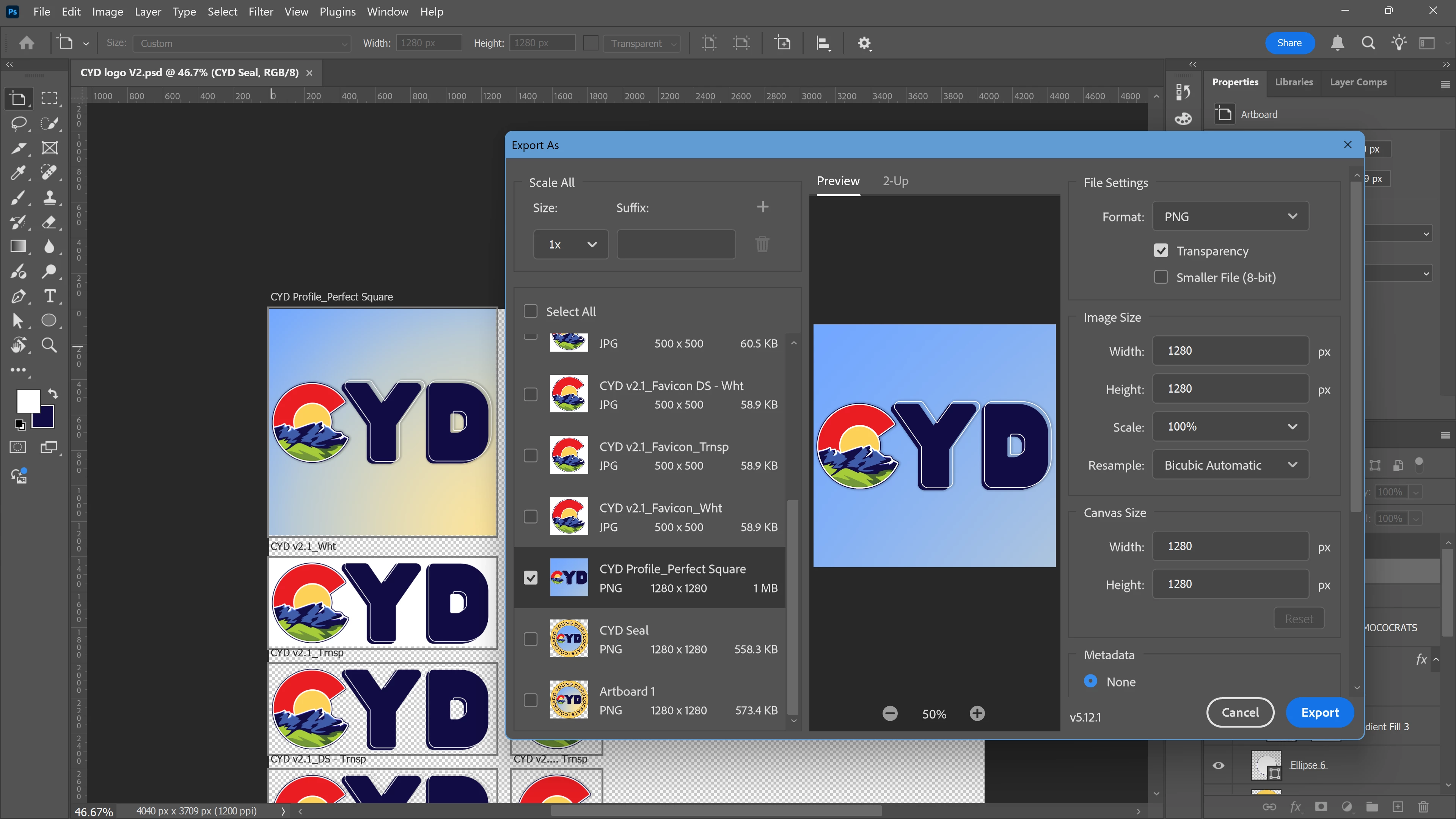


If I remeber correctly this is a known issue with »Export As«. 

In the meantime please use the work-around of applying a Layer Mask (of the Artboard’s dimensions) to the Gradient Layer or convert it to a Smart Object. 

33 replies

Participant
January 19, 2024

Just had this happen this moring!! 

Participant
January 17, 2024

Two people on my team, myself included, are also having this issue!

Participant
December 21, 2023

I am also having this issue and it seems like it still hasn't been addressed by Adobe. 

Participant
November 9, 2023

@Emma22380609293l. To keep your original template intact and work non-destructively, the best way is to duplicate the file before proceeding to flatten the images.

Participant
November 8, 2023

I'm having the exact same issue. I have gradient on my text (light orange to white), but when I export it, it's just white. Problem is that this file serves as a template, so I still have to be able to edit the text,... So I probably can't use the method of flattening the image, right?

Participant
August 1, 2023

Thanks for the helpful tips. After flattening the layers, I achieved a good result.

Participant
August 1, 2023

Since updating my Photoshop to the latest version, I have been experiencing the same issue.

mglush
Community Expert
Community Expert
June 28, 2023

I'm glad it works (as a work around!), and yes, by you posting your issue here in the forums, I am sure they are aware of it. Hopefully, they can figure out why it's happening and get it taken care of.

Michelle

chrisb33930735
Participant
June 28, 2023

Thanks for getting back to me! For some reason, it looks like flattening the image works!


I can use that as a workaround for now, but I'm curious if the Adobe team knows what's going on just in case others run into this issue.

Participant
November 5, 2024

Hey, you can also merge all the layers with alt + ctrl + shift + e hotkey. This will create a new layer from all the others in your project. This way there's no need to create another file. Works the same way.

mglush
Community Expert
Community Expert
June 28, 2023

And thanks for posting the screenshot of your workspace window!