
davida26488130
Participating Frequently
April 7, 2019
Answered

Green tint in the shadows (no one talks about)

  • April 7, 2019
  • 3 replies
  • 8751 views

I'm rather a beginner and there's one thing that I cannot find almost any mention of online - a green tint in shadow areas of otherwise well color-balanced photos (and sometimes video too). It appears in dark skin tones (where I originally started to notice it and where it bothers me the most) as well as shadows of a folded blanket etc. (Perhaps the whole image gets the tint but it's only clearly apparent in the shadows.) The only question I have found about that online got only answers blaming it on the monitor settings. That probably won't be the issue as when I open the pictures in some programs it looks good. It might be some color space issue but what is crazy to me is that I even notice it in some profesionally produced video ads (where it could be intentional color grading but doesn't look good at all and looks more like the tint I'm experiencing)!

Example: I have a raw photo of a room. When I open it in ACR it looks good and the shadow side of the chest looks nice and natural. The raw file is available here WeTransfer. When I click Open Image and enter Photoshop it still looks good. But once I export it to JPEG and open it in Windows Photo Viewer the chest gets a strong green tint. When I open the same JPEG file in FastStone Image Viewer the same picture looks good and there is no tint. When I open it in Chrome the greent tint is there again. When I open it it Interenet Explorer it looks fine again.

The following picture is a screenshot taken when viewing the image in Windows Image Viewer so there should be a green tint visible for everone, in my case seems even doubled, probably because I view it now in Chrome which adds its own green tint.
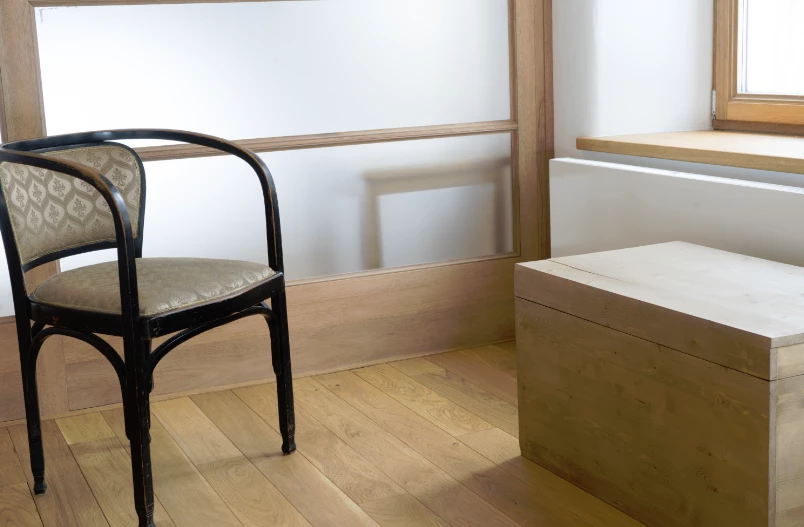
The fact that Chrome displays images ugly worries me as I publish images and photos online to be viewed in web browsers. Can there be any mistake while exporting to JPEG? What is this phenomena and can it be avoided? Is it possible it happens in professional production too?
    This topic has been closed for replies.
    Correct answer Per Berntsen

    First of all, always check both Convert to sRGB and Embed profile when exporting. For color management to work, the profile must be embedded.

    Second, ignore what you see in FastStone and Internet Explorer, they are not color managed, and should be avoided.

    So you have three color managed applications, and two of them display with a green tint, even with the profile embedded. That points to a defective monitor profile.

    Try setting the monitor profile to sRGB.

    If this fixes the issue, you should ideally calibrate the monitor with a hardware calibrator.

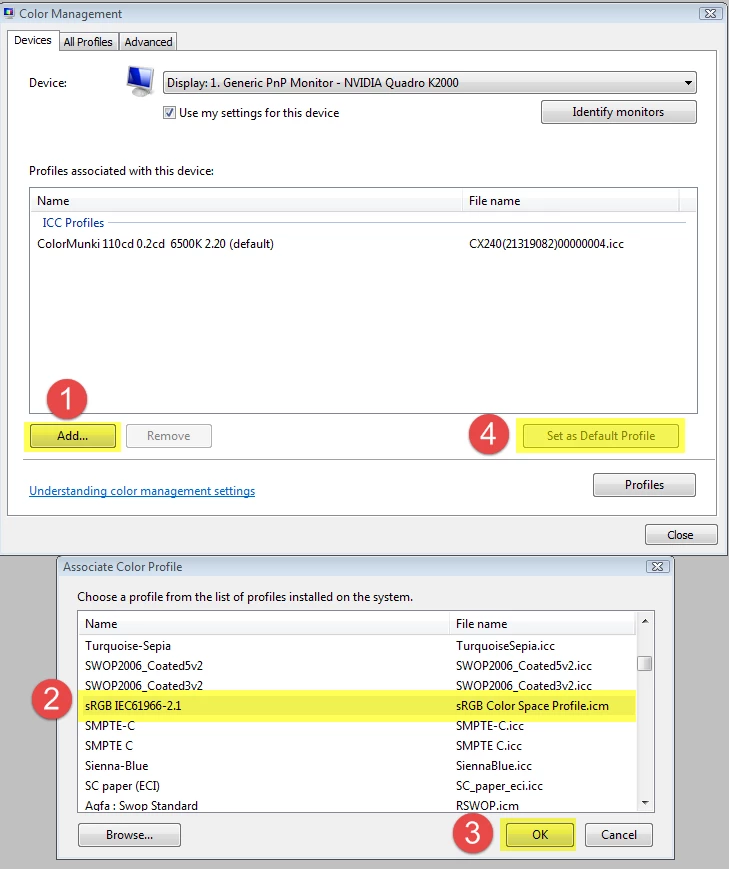
    Go to Control Panel > Color management.

    Add the sRGB profile, then set it as default.

    Make sure that Use my settings for this device is checked.

    To make the applications (Photoshop, Photo viewer, Chrome) aware of the new profile, they have to be restarted.

    3 replies

    Legend
    April 8, 2019

    Faststone Image Viewer uses color management. Other viewers may or may not.

    Per Berntsen
    Community Expert
    Community Expert
    April 8, 2019

    Previous versions of FastStone claimed to be color managed, but weren't, since they didn't use the monitor profile.

    It turns out that version 7, released two weeks ago, has proper color management, but the checkbox to use the monitor profile is unfortunately unchecked by default.

    So there are now two free third-party color managed viewers for Windows – Irfanview and FastStone.

    Legend
    April 8, 2019

    I'm mostly a Mac user but I saw that note about the new version. Good to see improvements!

    Bridge is also free and color-managed, as is XNViewMP.

    Comparison of image viewers - Wikipedia

    Per Berntsen
    Community Expert
    Community Expert
    April 7, 2019

    I downloaded the raw file, which displays fine in Lightroom, and an exported jpg also displays correctly in several applications.

    How are you exporting the jpg? If from Lightroom, choose sRGB as color space.

    If you use Export or Save for web in Photoshop, make sure to check both Convert to sRGB and Embed profile.

    Note that Internet Explorer is not color managed, and can not be trusted to display correct colors.

    The Windows Photo Viewer and Chrome are color managed and should display correctly.

    D Fosse

    I suspect that David uses Windows 7, since he mentions both the Windows Photo Viewer and Internet Explorer.

    davida26488130
    Participating Frequently
    April 7, 2019

    I'm opening the raw file in Photoshop which means the flow - ACR -> Photoshop -> JPEG (using Export as... dialog).

    I did a series of tests, the three variables were:

    1) the color space set in ACR with values:

    a) the default Adobe RGB (1998)

    b) ProPhoto RGB

    2) the Convert to sRGB checkbox in the Export as... dialog when exporting to JPEG.

    a) checked

    b) unchecked

    3) the Embed Color Profile checkbox in the Export as... dialog when exporting to JPEG.

    a) checked

    b) unchecked

    I have tried six combinations:

    1) Adobe RGB (1998) + convert to sRGB ON + Embed Color Profile OFF

    2) Adobe RGB (1998) + convert to sRGB ON + Embed Color Profile ON

    3) Adobe RGB (1998) + convert to sRGB OFF + Embed Color Profile OFF

    4) ProPhoto RGB + convert to sRGB ON + Embed Color Profile OFF

    5) ProPhoto RGB + convert to sRGB ON + Embed Color Profile ON

    6) ProPhoto RGB + convert to sRGB OFF + Embed Color Profile OFF

    All of them had the tint when viewed in Windows Image Viewer and Chorme browser and looked the same except for those with convert to sRGB OFF, which had a colder tone to them with the green tint still present.

    What I noticed is that when I check the Embed Color Profile checkbox the green tint appears already in the Photoshop export preview. Though when I actually export it that way and open the resulting file in FastStone Image Viewer, Photoshop or Internet Explorer the tint isn't there.

    For the record - D Fosse is right I am using Windows 7, although I assume that shouldn't influence the behavior of ACR, Photoshop or the Chrome browser.

    Per Berntsen
    Community Expert
    Per BerntsenCommunity ExpertCorrect answer
    Community Expert
    April 7, 2019

    First of all, always check both Convert to sRGB and Embed profile when exporting. For color management to work, the profile must be embedded.

    Second, ignore what you see in FastStone and Internet Explorer, they are not color managed, and should be avoided.

    So you have three color managed applications, and two of them display with a green tint, even with the profile embedded. That points to a defective monitor profile.

    Try setting the monitor profile to sRGB.

    If this fixes the issue, you should ideally calibrate the monitor with a hardware calibrator.

    Go to Control Panel > Color management.

    Add the sRGB profile, then set it as default.

    Make sure that Use my settings for this device is checked.

    To make the applications (Photoshop, Photo viewer, Chrome) aware of the new profile, they have to be restarted.

    D Fosse
    Community Expert
    Community Expert
    April 7, 2019

    Short answer: this is why color management was invented. Color management is a chain with three links that all need to be there:

    • the file needs to have an embedded document profile
    • you need to have a valid monitor profile, one that describes your monitor's actual response
    • you need to use software that is color managed and will use these profiles to represent the file correctly on screen

    Windows "Photos" is not color managed and will never display accurately.

    However, even color managed applications like Photoshop/ACR may display incorrectly if your monitor profile is defective. Are you using a calibrator? That's the only way to be sure you have a valid monitor profile.

    davida26488130
    Participating Frequently
    April 7, 2019

    For details on the flow please see my reply to Per's response. So from what you write I'm supposed to always check the Embed Color Profile? It is strange then they made it checked off by default... I haven't heard of a calibrator although I would assume the monitor could be fine when the photos get displayed properly in Photoshop, FastStone Image Viewer and Internet Explorer, is that so?

    From what you wrote it would seem that Chrome browser is not color managed but I found this article which says that if the two images there look the same (which they do) the browser is color managed https://photographylife.com/is-your-browser-color-managed

    Per Berntsen
    Community Expert
    Community Expert
    April 7, 2019

    davida26488130  wrote

    So from what you write I'm supposed to always check the Embed Color Profile? It is strange then they made it checked off by default...

    Yes, it's a serious bug/huge mistake that this box isn't checked by default.

    I haven't heard of a calibrator although I would assume the monitor could be fine when the photos get displayed properly in

    Photoshop, FastStone Image Viewer and Internet Explorer, is that so?

    A calibrator will, besides calibrating your screen, create a custom monitor profile that accurately describes the response of your monitor after calibration. Color managed applications convert the colors in the file from the document profile (in this case sRGB) to the monitor profile. This ensures that colors display correctly. If you now send this file to someone who also has a calibrated monitor, the file will display the same as on your monitor.

    From what you wrote it would seem that Chrome browser is not color managed

    The Chrome browser is indeed color managed, along with Opera and Firefox.