
vallerie
Participant
October 12, 2024
Question

Help need in photoshop how can I inset an image into a FLAT BOX template

  • October 12, 2024
  • 2 replies
  • 168 views

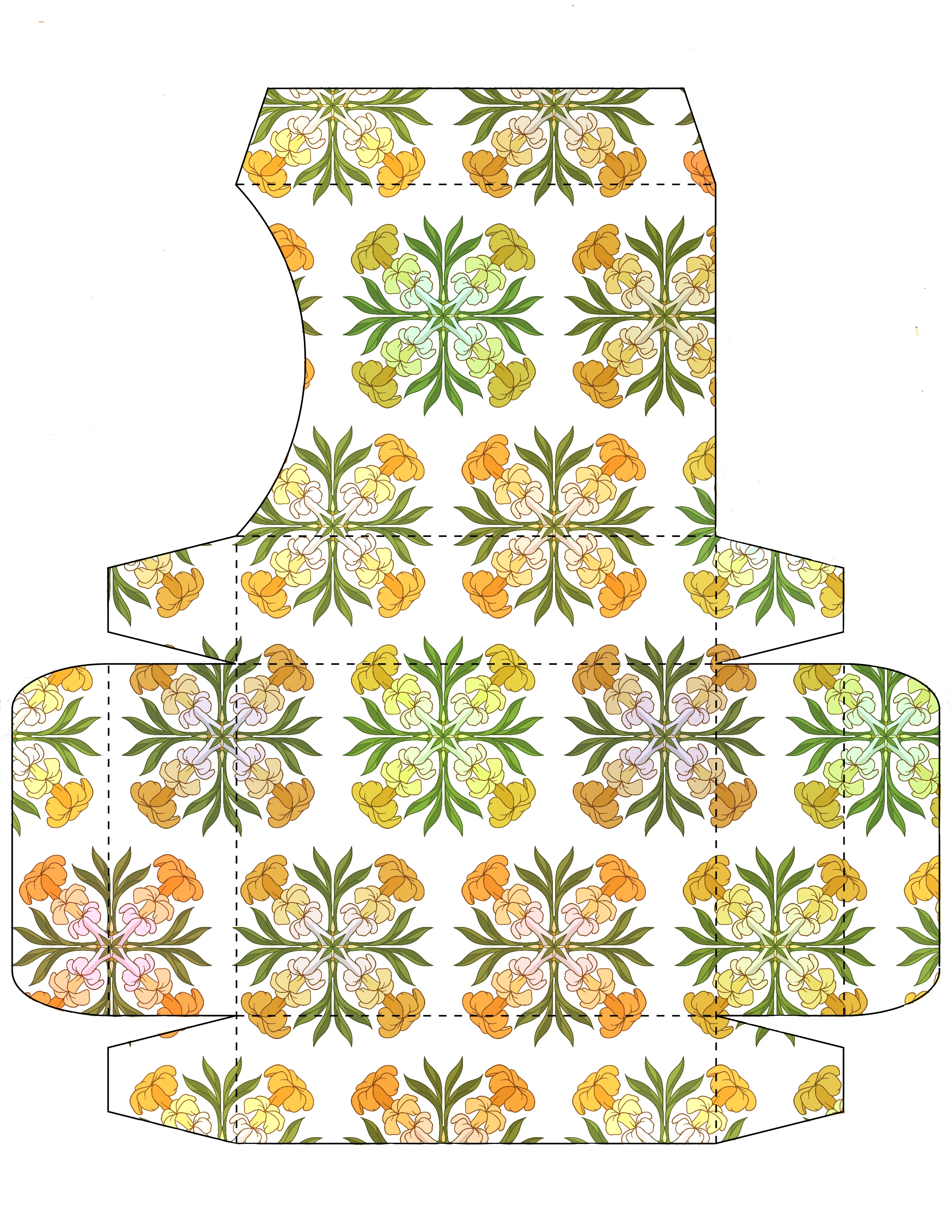
How can i insert a decorative image into a FLAT BOX TEMPLATE USING THE FUNCTIONS 'difine pattern", "pattern fil" and "merge visible" someone showed me an image that she did with these 3 functions but never explained how to really use them.
2 replies

c.pfaffenbichler
Community Expert
Community Expert
January 22, 2025

Could you please post screenshots of the template with the pertinent Panels (Toolbar, Layers, Options Bar, …) visible? 

And the element you want to use as a Pattern? 

Myra Ferguson
Community Expert
Community Expert
January 21, 2025

Here's how you can add a decorative pattern to this flat box.

  1.  If you don't have the original blank template, you're going to need to remove the existing pattern.
    • Add a Black & White adjustment layer either by clicking on the middle icon at the bottom of the Layers panel and selecting Black & White... or by going to Layer > New Adjustment Layer > Black & White....
    • Select the adjustment layer's properties by double-clicking on its icon in the Layers panel.
    • In the Properties panel, set all color sliders to the far right to remove the color in this image.
    • There's a little bit of the pattern remaining, so remove it with a Levels adjustment layer by either by clicking on the middle icon at the bottom of the Layers panel and selecting Levels... or by going to Layer > New Adjustment Layer > Levels...
    • Adjust the levels in the Properties panel by sliding the white triangle under the histogram to the left and the darker gray triangle to the right until the pattern is gone but the template lines remain.
  2. Make your pattern.
    • Create a new document the size that you want the pattern to be.
    • Apply the artwork to this canvas that you want to use to make the pattern (make each layer a Smart Object for pattern preview--right click to the right of the layer name and select Convert to Smart Object)
    • Go to View > Pattern Preview to preview the pattern and adjust the artwork as needed.
    • Go to Edit > Define Pattern... and give the pattern a name.
  3. Apply the pattern to your template.
    • Go back to the template document.
    • Load the selection of the template by Ctrl (Windows) or Command (macOS) + clicking on the template thumbnail in the Layers panel.
    • Go to Edit > Fill... and in the Fill dialog, set Contents to Pattern and in the Options selection, select the pattern that you just saved.