diggdug39
Known Participant
March 22, 2017
Question

Help sharpening and brightening this image

  • March 22, 2017
  • 5 replies
  • 1350 views

Hello everyone,

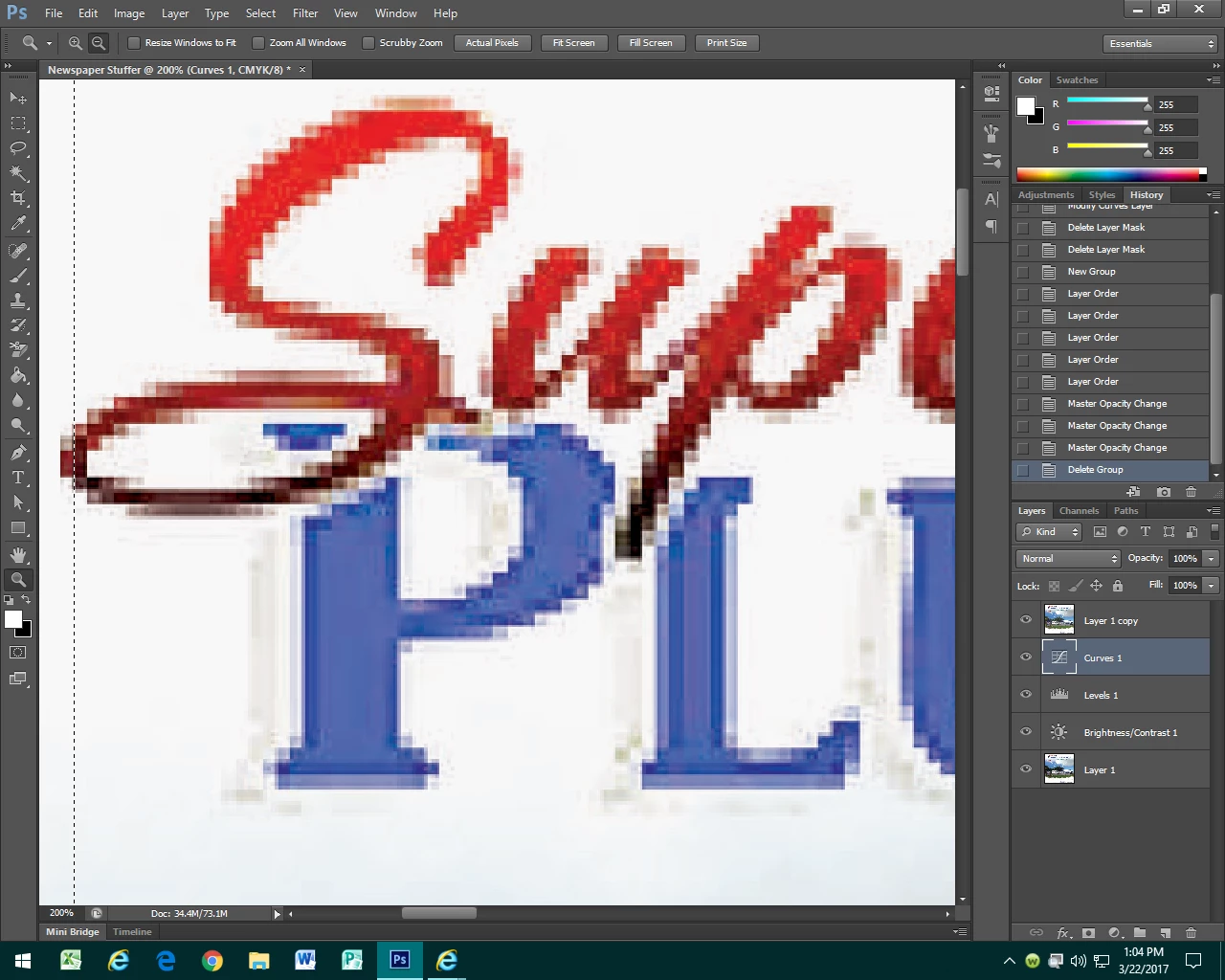
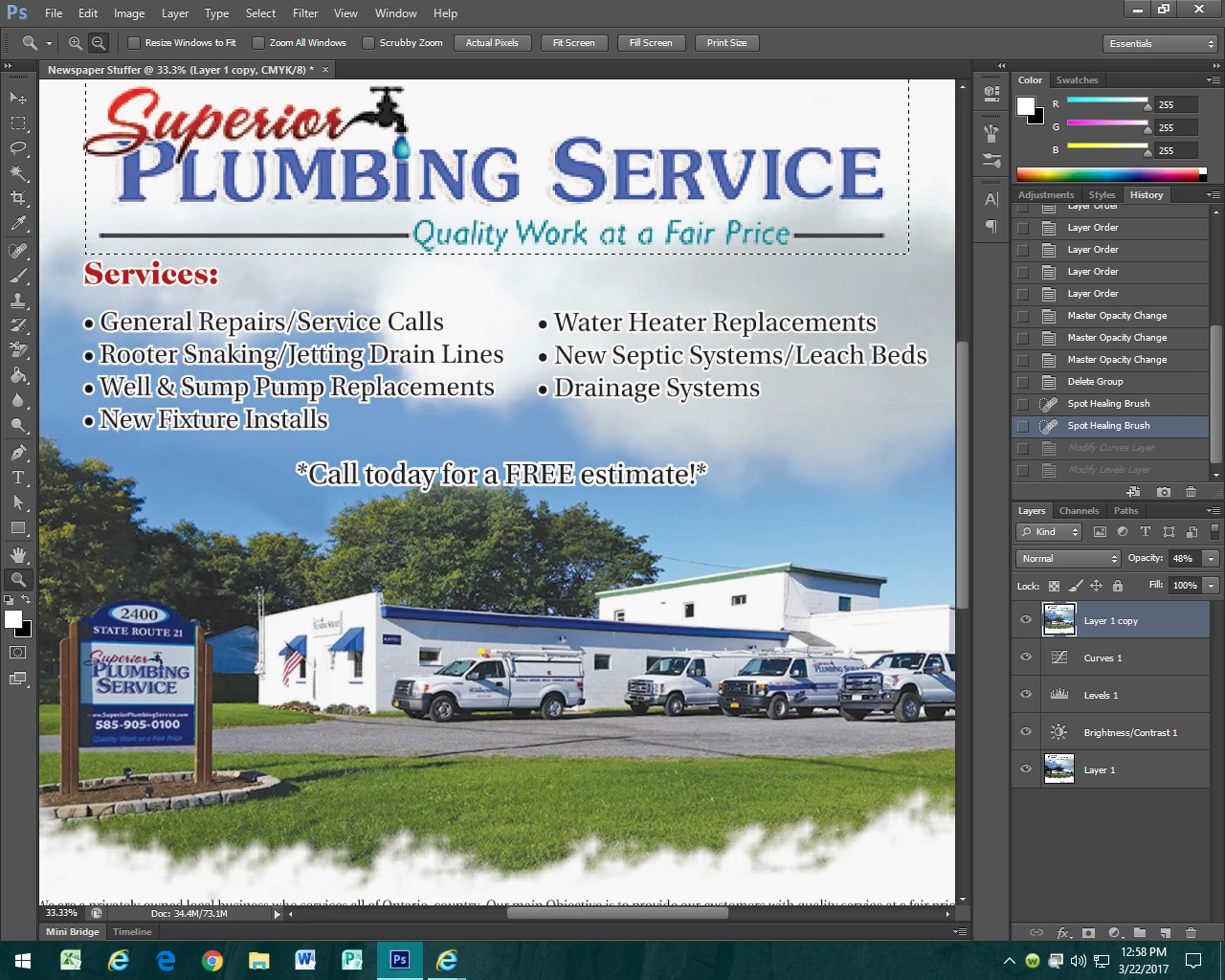
               I have a project that a client wants me to do to sharpen this image that I have shown down below. I used the bright/contrast, levels, and curves option to get the picture more sharp and crisp but some parts just seem really too bright and have lost detail. Also I wanted to know if there was a way to make the title at the top less pixelated. I think the just made this image with text and blew it up so it ended up looking really pixelated. Any help is appreciated. Thank you.

                                                                                                                                                                                                                     Brian
This topic has been closed for replies.

5 replies

S_Gans
Community Expert
Community Expert
March 23, 2017

If you're doing this as paths, as above, you are definitely making it vector. However, I'm not sure we're seeing everything we should be seeing to make a determination. Would you please show us your Layers panel as well? And, the settings on your pen tool? I just tried it on your very low-rez original post's image, and it's coming out cleanly for me (considering I'm at 500% zoom). Here's a screenshot of my pen tool settings and my window with layers:

Adobe Community Expert / Adobe Certified Instructor
diggdug39
diggdug39Author
Known Participant
March 23, 2017

I made print screen shots of each look for each layer below. It looks like I have my pen tool set to shape but it's making all those extra shape layers and I don't want that. I just don't understand why the edges still look pixelated even on the vector text I am creating with the pen tool. What should I do to just make the vector layer?

davescm
Community Expert
Community Expert
March 23, 2017

Hi

Your screenshot shows you are zoomed in to 400%

At that zoom you are going to see pixels even on a vector based layer. To display, Photoshop has to convert your shape to pixels at the current resolution of the image. (Example below at 400%)

The advantage of the vector shape is that you can transform it (e.g. increase the resolution of your image) and it will then display at the new resolution.

Dave

diggdug39
diggdug39Author
Known Participant
March 22, 2017

I used the pen tool around the letter and S in the name of the logo with the plan to make this all vector and now I can't seem to get the stroke color to show up. Can someone help me figure out what the problem is? I made a new layer and every time I select the S it says there is nothing on the layer and stroke can't me done.

Legend
March 22, 2017

I think you have your pen tool set to Path instead of Shape.

Path gives you a vector for clipping - Shape gives you vectors on a layer that can have fill and stroke applied.

diggdug39
diggdug39Author
Known Participant
March 22, 2017

I thought that I was making these letters into vector but the bottom Sup is the new layer and it is just looking pixelated versus the top on that is all red. How would I also make the color in the text like the color of the text in the original. I thought I knew how to make this vector but I am lost.

S_Gans
Community Expert
Community Expert
March 22, 2017

To address your overly bright areas of the image, you may find that excluding the brightness/contrast and levels, and doing it all in Curves may be a better choice. In Brightness/Contrast, you really only have the choice of more or less. If you lighten the image, you're bound to clip some of the more subtle detail in the highlights. Similarly, with Levels, you only really have control over the lightest, darkest and middle range pixels - so if you move the highlight slider inwards, you're again going to clip away some detail in the highlights.

With Curves, you can choose to brighten only certain ranges of tones - and if you watch to make sure the white point doesn't get moved (or that the curve doesn't touch a side), you can retain quite a bit of the detail in that area, while still brightening the light parts.

Sometimes, I'll even make multiple curves adjustment layers with masks, so that different areas can have different amounts of adjustment.

As for the uglification of the pixels on that logo - it appears the client stole it from his/her own website to put it into print. I see this all the time. They let their "original designer" keep the image, and just have their website copy (low resolution, compressed). They'd want to get the original from whoever has it. OR,  you can tell them you'll fix it - recreate it, and then make more money?

Adobe Community Expert / Adobe Certified Instructor
Derek Cross
Community Expert
Community Expert
March 22, 2017

If you have InDesign and you create this in it, you'll get a much better and more professional output.

davescm
Community Expert
Community Expert
March 22, 2017

For sharpening the image (i.e. the photograph) you can use Clarity in the Camera raw filter which uses local contrast to give the impression of sharpness and also the sharpen tool. Don't overdo it though - over-sharpening looks awful.

For the logo and text  - you need to obtain a vector version of the logo, or recreate it using text layers where you can find the font and as vector drawing for the tap and "Superior" element.

Dave