Inspiring
February 11, 2026
Question

Help with layer mask

  • February 11, 2026
  • 3 replies
  • 14 views

I am trying to use the photomask layer to mask the render layer (top) so that layer 0 shows.
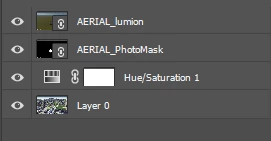
I can’t figure it out. Thanks for any help.

    3 replies

    Conrad_C
    Community Expert
    Community Expert
    February 12, 2026

    It looks like you’re using linked Smart Objects, and if it’s important to preserve that, using a conventional layer mask won’t work because Photoshop doesn’t allow linked Smart Objects as pixel or vector layer masks.

    The method shown in the demo below might not be the only way or the best way, but it is one way to do it. You can show Layer 0 through the AERIAL_PhotoMask layer if you set up the AERIAL_Lumion and AERIAL_Photomask layers as shown in the demo below:

    • Set the AERIAL_lumion layer to be a clipping mask (Layer > Create Clipping Mask). Then, in that layer’s Blending Options (Layer > Layer Style > Blending Options), set BlendIf / Gray, Underlying Layer to less than 255 (white).
    • Set the AERIAL_PhotoMask layer’s Blending Options, BlendIf / Gray, Current Layer to less than 255 (white).

    Note: If the center circle in your AERIAL_PhotoMask layer is actually transparent, not white, you don’t have to adjust any Blending Options; all you’d have to do is set the AERIAL_lumion layer as a clipping mask…just one step.


    Conrad_C
    Community Expert
    Community Expert
    February 11, 2026

    One issue is that the layer AERIAL_PhotoMask is not acting as a mask because it’s an entirely separate layer, and it is completely blocked by the AERIAL_lumion layer which is in front. If the contents of AERIAL_PhotoMask were pasted into an actual layer mask attached to AERIAL_lumion, then it would act as a true mask.


    Inspiring
    February 11, 2026

    I have tried everything, I know it’s something extremely simple. Thank you for any help.