


Participant
August 17, 2026
Answered

hidden export option in adobe photoshop

  • August 17, 2026
  • 5 replies
  • 55 views

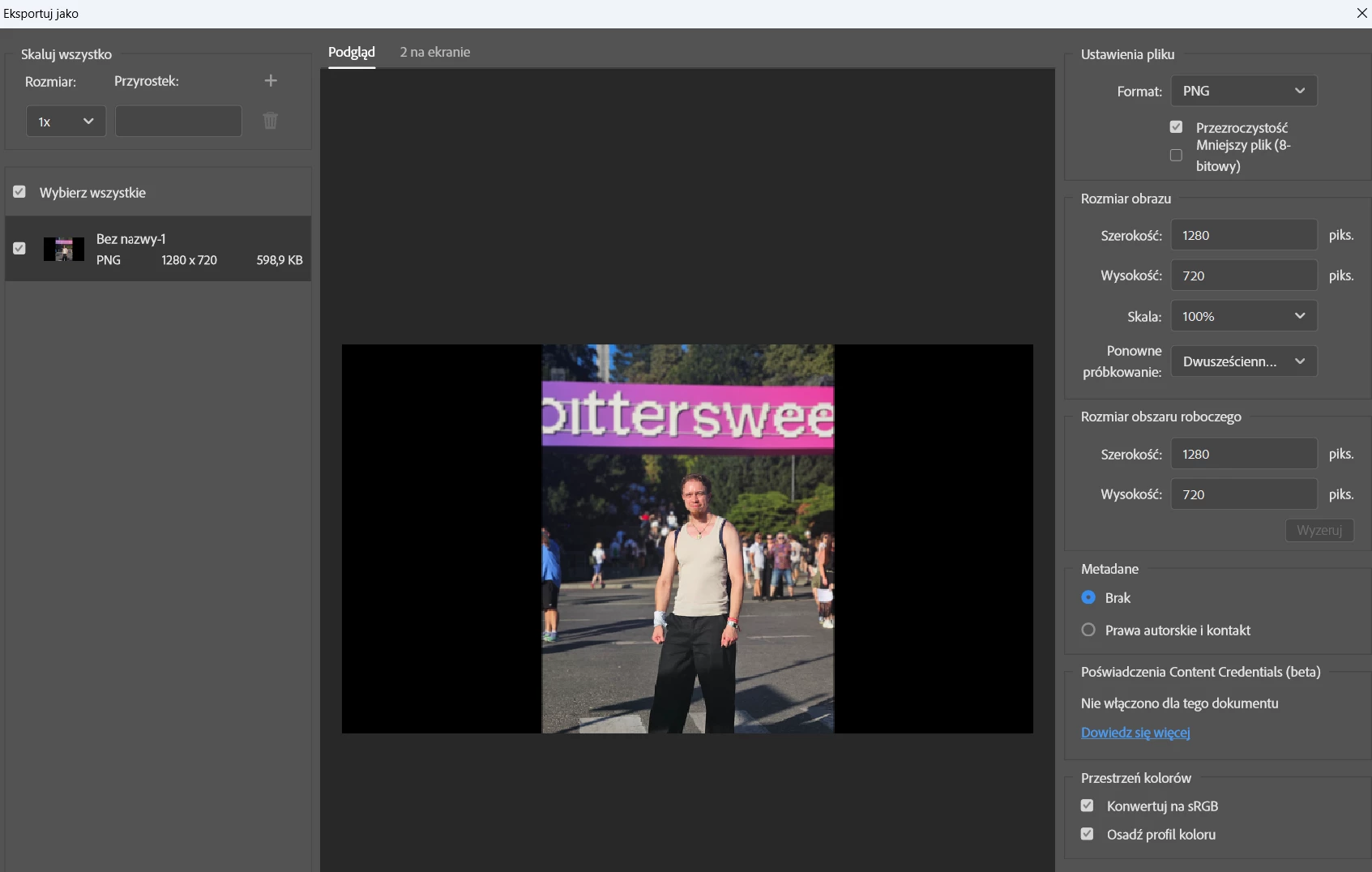
I have a problem with the export option in Photoshop. When I try to click the export button like I always do, I can't reach it because it's hidden at the bottom of the screen. I also tried hiding the Windows taskbar, but it didn't work.
 

    Correct answer piotr_96

    I have reset my workspace and now I can see the button :) 


    5 replies

    Conrad_C
    Community Expert
    Community Expert
    August 18, 2026

    The screen shot looks like it’s in Microsoft Windows. In Windows display settings, is any display scaling applied, especially above 100%?

    Note that display scaling is a separate setting than resolution.

    piotr_96AuthorCorrect answer
    Participant
    August 20, 2026

    I have reset my workspace and now I can see the button :) 


    Claire H.
    Community Manager
    Community Manager
    August 17, 2026

    Hi ​@piotr_96, Thanks for reaching out to the Photoshop Community Forum! Let's try a few things to get the Export window fully accessible.


    1. Check Workspace Layout: Please make sure that the workspace layout is not causing the export button to be hidden. You can reset the workspace by going to Window > Workspace > Reset [Your Current Workspace].

    2. Adjust Screen Resolution: Sometimes, changing the screen resolution can help make hidden buttons visible. Right-click on the desktop, select Display settings, and adjust the resolution.

    3. Maximize the Export Window: If the export window is not maximized, try maximizing it. Please be sure to look for the maximize button in the upper right corner of the export dialog.

    4. Use Keyboard Shortcuts: If the export button is still inaccessible, you can use the keyboard shortcut for exporting. Try Shift + Ctrl + Alt + S (Windows) or Shift + Command + Option + S (Mac) to open the export dialog.

    If none of these steps work for you, we can continue to troubleshoot if that works for you. I hope this helps! ^CH

    tomzag
    Inspiring
    August 18, 2026

    Use Keyboard Shortcuts: If the export button is still inaccessible, you can use the keyboard shortcut for exporting. Try Shift + Ctrl + Alt + S (Windows) or Shift + Command + Option + S (Mac) to open the export dialog.


    Just a small correction on the keyboard shortcut: Shift+Ctrl+Alt+S (Win) / Shift+Cmd+Option+S (Mac) opens Save for Web, not the Export As dialog. The shortcut for Export As is Shift+Ctrl+Alt+W (Win) / Shift+Cmd+Option+W (Mac).
    That said, even with the correct shortcut, it doesn't solve ​@piotr_96  actual problem, the Export As window itself is positioned partly off-screen, so the buttons at the bottom aren't reachable.

    A couple more data points that might help narrow this down:

    • Possible workaround for now: tabbing through the dialog until the Export button is focused, then pressing Enter. It's finicky since there's no visual confirmation of which control is currently focused.
    • On Mac, testing the same scenario shows different behavior: when the dialog doesn't fit the screen, a scrollbar appears for the settings panel, but the Export and Cancel buttons stay pinned and visible at all times. So the "buttons go off-screen" behavior may be Windows-specific, or at least isn't happening on Mac.
    • Possible cause: this might be a UXP rendering/layout issue rather than a true positioning issue, i.e. the dialog may not be recalculating its layout correctly for the current screen size until something forces a redraw. Worth testing whether grabbing a window corner and resizing (even slightly) causes the button row to snap back into view, which would point at a layout-refresh bug rather than the window simply being placed off-screen.
    My Photoshop Plugins: plugins.pixelsucht.net