Inspiring
March 7, 2026
Question

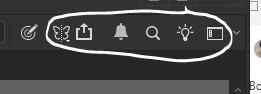
Hide "Notification" "Share" and "Discover" buttons?

  • March 7, 2026
  • 5 replies
  • 100 views

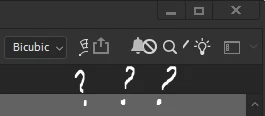
Can I hide those useless buttons since they constantly overlap with other buttons (for example when transforming)
 

    5 replies

    Ged_Traynor
    Community Expert
    Community Expert
    March 10, 2026

    @cscsc there’s another thread about that issue here


    c.pfaffenbichler
    Community Expert
    Community Expert
    March 10, 2026

    The overlap seems to be related to the application language. 


    You could try using Application Frame and docking the Options Bar there. 

    cscsc
    Participant
    March 10, 2026

    I want to write like this, but some buttons aren't visible.


    *This post has been moved to the bulletin photoshop  ecosystem board by a moderator.

    D Fosse
    Community Expert
    Community Expert
    March 7, 2026

    Two settings in preferences should address this:

    • Workspace > Enable Narrow Options bar
    • Notifications > Enable Quiet Mode
    Inspiring
    March 7, 2026

    Unfortunately I saw no difference after changing those options

    jane-e
    Community Expert
    Community Expert
    March 7, 2026

    @danill42755228 wrote “I saw no difference…”


    Did you restart Photoshop after enabling the Narrow Options Bar?


    If so, post a screenshot that shows your entire options bar.


    Jane

    Community Expert
    March 7, 2026

    I haven’t seen that as I usually work at a high resolution and full screen, but that is definitely a bug that the options bar has this overlap at lower resolutions or when not using the full screen. From looking around it has been brought up in other threads like this one ( https://community.adobe.com/questions-712/share-button-overlaps-other-elements-when-increasing-ui-font-size-mac-1182858?postid=4840677#post4840677 ) but there are no resolutions to date.
