
Participant
November 11, 2022
Question

History brush not working

  • November 11, 2022
  • 2 replies
  • 1669 views

Hello,

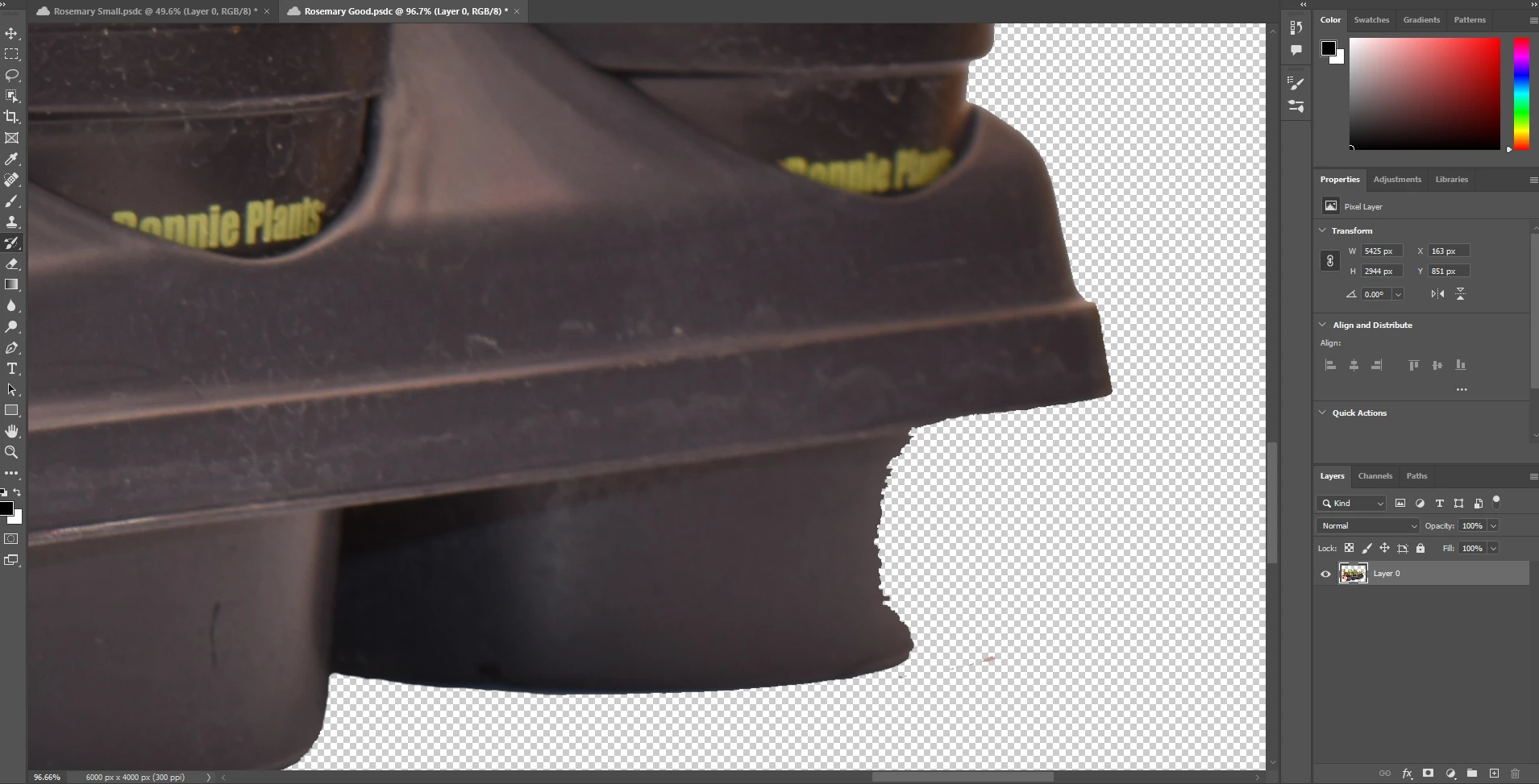
I am removing backgrounds on photos. I use the magic erase tool for 95% of the work and then touch up whatever is needed. As you can see in the screenshot, a section of the black tray is missing. Whenever I go to use the history brush tool it will not restore the image. There is no error message. It simply does not restore. 

I have tried restarting the computer, photoshop, resetting the tool, reselcting the layer and nothing seems to work. Any suggestions?


Thanks!!
This topic has been closed for replies.

2 replies

Legend
November 11, 2022

Have you tried using masking instead of erasure? It's non-destruction, so easy to clean up as you go. 

You may also want to keep an untouched version of your image in a bottom layer (turned off)

Legend
November 11, 2022

The history brush restores details from a snapshot or history state marked with a brush in the document's history panel.

Open the history panel and make sure that:

  1. there is a snapshot or histoty state that has details in this area
  2. it is marked with a history brush icon.


Restore parts of an image with the History Brush tool 

Participant
November 11, 2022


It looks to me like I have the snapshot selected but it still does not work. Why would this happen after saving my file to the cloud? 

The history brush tool works before I save the file but afterward it stops working.


Thanks again!

Legend
November 11, 2022

The initial snapshot is updated each time the document is opened. In your screenshot, you can see that there is no detail on this section. This means that you saved the document, closed it and opened it again. The history brush cannot retrieve data from a past version of the document.


When using cloud documents, you can view the save history for the last 30 days and, if necessary, open the document in an earlier state (window -> version history)