
Art On Web
Participant
February 16, 2013
解決済み

How can I cut an ellipse piece of a photo?

  • February 16, 2013
  • 返信数 2.
  • 30494 ビュー

Good evening.

How can I cut an  ellipse piece of a photo?

I have a photo and I would like  to cut an ellipse piece of it and after this I want to save on a new photo file.

    このトピックへの返信は締め切られました。
    解決に役立った回答 dhosford

    Hi there,

      To cut an image so that it has an ellipse shape, you would use the Elliptical Marquee tool.

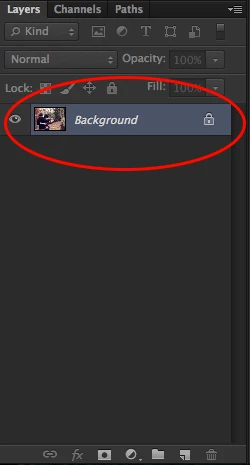
      Open Photoshop, and open your photo file. Double click the photo layer in your Layers pallete to unlock the layer:
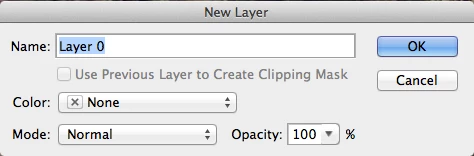
    Once you have double clicked the layer, a dialog box will come up asking you to specify certain properties such as changing the layer name, opacity, etc. You can change these if you'd like, but for now we're going to leave them in their default settings. Click "Ok" to proceed.
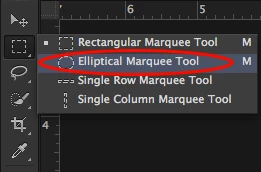
    Now that the layer is prepped and ready to be edited. Navigate to your toolbar. Find the Marquee toolbox, by default it should have the Rectangular Marquee tool set. To retrieve the Elliptical Marquee tool, click and hold down and a pop up window with more tools will appear. Select the Elliptical Marquee tool.
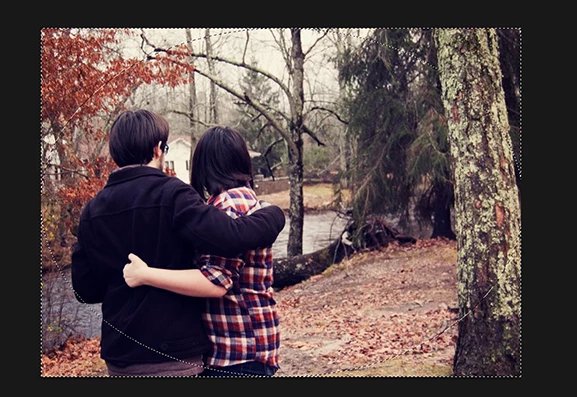
    Now, click and drag on your image to make an Ellipse. You will get a selection area marked by a perimeter of "marching ants" around the Ellipse selection:

    If you're on a PC, click CTRL + Shift + I to make an Inverse selection. If you're on a Mac, click CMD + Shift + I. This will select the outside area of the ellipse that we just drew with the Elliptical Marquee tool.
    Now click the Delete key on your keyboard. This will cut out the rest of the image and leave you with an Elliptical cut of your image!
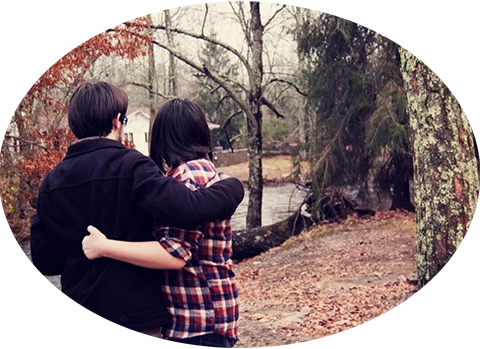
    I hope this helps! Let me know if you need further clarification!

    返信数 2

    Participant
    June 15, 2016

    Hello.  It didn't work for me.  When I clicked Delete, the Fill box appeared???  Not sure what I did wrong?

    Participant
    June 26, 2016

    I'm not sure if you still need the help, but mine did the same thing.

    I went to Edit & then Cut & it took the background image out & the image in the ellipse was left.

    dhosford
    dhosford解決!
    Participating Frequently
    February 17, 2013

    Hi there,

      To cut an image so that it has an ellipse shape, you would use the Elliptical Marquee tool.

      Open Photoshop, and open your photo file. Double click the photo layer in your Layers pallete to unlock the layer:

    Once you have double clicked the layer, a dialog box will come up asking you to specify certain properties such as changing the layer name, opacity, etc. You can change these if you'd like, but for now we're going to leave them in their default settings. Click "Ok" to proceed.

    Now that the layer is prepped and ready to be edited. Navigate to your toolbar. Find the Marquee toolbox, by default it should have the Rectangular Marquee tool set. To retrieve the Elliptical Marquee tool, click and hold down and a pop up window with more tools will appear. Select the Elliptical Marquee tool.

    Now, click and drag on your image to make an Ellipse. You will get a selection area marked by a perimeter of "marching ants" around the Ellipse selection:

    If you're on a PC, click CTRL + Shift + I to make an Inverse selection. If you're on a Mac, click CMD + Shift + I. This will select the outside area of the ellipse that we just drew with the Elliptical Marquee tool.

    Now click the Delete key on your keyboard. This will cut out the rest of the image and leave you with an Elliptical cut of your image!

    I hope this helps! Let me know if you need further clarification!

    Art On Web
    Art On Web作成者
    Participant
    February 17, 2013

    This is not a little help.

    This is a great guide!

    Thank you very much!

    dhosford
    Participating Frequently
    February 18, 2013

    Thank you very much! I'm glad I was able to help! Have fun with Photoshop! : )