Hi
There are two ways of making animation - one uses a frame animation timeline and the second a video timeline. Because you are changing the opacity of a layer, in your example, the video timeline is easy to control.
1. Make the layers you will use (I have used text layers in this example but pixel layers will work fine)
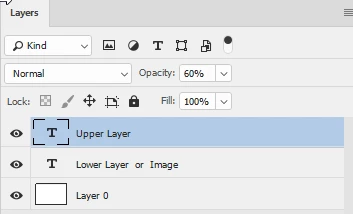
2. Open the timeline and create a video timeline
3. At the top right of the timeline click on the drop down menu and set the framerate (10fps will be fine for a gif)
4. Set the length by pulling end of the the timeline clips left or right
4. Drop down the menu for the top layer and click on the clock. Move the cursor and add keyframes whilst changing the opacity in the layers panel. The keyframes mark the end points - Photoshop will fill in the in between values So I set 3 keyframes - the first at 0% opacity and the second and third at 100%
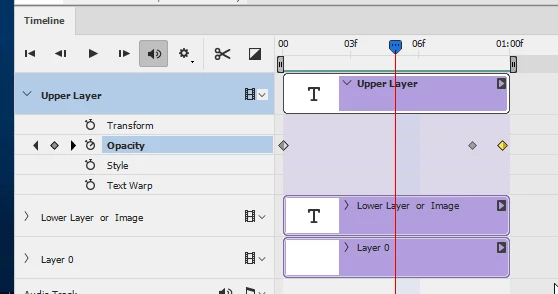
5. Save the file as a PSD.
6 Go to Export >Save for Web (Legacy)
7. Choose GIF and then Save

Dave



 AdChoices