

Participating Frequently
Oct 15, 2026 9:30 AM UTC
Question

How can I mask layer effects?
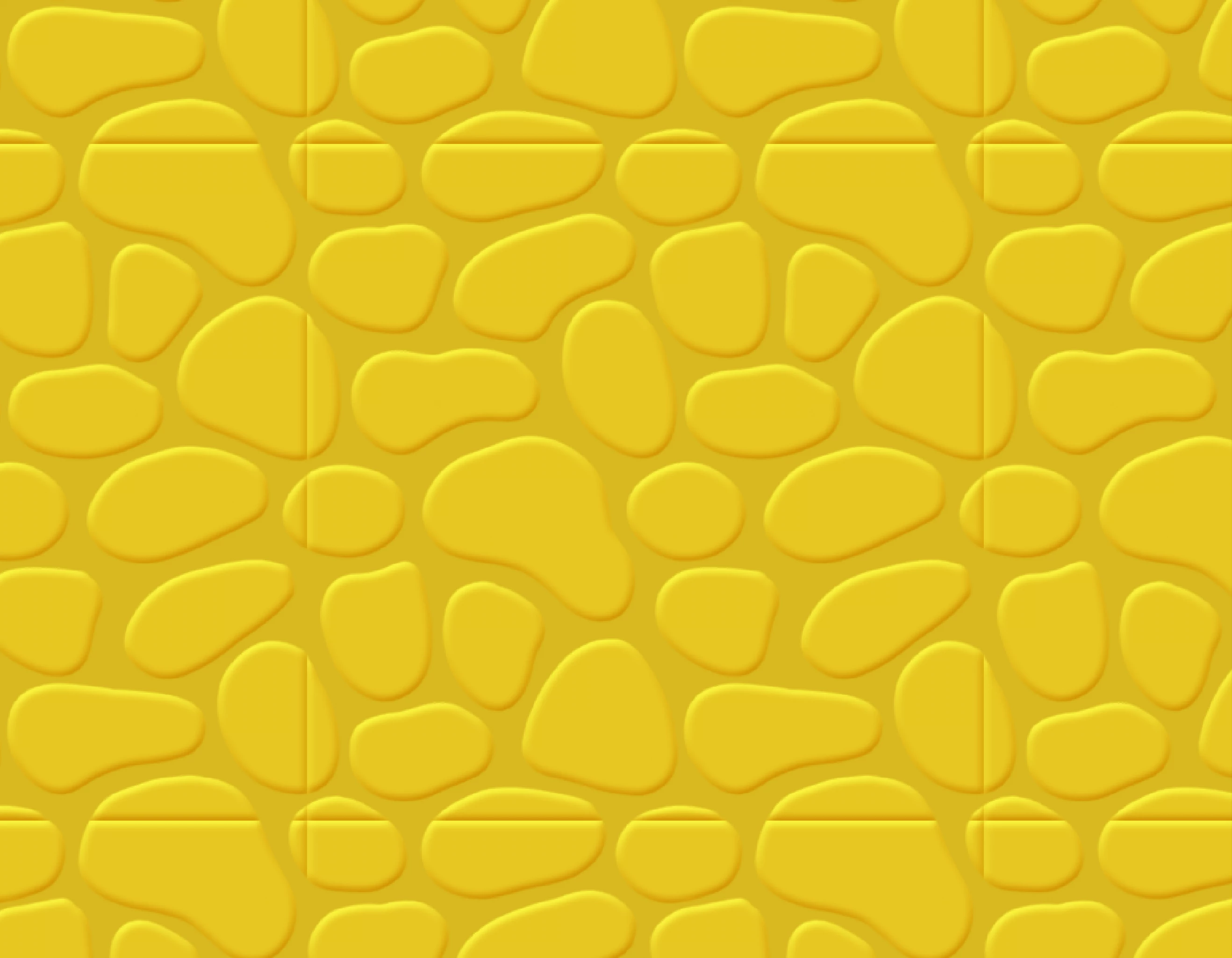
Tiled texture

Hi - is there a way I can stop a layer effect being applied on the outer bounds of a layer in this instance?

Ive got ‘layer mask hides effects’ checked on - but it doesnt work when at the very edges annoyingly 

    13 replies

    Participating Frequently
    Oct 22, 2026 7:57 AM UTC

    thanks for the suggestions.   I was hoping it would be a simple switch somewhere to be honest.  In the end I just used an Edit by Prompt to rectify the issue.   (although frustrating it only worked the first time and not subsequently.)

    Translate
    Trevor.Dennis
    Community Expert
    Community Expert
    Oct 22, 2026 8:45 AM UTC

    The steps I outlined are honestly pretty straight forward, and it is worth taking a few minutes to learn and move forward.  I Generative AI, and I use it as much as anyone but it’s rare that Gemini, GTP Image, Flux etc. see exactly what we do, so we still need decent Photoshop skills to get a little bit closer to what we imagined.  It’s a lot of fun as well, and obviously satisfying.

    You can ask as many questions as you like, and people here will keep on answering them.

    Translate
    Trevor.Dennis
    Community Expert
    Community Expert
    Oct 18, 2026 10:33 PM UTC

    You just need to expand the pattern, add the B&E, flatten and crop.

    First thing I did was add the guides so we can accurately define the pattern area again.

    Copy the layer, because you know it makes sense.

    Use magic wand to select the background, invert and copy to new layer.

    Set foreground colour to the raised are, and fill to remove the B&E.

    Now expand the canvas a wee bit, and use Generative expand to extend the pattern.

    Remove BG again and apply new B&E to the raised area.

    Flatten, crop, and define pattern.


    The cropped pattern


    I’ll maybe have the steps out of sync because I did the whole thing before answering

    Having the Guides exactly right was important, but it worked OK AFAICT


    Translate
    Participating Frequently
    Oct 15, 2026 10:53 AM UTC

    Yes the mask I added is exactly the canvas size (as I need it to be tiled) if I make the mask smaller it does hide the layer effects (see image) but as soon as the mask gets near the canvas edges it stops hiding the effects.

    im not familiar with the smart filter offset - would you mind explaining? thanks again


    Translate
    c.pfaffenbichler
    Community Expert
    Community Expert
    Oct 15, 2026 4:13 PM UTC

    Could you provide your file? 

    That might make it easier to explain a layer-setup that might help avoid the issue with the Bevel edges. 

    Translate
    Participating Frequently
    Oct 15, 2026 4:17 PM UTC

    Sure - here you go..  thanks

    Translate
    c.pfaffenbichler
    Community Expert
    Community Expert
    Oct 15, 2026 10:19 AM UTC

    Could you please post a screenshot taken at View > 100% with the pertinent Panels (Toolbar, Layers, Channels, Options Bar, …) visible? 


    If this is about Pattern creation (and the Bevel is part of the Pattern) you may need to adapt your workflow a bit. 

    Translate
    Participating Frequently
    Oct 15, 2026 10:21 AM UTC

    is this ok? I have pattern preview turned on. thanks for the help


    Translate
    c.pfaffenbichler
    Community Expert
    Community Expert
    Oct 15, 2026 10:46 AM UTC

    Is the pixel content on »Layer 2« cut off at the exact Canvas edges? 

    If so you may have to create a »bleed«, for example with the Smart Filter »Offset«. 

    Translate