
Participant
February 19, 2019
Question

How can I recreate this kind of colorful eclipse in Photoshop?

  • February 19, 2019
  • 1 reply
  • 498 views

Hi guys,

I'm new to this forum and to photoshop. I've been trying to recreate the below image from Nicolai Howalt in Photoshop.
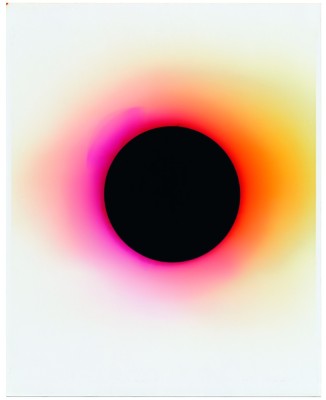
Image result for nicolai howalt

I started with an eclipse tutorial on youtube (Photoshop Tutorial: Part 1 - How to Create a Powerful Solar Eclipse in Deep Space - YouTube​) but didn't manage to create these irregular concentric circles around the black center. My goal is to create an A1 or A0 print out of it.

Any help would be greatly appreciated - I've been very excited about the prospect of finally picking up some basic PS skills through a project I actually care about.

Thanks and cheers

Alan

    This topic has been closed for replies.

    1 reply

    Trevor.Dennis
    Community Expert
    Community Expert
    February 19, 2019

    This is one of those questions with many answers.

    Perhaps the easiest way would be to use two layers

    The upper layer has the black circle (turned off below) and lower layer is the same size, with a gradient run across it

    (Make the selection by Ctrl clicking the black circle)

    I've made the gradient layer a Smart Object (via right clicking it)

    Apply a Gaussian blur

    And turn on the black layer.  The coloured fringe is a bit thin at this stage, but here again were have several options

    We could copy the gradient layer to firm it up.  This looks a lot better.

    We could free transform the gradient to make it bigger.  Note that because it is a Smart Object, the blur effect does not show until we OK the transform.  Note 2: holding down the Alt (Opt) key while dragging a corner handle, will force a concentric change around its centre.

    But because it is a Smart Object, we can continue to transform until we get it right with no quality loss

    Trevor.Dennis
    Community Expert
    Community Expert
    February 19, 2019

    Another approach with a different result

    This time I used Layer Styles 'Outer Glow'.  But notice that some of the layer styles have + signs.  That means we can use the same style more than once.  I have two drop shadows for instance.  Well outer glow does not have a plus sign, so we have to copy the layer and the smaller glow on the upper layer above the red glow which is on the lower layer

    There is a useful trick with layer styles.  If you reduce Fill opacity to zero, the effect still shows, but the layer contents don't.

    davescm
    Community Expert
    Community Expert
    February 19, 2019

    Hi

    I would probably just do this with brushes. But, if you combine a series of drop shadows each with a different blend mode and using a different angle and size (uncheck global light) you can do something like this:

    Dave