


Participant
December 13, 2018
Answered

How can I Skew Numerically on a Smart Object layer??

  • December 13, 2018
  • 2 replies
  • 1989 views

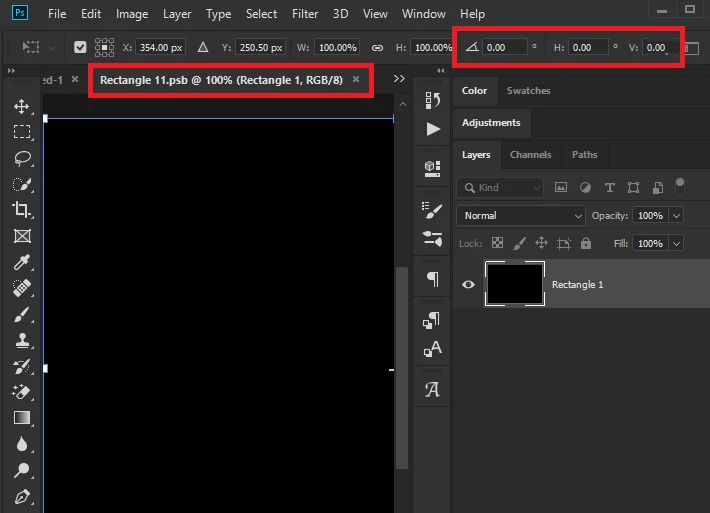
In Origin Layer, i can do Skew Numerically via enter degrees in the H (horizontal skew) and V (vertical skew) text boxes in the options bar,

But Once Layer become Smart Object Layer, the Skew Text boxes in the options bar were gone. I'm Curious about why Smart Object Layer can support skew free with drag, not with number in skew text boxes of options bar?

Or I just not find the way to input skew number??
Correct answer Joshua28461519d3k5

Hi

Did you double click on the smart object layer as suggested, works fine here


Hi Mardyu,

I know this is years old and you will probably not see this but I came across this same problem today of needing to numberically skew a smart object and found a solution. Place your smart object into a group then apply the transform to the group folder. It will allow you skew everything in the folder numberically, including your smart object.

2 replies

Trevor.Dennis
Community Expert
Community Expert
December 13, 2018

One of the points of Smart Objects is that you can Transform them with complete freedom.  Type layers, for instance, can not be warped unless they are made into Smart Objects.  So you don't need to open the SO in a new window.

Here's and SO.  It has two layers and is off centre.

We need to drag a guide to its centre point, which means we need to start the Free Transform (FT) process, but not have it cancel when we move the cursor to far from the object, so we need to pan the canvas close to the ruler before we start FT.

I've done the above steps, and I have a guide that has Snapped to the centre handle (You might need to turn on the centre handle in Preferences.

I'll assume a horizontal skew, so we need a reference point.  I'll achieve that by dragging the ruler zero point onto the handle

I'm half a pixel out, but I hope you won't hold that against me.   Note I dragged in a second guide so you can skew whatever way you like

We only needed the guides so the zero point would snap to them, so we need to turn them off now.

Unfortunately, we still can't place the cursor in the X: field and type in an offset, but by hold down the Ctrl (Cmd) key we can see exactly how many pixels we have displaced the middle top handle, plus we have a heads up of the angle.  If you move the cursor to the X:field then it will move the entire object, and not continue to skew it.

That's the best workaround I can come up, but it does give you some numbers.

Community Expert
December 13, 2018

Smart object are encapsulated object. To modify them (like normal layer) you have to double click the layer thumbnail.

mardyuAuthor
Participant
December 13, 2018

There no H (horizontal skew) and V (vertical skew) text boxes in the options bar, when I select it.

December 13, 2018

Hi

Did you double click on the smart object layer as suggested, works fine here