
danielb94023111
Known Participant
November 13, 2023
Answered

How do I add a color not shades of gray, but a colored gradient?

  • November 13, 2023
  • 1 reply
  • 1886 views

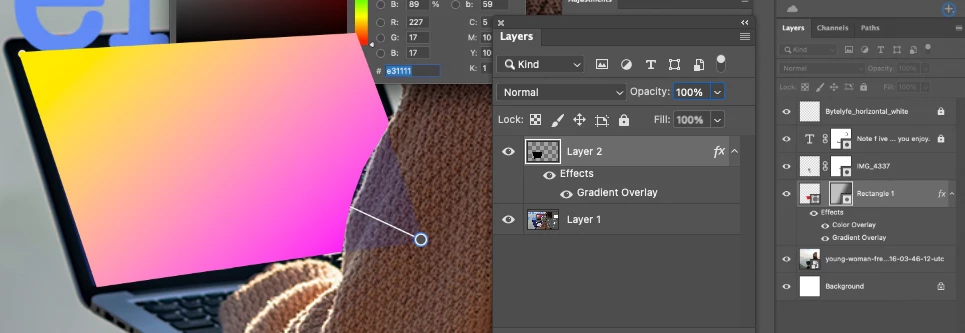
I've been working on this one problem for about three hours now there is literally nothing online that is helpful Orioles on YouTube nothing all I need to do is change the color of a gradient but it's only shades of gray no matter what color I pick I only get gray. In the photo, you can clearly see that I have the color red selected but it turns gray.

I am for real considering quitting my job because I hate Photoshop so much.
This topic has been closed for replies.
Correct answer Kevin Stohlmeyer

A couple of things working against you -

1. You have a color overlay ontop of your gradient hiding the result. Remove it.

2. Your mask on that layer is very light/transparent and would not show the results clearly.


1 reply

Jeff Arola
Community Expert
Community Expert
November 13, 2023

Instead of adding a Gradient to a Layer Mask, which can only be grayscale, double click on the Gradient Overlay layer effect to change the colors of the existing Gradient or add an additional Gradient Overlay.


danielb94023111
Known Participant
November 13, 2023

Thanks, but that has even less effect doesn't even change the shade of gray as you can see in the picture here I tried what you suggested, and I clearly have a yellow color selected and this time there was no change whatsoever. Do you have any other ideas?

Jeff Arola
Community Expert
Community Expert
November 13, 2023

 You may also need to change the Color Overlay.


Both Effects should be accessible after double clicking on one or the other.