

How do I create an action that saves to the source folder?
I know this has been asked before, but after reading several threads and watching a couple of youtube videos, it’s still not answered. Or I don’t understand it.
I want to create a droplet that reduces a file to 1500 pixels wide and then does a “save as”. I can do that, but I can only select a directory where the file always goes. I can’t tell PS to save the file in the source directory. That’s what I want. I want to save the file in the same directory as the source file.
Scenario: We do fine art scanning. Once we are finished editing and ready to dropbox files to the client, we do the following to a file:
- Flatten the TIF file
- Save
- Use File → Automate→ Fit Image: Set file width and height to 1500 pixels so the file gets reduced to 1500 pixels on the long side.
- Save as → Save as JPG and append the file name with -web, ie. scanfile-web.jpg
- Close original file without saving.
The action looks like this:
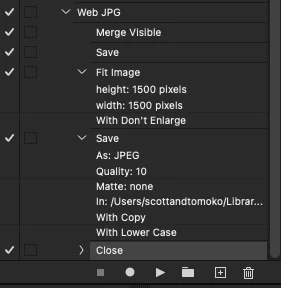
The problem is that when I go to make a droplet, there is no option for Source Folder. If I want to create a droplet that appends a file name with -web.jpg and saves as a jpg, I can ONLY select a specific folder. There is no way to tell PS to use the source folder. If I say “save and close”, then there’s no way to append the file name. Same with the None option.
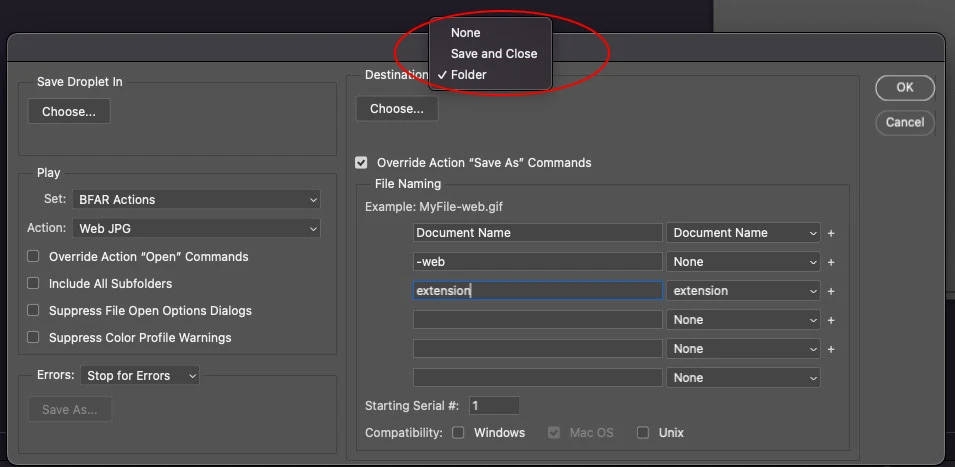
How can I accomplish this seemingly simple and yet somehow impossible task? Note that I want to accomplish this with a droplet. I don’t want to have to into menus every time. It’s too time consuming to do all day long.
Thanks!
 AdChoices