
JacquiK
Participant
January 1, 2025
Question

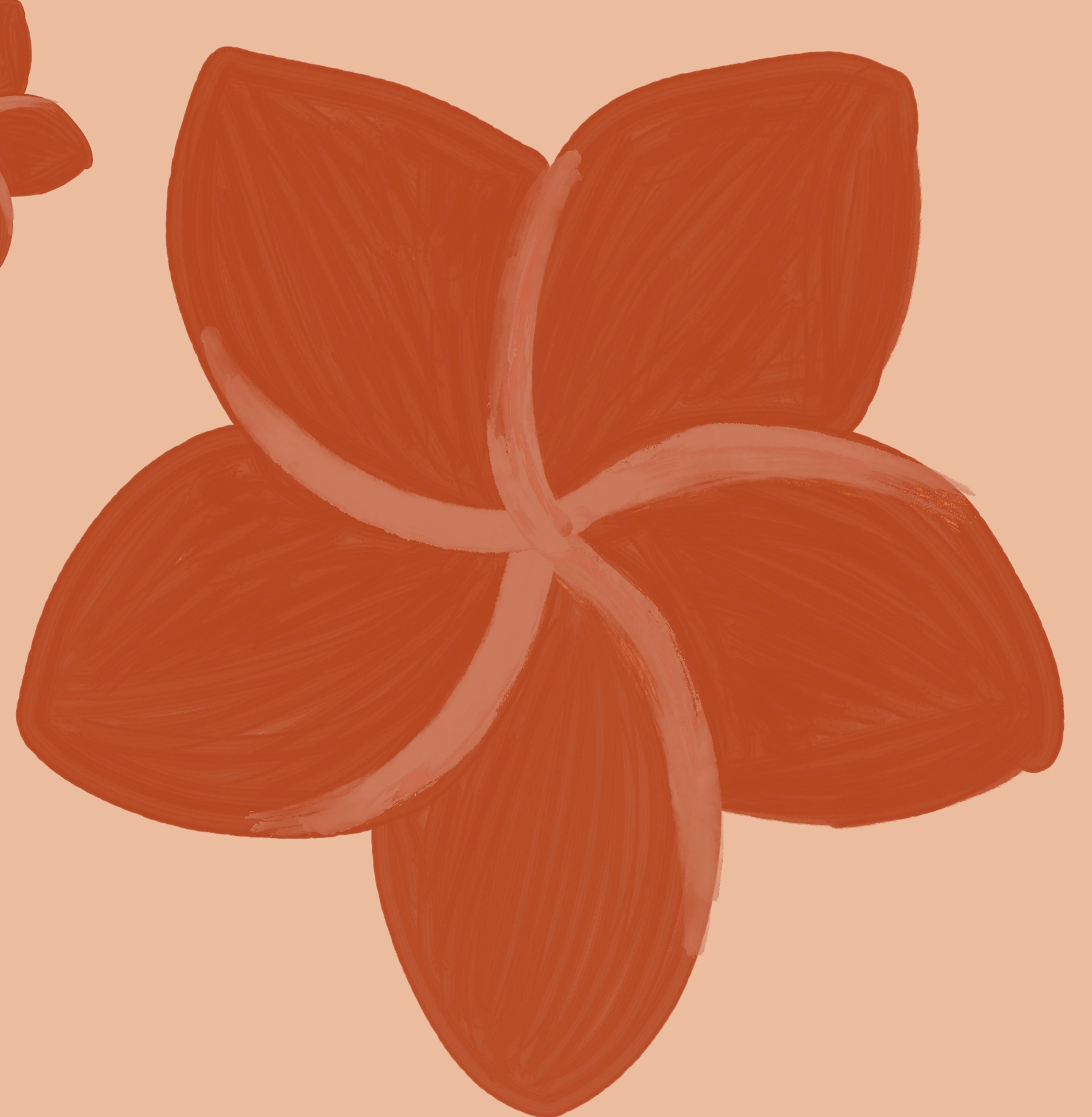
How do I create this brush effect?
  • January 1, 2025
  • 4 replies
  • 553 views

Hi All, 

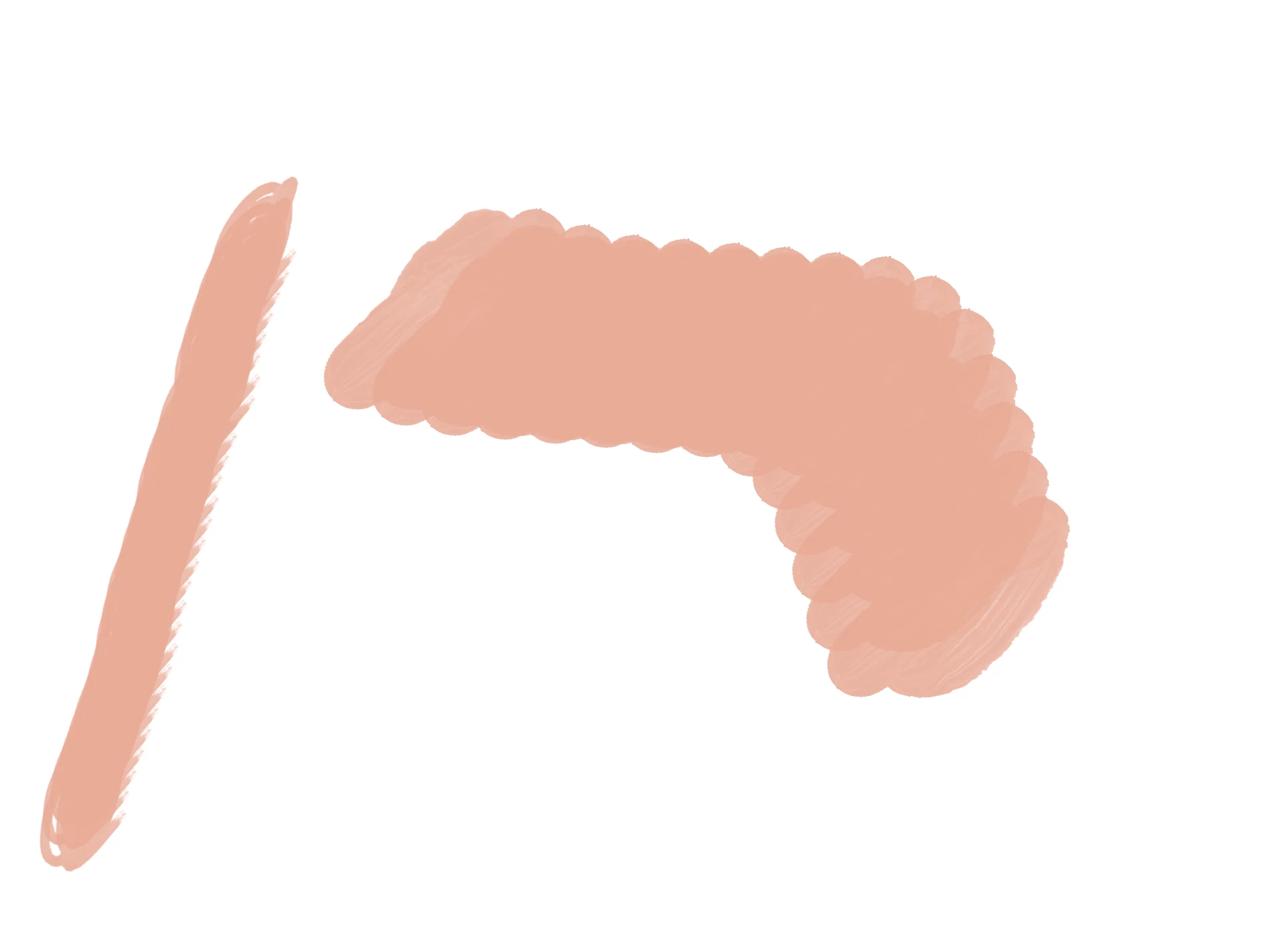
I have lots of brushes but I cannot create this effect.  All I get is solid "paint" with no texture or something like the next image.  I've tried colour dynamics but didn't achieve what I am trying to achieve.  I'm only using a mouse so I wonder if that is a factor.

I'm still learning Photoshop, so I'd be so grateful for any assistance.  Thank you
4 replies

JacquiK
JacquiKAuthor
Participant
March 26, 2025

Thank you all

c.pfaffenbichler
Community Expert
Community Expert
January 17, 2025

If you want individual but complete strokes to vary in color remember to uncheck »Apply Per Tip« in the Color Dynamics. 

Trevor.Dennis
Community Expert
Community Expert
January 13, 2025

There is some misunderstanding the brush engine in this thread.

As Jane has said, you need to decide how dense each area of the new preset is going to be, so

  1. Remove thee backround, and Apply the new layer mask
  2. Use Curves or Layers to adjust density.  Curves are best because we can control specific areas. We want some of the preset to be full black, and we can see that in the histogram behind the curve (green highlight). That left the five vein areas too light, so clicking on the little hand icon and then on the vein and adjust to suit.
  3. The image was on the big side for a preset (4000 pixels) so downsize a bit if you like)
  4. Then Edit > Define New Brush preset.


Select a foreground colour and click (don't move the brush at this stage)

To make it interesting:
Spacing 100% 

Size jitter 50% (minimum 20%)

Angle Jitter 50%

Scatter 500% (Both axis)

Hue Jitter 100% Apply per Tip (very important)

Set foreground and background colour to something bright and colourful

jane-e
Community Expert
Community Expert
January 1, 2025

@JacquiK 


Use at least three layers to make editing easier:

  • Lowest layer: darkest shade
  • Middle layer: longer thicker strokes
  • Top layer: thinner lightest strokes


Jane


JacquiK
JacquiKAuthor
Participant
January 13, 2025

Thank you Jane, much appreciated.  I can't make the strokes go in the direction I want them to.  I'm not quite sure how to explain it, but you can see it in my second image  

c.pfaffenbichler
Community Expert
Community Expert
January 13, 2025

Did you use »Direction« for Angle under »Shape Dynamics« in the Brush Settings Panel? 

Please post meaningful screenshots to clarify.