Participant
November 13, 2015
Answered

How do I export Workspace settings in PhotoShop CC?

  • November 13, 2015
  • 5 replies
  • 105417 views

How do I export Workspace settings in PhotoShop CC?

Specifically, location of my tools and palettes and so forth.

I created my workspace and saved it - and it's in my Window>Workspace menu but there's not export option here.

Other instructions I found (for CS6) said to go to File>Presets>Manage menu - but that only has brushes, swatches, etc - no option I can find for workspace layout.

PC instructions, please. Feel free to include Mac, if they're different, so the next person can find a complete solution.

(I am hoping to translate this instruction to INDD & AI - or I'll be posting on their forums as well)

Please and thank you.
This topic has been closed for replies.
Correct answer JJMack

If you can access the other users system files on the local or remote machine you can import their Photoshop Preferences files.

5 replies

Inspiring
September 14, 2020

I ran into the same problem on my iMac to my MacBook. I could migrate all the settings and brushes using the methods outlined at https://helpx.adobe.com/photoshop/using/preset-migration.html except for the Workspaces. Even tho the migration window showed them exported, they were not.  If I simply tried to copy the files over my network from one computer to another, I got an error that the files "can't be replaced because it's invisible."  Mind you, I was copying, not replacing.  I tried copying the files from the iMac in /~user/Library/Preferences/Adobe Photoshop 2020 Settings/Workspaces to a USB thumb drive and then copy to the same folder on the MacBook and got the same error.  I even tried to make sure they were visible using Terminal's command chflags nohidden, but no luck.  What did work was renaming the Workspaces folder on the MacBook "old" then copying the entire folder Workspaces from the USB into the Settings folder.  I could then copy back into that new, copied Workspaces any of the "old" Workspaces that I wanted on the MacBook. Obviously, one needs to close Photoshop first and then reopen it.

pratikk10196076
Participant
July 11, 2016

Here's the perfect solution for WINDOWS users!

Step 1 -

Go to "My Computer" > "Organize" > "Folder & Search Options" > "View Tab" > Check the radio button "Show hidden Files, folders and drives" > and hit "Apply" > "Ok" (Close window)

Step 2 -

FOR PHOTOSHOP CC

(new window) Go to "My Computer", in the "Search Computer" tab on top right corner, type "(extension name).psw" and hit enter.

FOR INDESIGN CC

(new window) Go to "My Computer", in the "Search Computer" tab on top right corner, type "(extension name).xml" and hit enter.

Step 3 -

copy and paste the file that appears, wherever you want to keep your work-space settings safe...

Step 4 -

Whenever you upgrade your photoshop or indesign, or move to any other PC, which doesn't have your settings saved, simply copy and paste these files in the following folders:

FOR PHOTOSHOP CC

"C:\Users\(your PC user name)\AppData\Roaming\Adobe\Adobe Photoshop CC \Adobe Photoshop CC Settings\WorkSpaces (Modified)"

FOR INDESIGN CC

"C:\Users\(your PC user name)\AppData\Roaming\Adobe\InDesign\Version 11.0\en_US\Workspaces\"

Step 5 -

Restart your PC and open Photoshop or InDesign.

ccoxcatm
Participant
September 19, 2017

That's exactly what I was looking for! Thanks!

JJMack
Community Expert
Community Expert
November 13, 2015

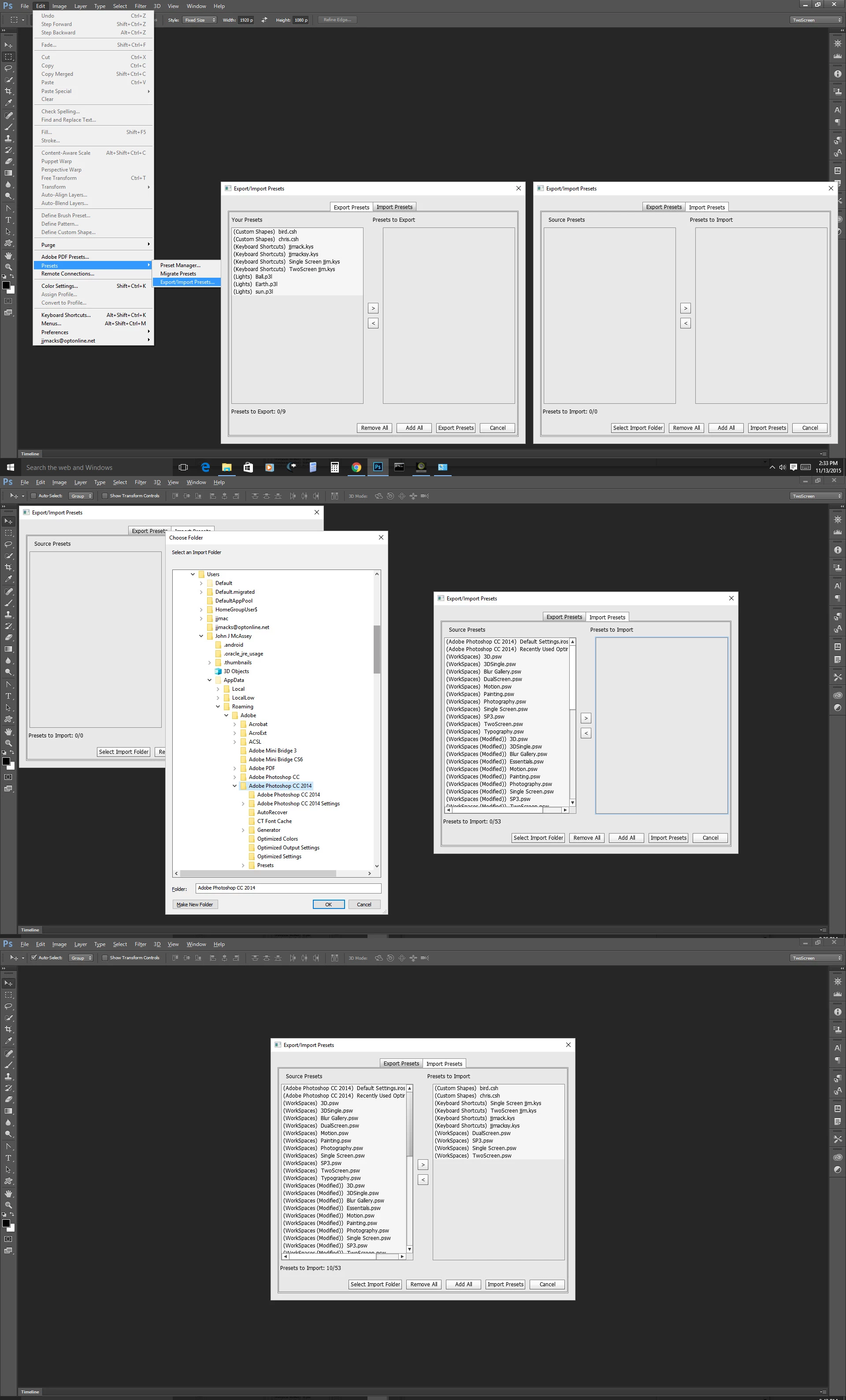
Adobe seems to treat users presets and preferences strangely.  Where you able to sync workspaces with the cloud and you can import port Photoshop versions  workspaces  you can not export workspaces for some strange reason  they do not show up un the  presets Export/Import Presets  dialog export panel only show in the import panel?  You can manually copy them out of your preferences. Very few preset show in the export panel????

JJMack
Community Manager
November 13, 2015

Hi JAH-Lou,

Please check the following document, it should be helpful : Preference file functions, names, locations | Photoshop CS6

Regards,

Tanuj

JAH-LouAuthor
Participant
November 13, 2015

Tanuj Sandal:

Ah-ha! this works!

I think.

I haven't tried to import it to another user account yet - which is my ultimate objective.

I am, however, confused by the file extensions:

PS is .psw - which seems to make sense

INDD's workstation preset file extension seems to be .xml - OK

But AI didn't have any extension.

I was able to copy these files to another location in hopes of uploaded my layout preferences to another workstation on a different Adobe account.

JJMack
Community Expert
JJMackCommunity ExpertCorrect answer
Community Expert
November 13, 2015

If you can access the other users system files on the local or remote machine you can import their Photoshop Preferences files.

JJMack
War Unicorn
Community Expert
Community Expert
November 13, 2015

Photoshop, InDesign & Illustrator all have the ability to sync/upload/download your workspaces via Edit (Photoshop on Mac) > Preferences > Sync Settings. Just remember to include workspaces (checked by default).

JAH-LouAuthor
Participant
November 13, 2015

Warunicorn:

This is great for connecting to another workstation - but not if you want to set up someone else's account like yours.

I was not able to determine how to download my synced settings to a folder of my choosing.

Ideas?