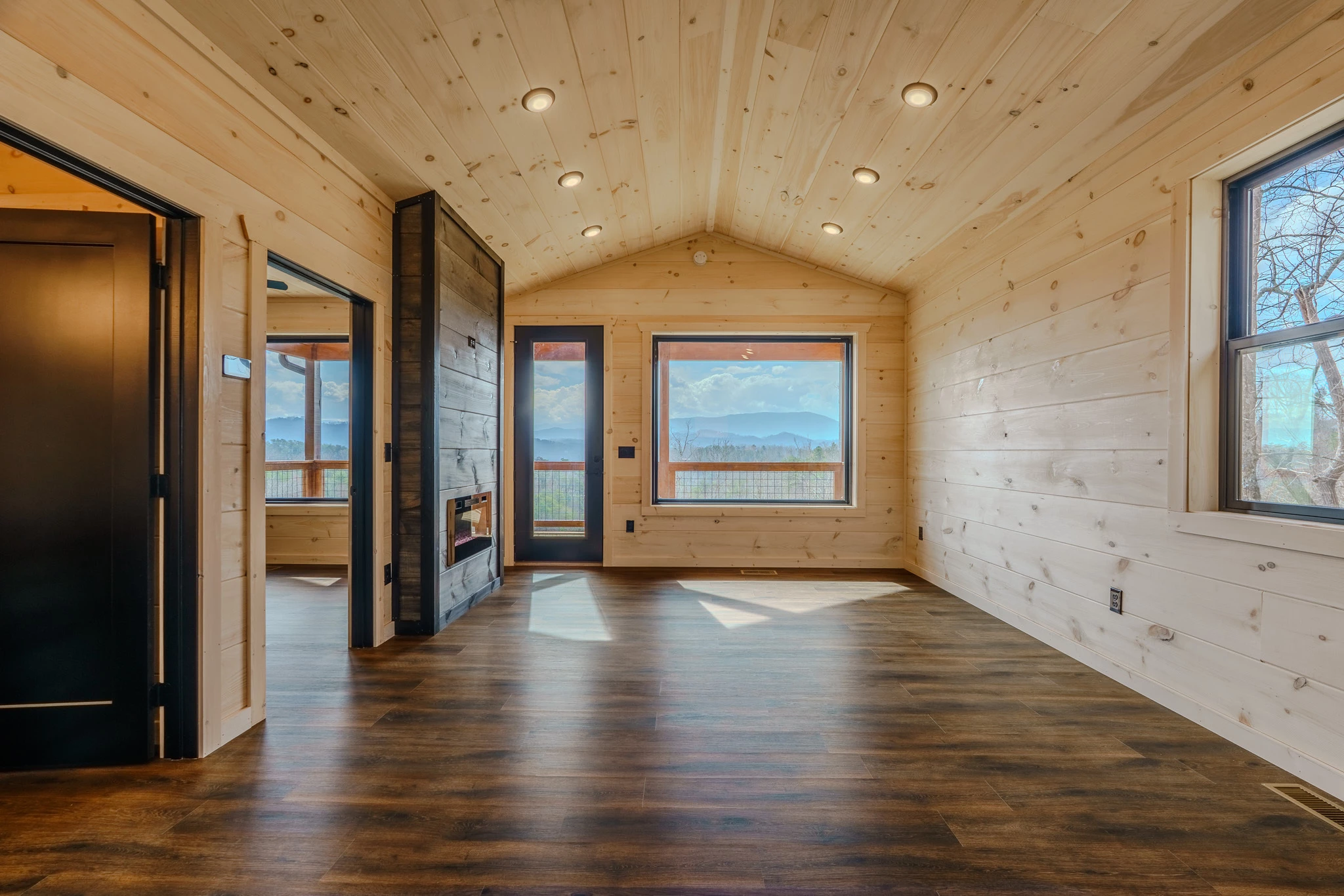
Hey guys, how do I remove the reflections from the floor, I do NOT wanna use AI Remove as it doesn’t give me what I am looking for. I want to keep the sun outlines from the windows, but make the colors of the floor match. I have messed around for a couple hours and just cannot seem to get it right
You say you want to “remove the reflections”, but do you mean the shine on the floor surface, or do yoiu mean the sunlit patches?
I would not try to remove the shine. It’s what defines the floor surface, and removing it would make the scene look dead and synthetic.
As for the sunny patches, I’d just paint on a new layer in Color blend mode. Keep in mind that the color should be slightly warmer in the sun than the shade, so just picking up the surrounding color will again look a bit dead. Pick a warmer color (but don’t overdo it. It’s subtle).
You could try frequency separation. The principle is to separate the fine detail and the low detail (e.g. colours) onto separate layers. That way you can retouch the broad areas of colour without affecting the fine detail.
Make 2 duplicates of your image layer
Name the lower - "Low frequency"
Name the Higher - "High Frequency"
2. Select the Low frequency layer and use Filter Gaussian Blur (around 6.0)
3. Select the High frequency layer Go to menu Image > Apply Image Set the source layer to Low Frequency Set the blending mode to Subtract Set Scale to 2 * Set offset to 128 * Click OK
4. Change the blending mode of the high frequency layer to Linear Light
5. Now you can clone out blemishes on the high frequency layer and lighten or darken areas, such as those reflections, on the low frequency layer or a layer between the two.
* Note - the above steps are for 8 bit/channel images. For 16 bit/channel step 3 changes slightly
3. Select the High frequency layer Go to menu Image > Apply Image Set the source layer to Low Frequency Check "Invert" next to channel
As I understand it, you do not want to remove the reflections. You want to make the colors in the reflections match the surrounding floor. Am I understanding correctly?
You could select the highlight and use Hue/Saturation.




 AdChoices