Known Participant
March 2, 2025
Answered

How do I resize an image and change it's aspect ratio?

  • March 2, 2025
  • 3 replies
  • 298 views

I tried to resize an image and change it's aspect simultaneously.  The menu told me to hold the shift key when you want to have different numbers for height  and width.  The problem I'm having is that when holding the shift key down I can't enter numbers but only the symbol above the number.  What am I missing here?
Correct answer Trevor.Dennis

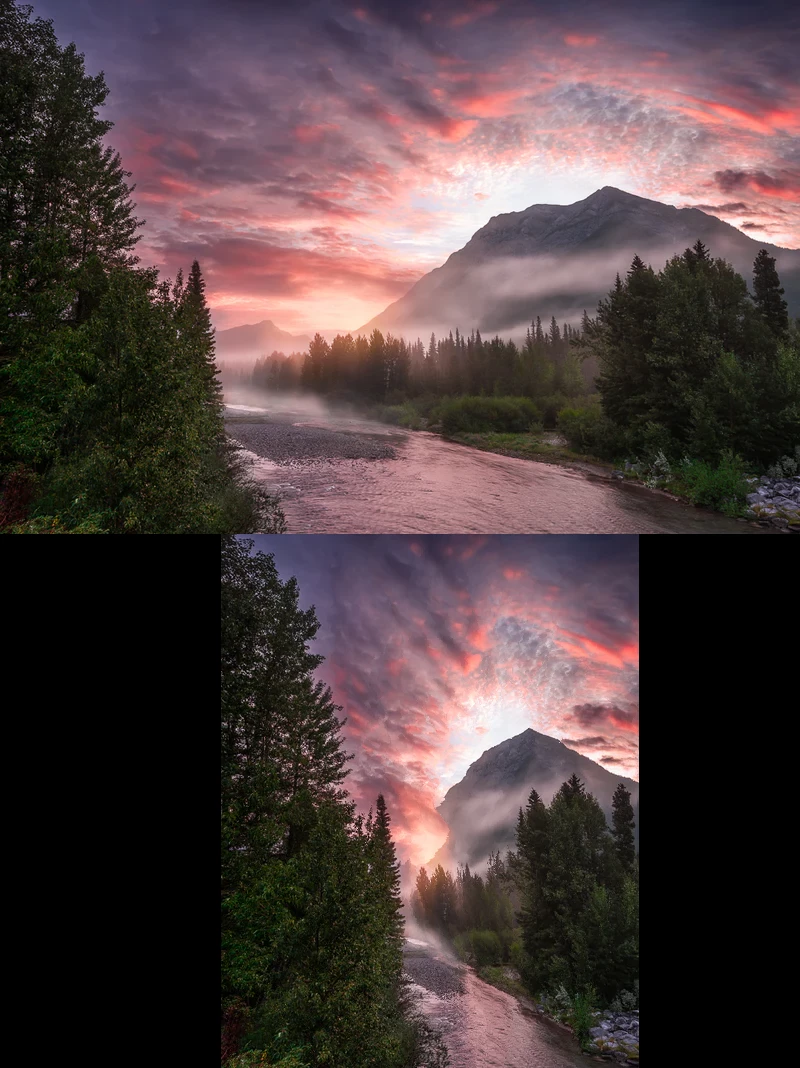
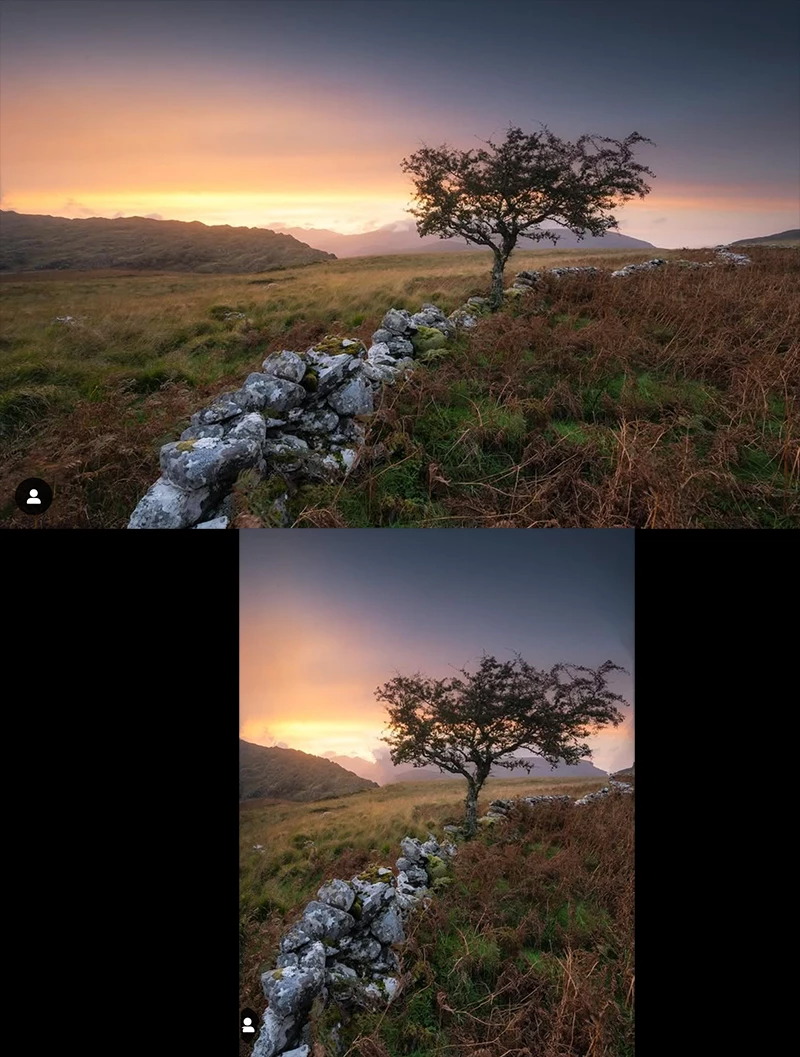
If you want to take it a step further, have a look at Edit > Content Aware Scale.


You can also protect a particular object.

It's one of those functions that you don't need often, but when you do, it's a life saver.  It goes way back before anyone even thought of Ai as well.

3 replies

Bojan Živković11378569
Community Expert
Community Expert
March 3, 2025

You are missing the link icon (scale proportionaly) in the options bar. When it is checked or active, typing a number in either the Width or Height field will cause Photoshop to automatically populate the second field (either Width or Height) with the calculated proportional value.

Trevor.Dennis
Community Expert
Trevor.DennisCommunity ExpertCorrect answer
Community Expert
March 3, 2025

If you want to take it a step further, have a look at Edit > Content Aware Scale.


You can also protect a particular object.

It's one of those functions that you don't need often, but when you do, it's a life saver.  It goes way back before anyone even thought of Ai as well.

jane-e
Community Expert
Community Expert
March 3, 2025

@James Diedrich 


After you choose CMD+T for free transform, look in the options bar for a link icon between the width and height controls. When the link is enabled, the image is changed proportionally. When the link is disabled, the image is distorted when scaled. To do the opposite, hold down the shift key.


Jane