
Participating Frequently
March 29, 2026
Question

How do you create a droplet-style displacement that warps text in Photoshop?

  • March 29, 2026
  • 3 replies
  • 55 views

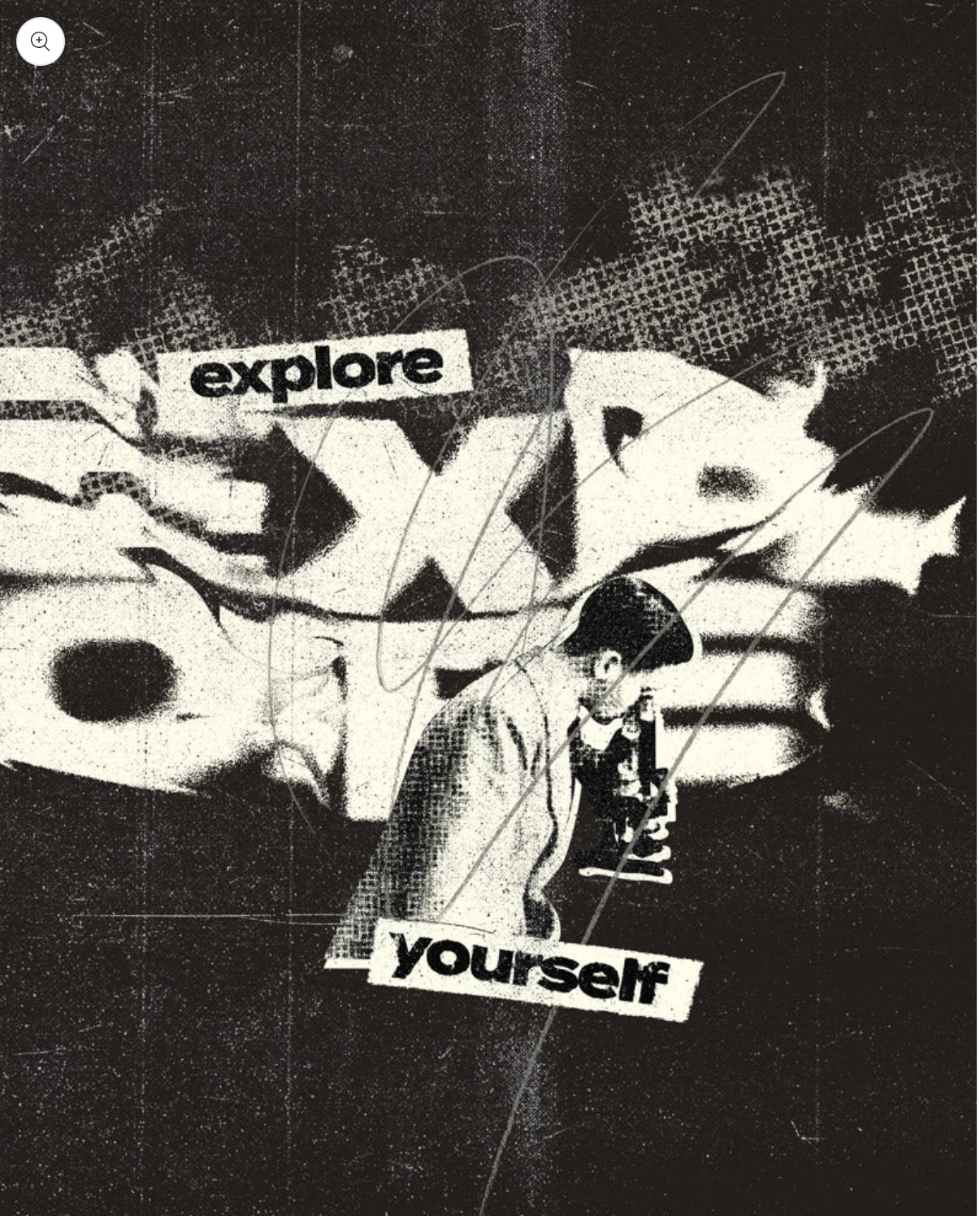
How can I make text warp realistically as if viewed through a droplet or lens using displacement (not texture or overlays)?



    3 replies

    mglush
    Community Expert
    Community Expert
    March 31, 2026

    Hi!

    Have you tried using the Liquify tool?

    Here is an example:

    You will need to rasterize your type, then place just the portion of it that you want to distort on a separate layer. For this example, I used a Elliptical Marquee and then chose Layer Via Cut. The take that layer into Liquify and use the Bloat tool

    Make the brush size the same size as the circle of type you cut, and then just place the Bloat tool over the area, hold down the mouse, and watch the type distort until you are satisfied with the results.


    You can also create non circular areas by pressing the Bloat tool multiple times on different parts of an image.


    Have fun, and let us know if that works for the effect you want to create.


    Also, If you are looking to create more of a warped effect--have you tried the Warp Text tool?


    Michelle

    c.pfaffenbichler
    Community Expert
    Community Expert
    March 29, 2026

    The Displacement Map may need to be improved (obviously) but in principle a lens-effect seems possible up to a certain size. 


    c.pfaffenbichler
    Community Expert
    Community Expert
    March 29, 2026

    I don’t quite understand the example you posted as I fail to perceive a »droplet«-like distortion. 

    Could you please elaborate? 

    Participating Frequently
    March 29, 2026

    Hey thanks for your response, notice the word “Explore” try and ignore the layered texture, it has been displaced in a way it looks like droplet of water? looking to achieve a similar effect? zoom out it has been displaced with some kind of liquid displacement? 

    c.pfaffenbichler
    Community Expert
    Community Expert
    March 30, 2026

    I wouldn’t call that a »droplet« exactly, maybe a »perturbed water surface«. 


    A blurred displacement map based on the Filter »Clouds« might provide a starting point, but manual editing may be unavoidable. 

    For more immediate control you could also try the Filter »Liquify« – but keep in mind that changing the Canvas Size or position of the Smart Object afterwards can cause unintended changes.