

landscape_snarkitect
Known Participant
February 5, 2026
Question

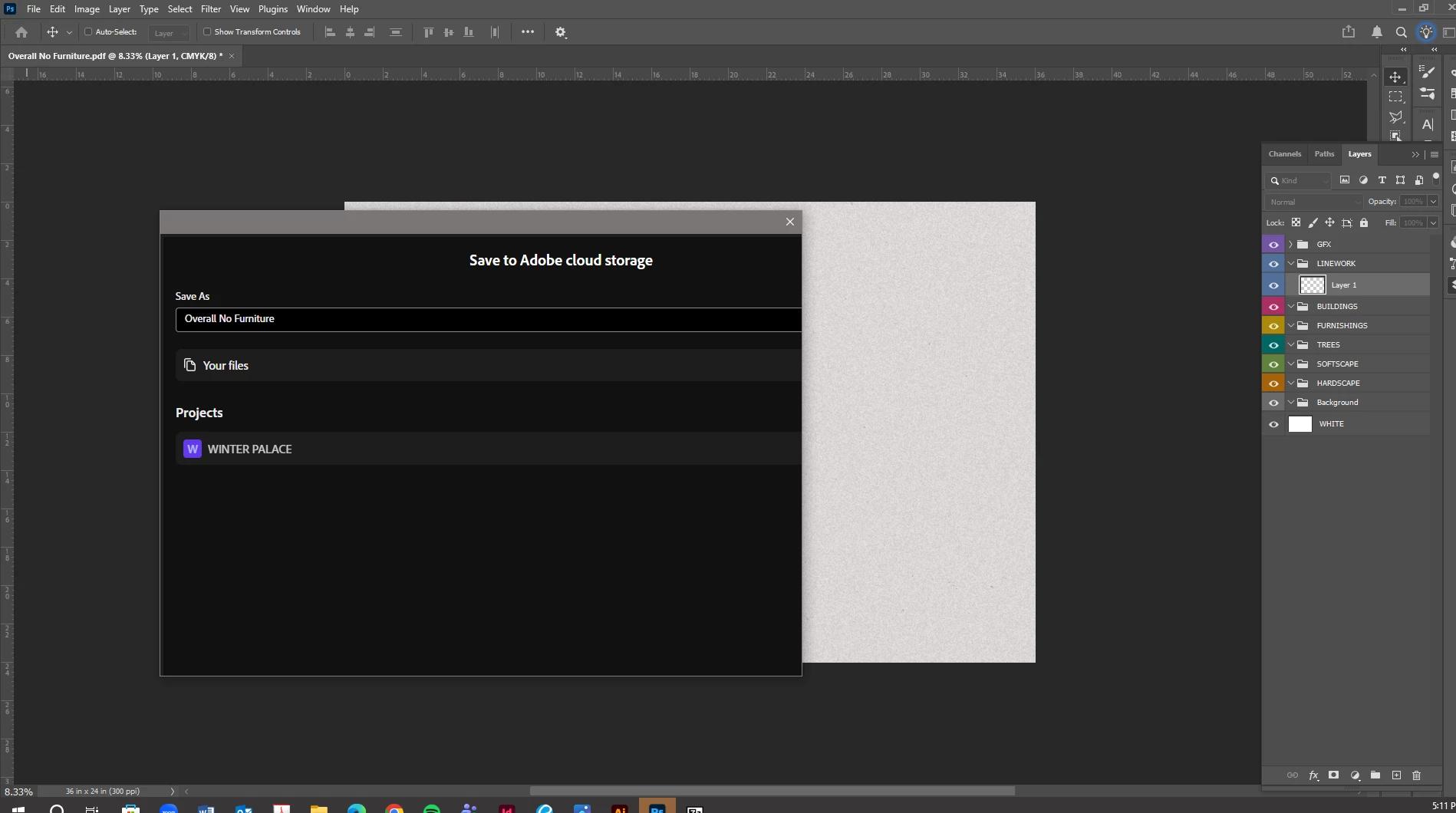
How do you save to server/drive on Photoshop 2026? Cloud option only....

  • February 5, 2026
  • 2 replies
  • 23 views

Hi, I just upgraded to Photoshop 2026, and I am trying to save a file to my office server. Whenever I select “Save As,” only the option to save on the Cloud is available. How can I save to wherever I want instead of the Cloud?


Thanks! 
 

    2 replies

    Conrad_C
    Community Expert
    Community Expert
    February 6, 2026

    You’re in the right place, but you should be able to see a button named “On Your Computer” at the bottom that you should be able to click on, to switch the dialog box to the Windows standard local dialog box that lists local storage as well as network shares. I outlined that button in green in my picture below. Also, there should be Cancel and Save buttons visible at the bottom too. But your screen shot shows that none of those bottom buttons in that dialog box on your screen. You can see those buttons in my screen shot; although I’m on a Mac it should be the same layout in Windows. 


    There’s another clue that makes me think the buttons were pushed beyond the edge: At the top, the title “Save to Adobe cloud storage” should be centered, but in your screen shot that title is shifted off center to the right.


    It’s as if the layout of the UI elements in that dialog box were scaled from the top left corner and pushed downward and to the right, with some elements pushed beyond the dialog box visible area.
     

    All of those symptoms remind me of other issues in current Adobe software where UI elements are pushed outside the visible area as a side effect (OK, I mean a bug) related to having a UI scaling value of more than 100% entered in Windows display settings. (You’re looking for that percentage, which is not the same option as setting a resolution such as 1920 x 1080 or 3840 x 2160.) Do you know or can you find out if a high UI scaling value is applied on your system? And if so, do the buttons become visible if you reduce the UI scaling value?


    jane-e
    Community Expert
    Community Expert
    February 6, 2026

    @landscape_snarkitect 


    Here is the recommended workflow from Adobe for working with networks and removable media:


    “Technical Support strongly recommends working in Photoshop directly on the local hard disk. To prevent data loss, save files to your hard disk first. Then transfer them to the network or removable drive in the Finder or in Windows Explorer. To retrieve files, copy them in the Finder or in Windows Explorer from the network or removable drive to your hard disk. You can then open the files in Photoshop. This workflow avoids problems that occur when network system setups or removable media device drivers are incompatible with the operating system or Photoshop.”


    Please read the Help page for complete information:

    https://helpx.adobe.com/photoshop/kb/networks-removable-media-photoshop.html


    To answer the other part of your question, go to Preferences > File Handling and change the Default File Location to "On your computer” instead of to Adobe’s Cloud.  Be sure to restart Photoshop.


    Jane