


Participant
Oct 28, 2026 2:51 AM UTC
Question

How to accurately show the colour of metal

Hi!

I have a studio photograph of glasses with a gold metal frame. The image will be used for online shopping, so colour accuracy is very important.

The issue is that the white highlights and dark shadows obscure the actual gold colour of the frame, making it difficult to represent the product accurately. 

What would be the best way to reduce the highlights and minimize the shadows in Photoshop while preserving the natural gold colour and metallic appearance of the frame?
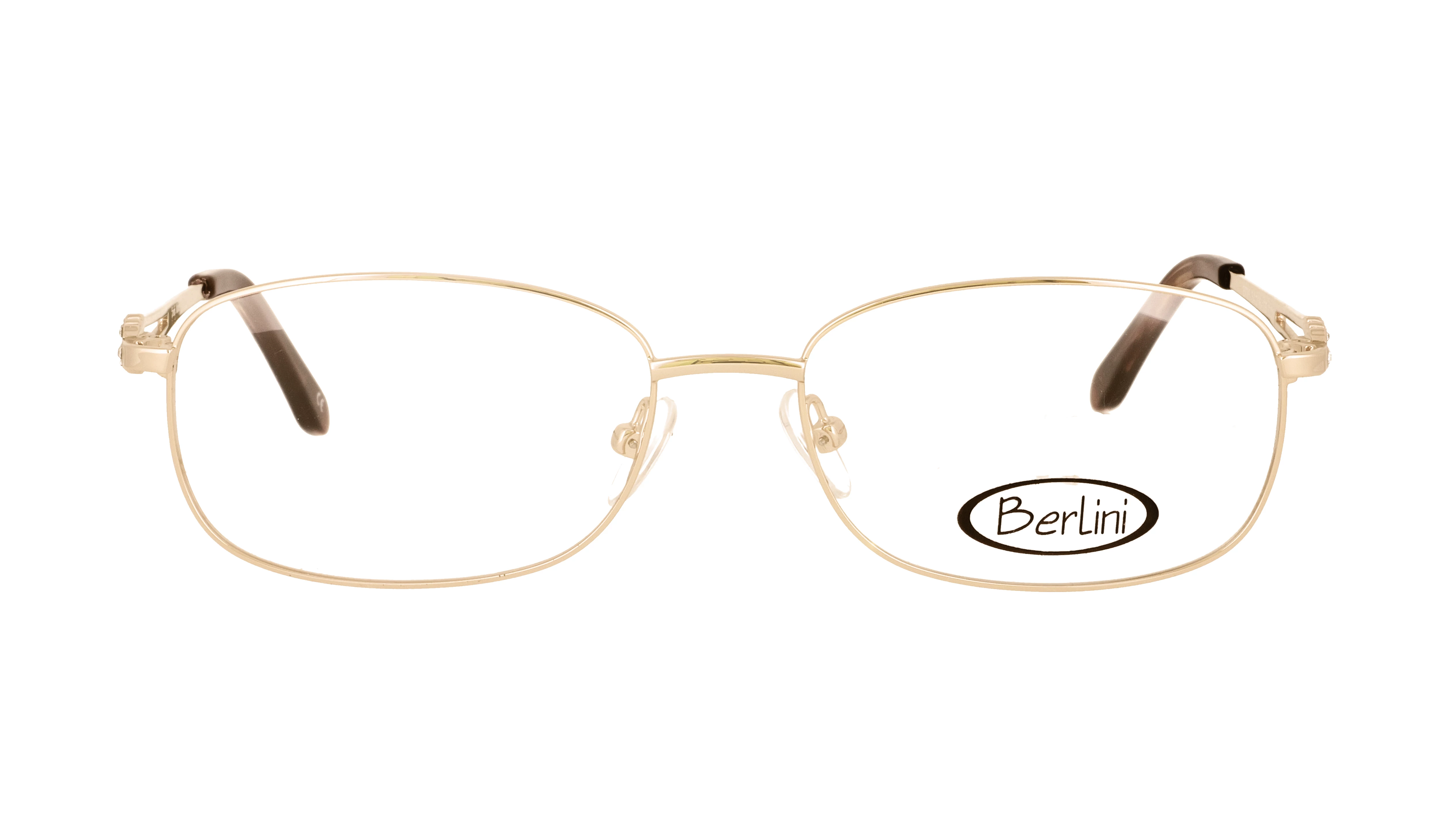
 

Thank you!

Feiga

    9 replies

    Participating Frequently
    Oct 30, 2026 5:47 AM UTC

    I have run into this with product shots too, and I found it helps to keep a little reflection rather than flattening it completely. I usually mask a Curves layer to just the frame, lift the deepest shadows a touch, and pull the blown highlights down slightly, then add a very light warm tint back into the midtones. That way the gold still reads as gold, but the frame does not look washed out or too harsh.

    Translate
    D Fosse
    Community Expert
    Community Expert
    Oct 28, 2026 9:34 AM UTC

    What characterizes metal is not just color, but reflections and how the surroundings are reflected in the surface. So you need to make a choice: do you want to emphasize the metal surface, or do you want to emphasize the base color? You can’t have both, not in the same area.

    This choice is made with lighting when photographing the object, not in Photoshop after the fact.

    Peronally, I think a bit of hard metal reflection can be a good thing. It can add a little punch. The spoon looks a little more boring, right?


    Translate
    Ethereal_Coconute7c4
    Participating Frequently
    Oct 28, 2026 5:16 AM UTC

    Try keeping the adjustment masked tightly to just the frame and lowering its opacity, so the gold keeps some of its natural contrast instead of looking washed out. Comparing the result with the original at full zoom can also make it easier to judge the colour accurately.

    Translate
    Participant
    Oct 29, 2026 9:33 PM UTC

    Hi, thanks for your answer!

    How do you tightly mask an adjustment layer? And you mean the curves adjustment layer, right?

    Translate
    Trevor.Dennis
    Community Expert
    Community Expert
    Oct 28, 2026 4:19 AM UTC

    How reflective are the frames? Is it a smooth polished, or more of a satin finish?

    Reflective metals are as much about what is reflected by the frames as what colour they are.

    These demonstrate the difference.

    To do a gold effect we tend to use the two radical ‘W’ shaped curves for Bevel & Emboss.

    The three text layers below are all the same with same colour, but the lower two have B&E Layer Style using the two profiles highlighted in green.  I can’t remember which is which.


    If you can be more specific about exactly what you are trying to achieve, we can probably give you a better answer.

    Translate
    Participant
    Oct 29, 2026 9:31 PM UTC

    Thanks for your answer, Trevor!

    Currently, the shadows are pretty black. I want them to be less stark, whether that’s by adding gold to the current colour, or by shrinking them down a bit to make them smaller.

    The highlights are also too pronounced, so I want to add more gold to them.  

    Here is a reference photo of how I softened the highlights in another image. I am trying to achieve the same effect.

    Original image
    Edited image


    Translate
    Trevor.Dennis
    Community Expert
    Community Expert
    Oct 30, 2026 2:36 AM UTC

    You can make this sort of subject matter look like whatever you want with Camera RAW.  This has no masking, so the setting below are applied to both the metal frame and plastic ear thing.

    You could add additional shading manually.  What I’ve done below is copy the Smart Object layer and rasterize it so I could use Remove Background.

    That created the layer mask so I unlinked the mask and deleted the glass from leaving an empty layer with a layer mask.

    I then added a thin black line to the lower edge, and a white line to the upper edge.  These are constrained by the layer mask.

    I’m sure you’ll know this, but to add the brush strokes stamp down at one end, and Shift stamp at the other to connect with a straight line.


    You can do the same thing with the plastic ear hook by adding a path like below.

    Right click the path and chose Stroke Path

    I have the brush size set to Fade and 500 with 25% spacing. Brush was 10 pixels

    This gives you nice tapered highlight that is perfectly placed.  


    Translate
    CORCTON34033231
    Community Expert
    Community Expert
    Oct 28, 2026 3:04 AM UTC

    Hi Feiga, a good non-destructive place to start is a Curves adjustment layer, masked to just the frame. In the Adjustments panel, choose Curves, then make only small moves: pull the highlight end down a little to tame the white highlights, and lift the shadow end a little to open the dark areas. Keeping the moves small helps keep the gold colour and metallic look, rather than flattening it. Then, on the adjustment layer mask, paint white only over the frame so the rest of the photo is untouched. Adobe's guide to this workflow is here: https://helpx.adobe.com/photoshop/desktop/adjust-color/color-corrections/adjust-image-color-and-tone.html

    Translate
    Participant
    Oct 28, 2026 3:39 AM UTC

    Hi Corcton, thanks for your message! 

    I tried that, and found that the curves made the frames look a bit washed out, and the gold targeted in the curve becomes noticeably different than the other parts of the frame.

    What else could I try?

    Translate