

Participant
October 7, 2026
Answered

How to achieve rounded corners in any shape
  • October 7, 2026
  • 5 replies
  • 74 views


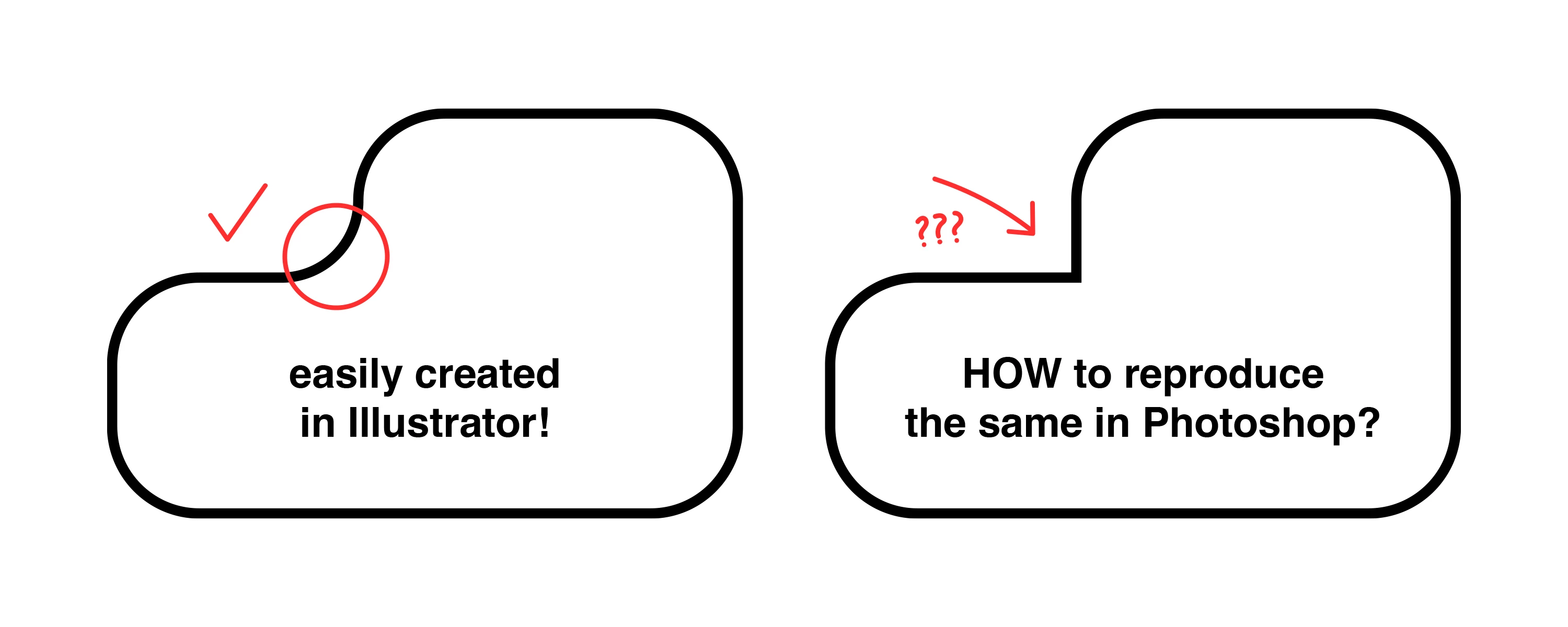
I am trying to reproduce the first shape in Photoshop. Please educate me on how to achieve it, because I cannot figure it out by myself. Is it even doable?

Correct answer CORCTON34033231

Hi DVTCHK — yes, it is doable, but not with the corner-radius fields: those only work on a single live shape, not on the inner join after two shapes are combined.


Workaround that gives you exactly that inner fillet:

1. Put the two rounded rectangles on one shape layer, with Combine Shapes as the path operation.

2. With the Ellipse tool (also set to Combine Shapes), draw a circle centred exactly on the sharp inner corner — hold Alt/Option to draw from the centre, and use Snap to hit the point. Make the circle's diameter twice the radius you want for that corner.

3. Choose Merge Shape Components from the Path Operations menu.


Only the quarter of the circle that sticks out into the notch becomes new outline, so the inner corner turns into a smooth arc of that radius — the rest of the circle is inside the shape and disappears in the merge. Hope that helps!

5 replies

Jeff Arola
Community Expert
Community Expert
October 7, 2026

Another way is to use this Corner Editor script from one of these two links:

https://photoshopscripts.wordpress.com/2015/07/29/corner-editor-update-for-photoshop-cc-2015/

https://github.com/ES-Collection/Photoshop-Scripts

then put the Corner Editor.jsx into the Photoshop scripts folder and in Photoshop go to File>Scripts>Corner Editor.


To make a shape like yours:

  1. Use the Pen Tool set to Shape to make your Shape
  2. In the Corner Editor script, input the Radius pattern and click on Round to see the results
  3. You can change any of the settings before clicking Close or go back to the script later to change the settings.


Trevor.Dennis
Community Expert
Community Expert
October 8, 2026

Now that is a cool script!  I don’t use Illustrator, but Jane did an excellent presentation on Illustrator to the New Jersy Adobe User Group this week, so I thought I’d make the effort to learn it.  I did manage to make the shape in Illustrator, but only by using the Pen tool again, and it was not as clean as what I could do in Photoshop.  So, I’ll be asking Jane how to do it properly.

Trevor.Dennis
Community Expert
Community Expert
October 7, 2026

I like to use the Grid. Hold down the Shift to force perpendicular handles, and extend the handle half of the radius while still holding down the shift key.  I think that creates accurate arcs for the corner radii.


jane-e
Community Expert
Community Expert
October 7, 2026

​@DVTCHK 

Paths can be copied and pasted between the two applications. I would create it in Illustrator and copy it. When you choose Edit > Paste in Photoshop, you will have five options for pasting. 

If you are going to use it multiple times, save the shape as a custom shape. Next time you can draw it in Photoshop as a path, shape, or pixels.

Jane


CORCTON34033231
Community Expert
CORCTON34033231Community ExpertCorrect answer
Community Expert
October 7, 2026

Hi DVTCHK — yes, it is doable, but not with the corner-radius fields: those only work on a single live shape, not on the inner join after two shapes are combined.


Workaround that gives you exactly that inner fillet:

1. Put the two rounded rectangles on one shape layer, with Combine Shapes as the path operation.

2. With the Ellipse tool (also set to Combine Shapes), draw a circle centred exactly on the sharp inner corner — hold Alt/Option to draw from the centre, and use Snap to hit the point. Make the circle's diameter twice the radius you want for that corner.

3. Choose Merge Shape Components from the Path Operations menu.


Only the quarter of the circle that sticks out into the notch becomes new outline, so the inner corner turns into a smooth arc of that radius — the rest of the circle is inside the shape and disappears in the merge. Hope that helps!
