Participant
March 22, 2022
Answered

How to add 800x800px white backgrounds to images in bulk?

  • March 22, 2022
  • 2 replies
  • 3234 views

I'm trying to add 800x800px white backgrounds to images in bulk and size the images correctly to the background. To my knowledge it is possible to do this by recording an action then using the image processor. I need to keep the image titles the same. Please let me know if anyone can help. Thanks!

This topic has been closed for replies.
Correct answer Bojan Živković11378569

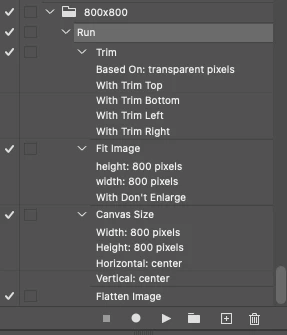
All you need is a 3 or 4 step action:


  1. Image > Trim... (optional step)
  2. File > Automate > Fit Image...
  3. Image > Canvas Size...
  4. Layer > Flatten Image


Refer to the previous links for some finer points on setting up such an action.


If you use File > Automate > Batch to run the action, you would need to add a file-saving step to the action.


If you use Image Processor (installed in Photoshop by default) or Image Processor Pro (optional add-on) or Picture Processor Pro (optional add-on) scripts, then there is no need to include the save step as the script takes care of the file saving.


"If you use File > Automate > Batch to run the action, you would need to add a file-saving step to the action."

"I need to keep the image titles the same. "


To recordd this step just do not touch file name  field while recording action in order to keep existing file name and to avoid overwriting in batch process. It is better to use Image Processor Pro without need for Save step.

2 replies

Stephen Marsh
Community Expert
Community Expert
March 22, 2022

What size are the images currently in px? Are the images flattened or layered?


Providing a screenshot or sample file is always helpful to illustrate.


An action using Automate > Fit Image and Image > Canvas Size are often used for such tasks where a batch square or 1:1 ratio output is required.


Examples:


https://community.adobe.com/t5/photoshop-ecosystem-discussions/creating-automation-droplet-for-batch-resizing-and-putting-on-background/m-p/12719883


https://community.adobe.com/t5/photoshop-ecosystem-discussions/creating-automation-droplet-for-batch-resizing-and-putting-on-background/m-p/12710977


https://community.adobe.com/t5/photoshop-ecosystem-discussions/bring-a-batch-of-photos-into-a-square-with-processor-and-actions/m-p/12734160


Participant
March 23, 2022

All the images are different sizes with transparent backgrounds. I've attached a before and after of what I need them to look like. However, it's very time consuming to do this one by one as there are about 400 different image. 

Stephen Marsh
Community Expert
Community Expert
March 23, 2022

All you need is a 3 or 4 step action:


  1. Image > Trim... (optional step)
  2. File > Automate > Fit Image...
  3. Image > Canvas Size...
  4. Layer > Flatten Image


Refer to the previous links for some finer points on setting up such an action.


If you use File > Automate > Batch to run the action, you would need to add a file-saving step to the action.


If you use Image Processor (installed in Photoshop by default) or Image Processor Pro (optional add-on) or Picture Processor Pro (optional add-on) scripts, then there is no need to include the save step as the script takes care of the file saving.

S_Gans
Community Expert
Community Expert
March 22, 2022

I would suggest resizing first - WITHOUT your image titles on it (as they'd resize with everything else). Then, create a new layer, reposition it to the bottom of the layer stack, and fill it with white (use Edit>Fill). This will set you up with the white background. Then, add your text (either as a placed graphic or as a type layer - this will keep it consistent, no matter what your original image size). I haven't tried this directly, but it's where I'd definitely start.

Adobe Community Expert / Adobe Certified Instructor