
Dave Kimball
Known Participant
July 26, 2021
Answered

How to add a vignette to multiple layers

  • July 26, 2021
  • 3 replies
  • 833 views

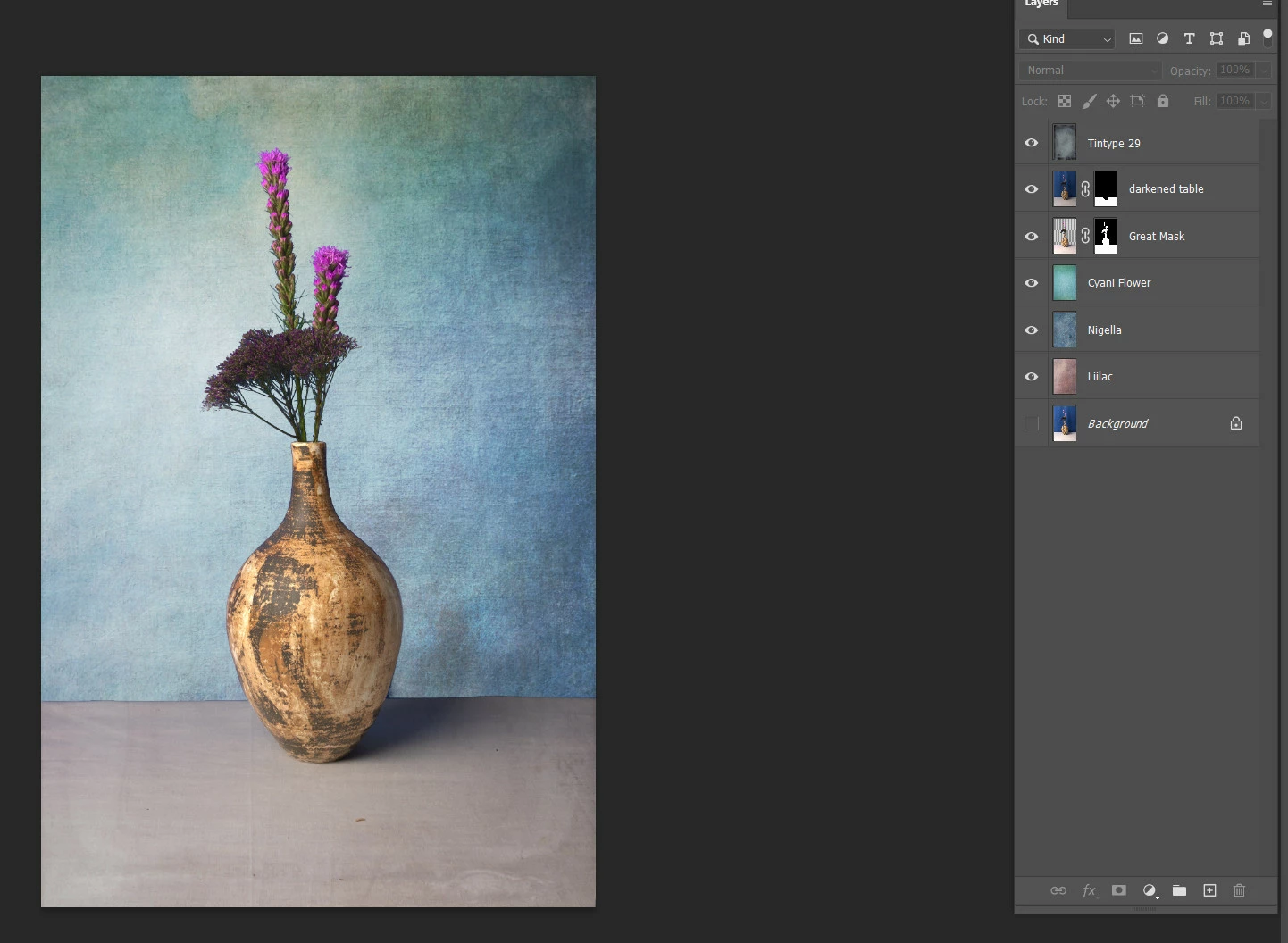
I have an image that has several layers, different parts of the entire image that I'm working on.

I would like to add a vignette to the image, all of the layers, but how.

I'l like the full image to have the vignette.  SO far I have only been able to export the image to a seperate jpg file and add the vignette to the flattened image.

There must be a way in photo ship to select the layers and add a my vignette?


Thanks

Dave
This topic has been closed for replies.
Correct answer SJRiegel

Select all of the layers that you want inclued, then make a Group.(In the Layers Menu, chose New Group From Layers) You can then apply a mask to the group.

3 replies

Dave Kimball
Known Participant
July 26, 2021

THANKS to everone that replied to my NEWBE question.

So much to learn in Photoshop, my brain hurts.


Dave

War Unicorn
Community Expert
Community Expert
July 26, 2021

Group all the desired layers together. (Select them in the Layers panel > Ctrl/Cmd + G.)


Right-click the group > Convert to Smart Object.


Use the vignetting technique of your choice. If you need to adjust anything in the document, just double-click the Smart Object in the Layers panel. It'll open in another window. When done, save and return to the original document to see any changes.


The good: This is a non-destructive process.

The bad: It uses more memory.

SJRiegelCorrect answer
Legend
July 26, 2021

Select all of the layers that you want inclued, then make a Group.(In the Layers Menu, chose New Group From Layers) You can then apply a mask to the group.

Dave Kimball
Known Participant
July 26, 2021

thanks