


TestriteVisual
Inspiring
April 5, 2024
Question

How to Batch Export PNGs in Photoshop

  • April 5, 2024
  • 6 replies
  • 23474 views

Step 1: Open a file you want to convert / export to PNG


Step 2:

Create a new Action, then you MUST choose File ->Export -> Save for Web (Legacy). From my testing, no other export choices from the menu will work for making a PNG export Action.
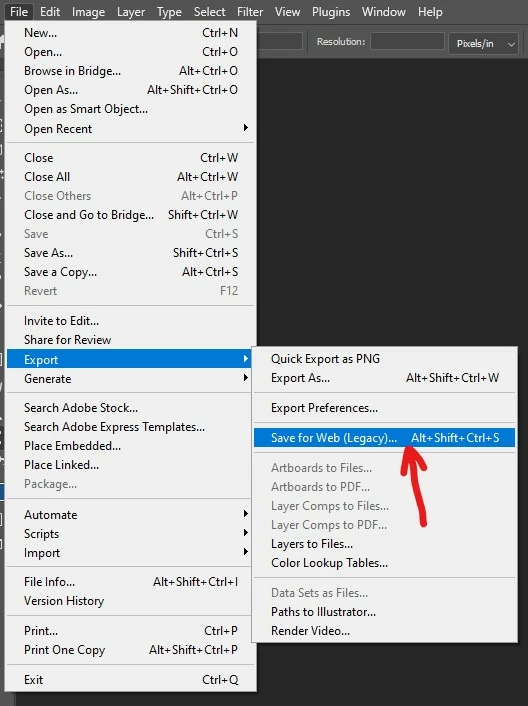
 

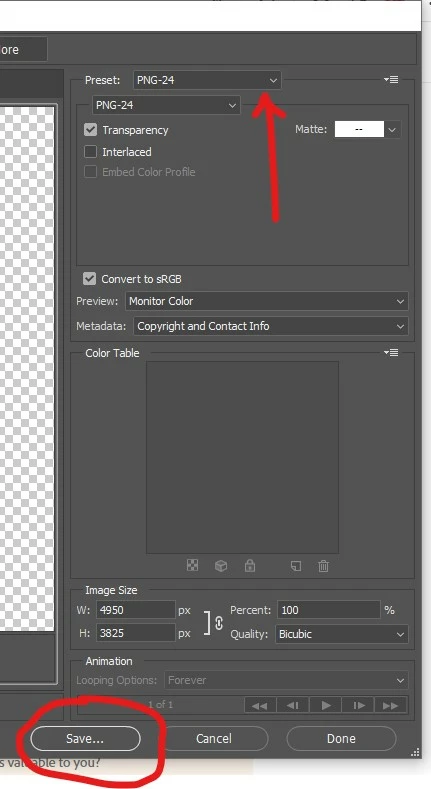
Step 3: Select PNG-24 preset, then hit SAVE. 
 

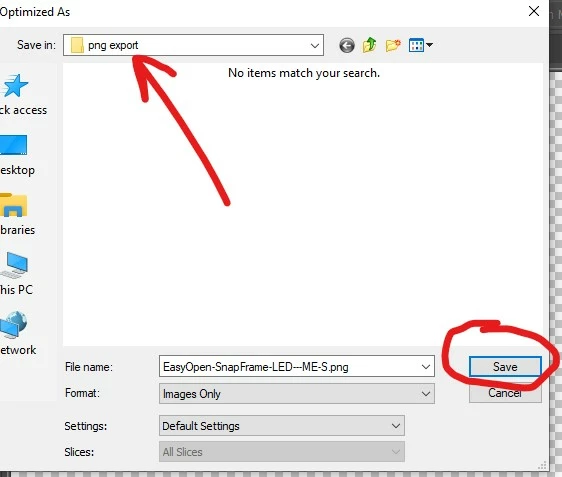
Step 4: Create and/or choose the folder you want to save the PNGs, then hit SAVE

IMPORTANT: The folder you pick here will ALWAYS be used for saving any PNGs exported when running the Action on a single file or using it for batch exporting. You'll need to make a new separate action if you want to have a different folder location when running the action. 


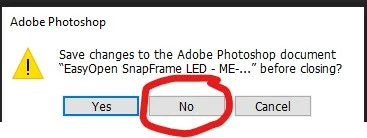
Step 5: Close the file and choose NO for the save changes UI window 


Step 6: Go to Window -> Actions to reopen the Actions window, then hit STOP on the action recording for your PNG Export action.
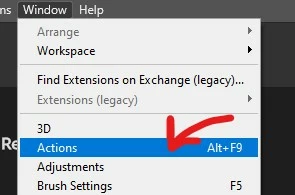
 

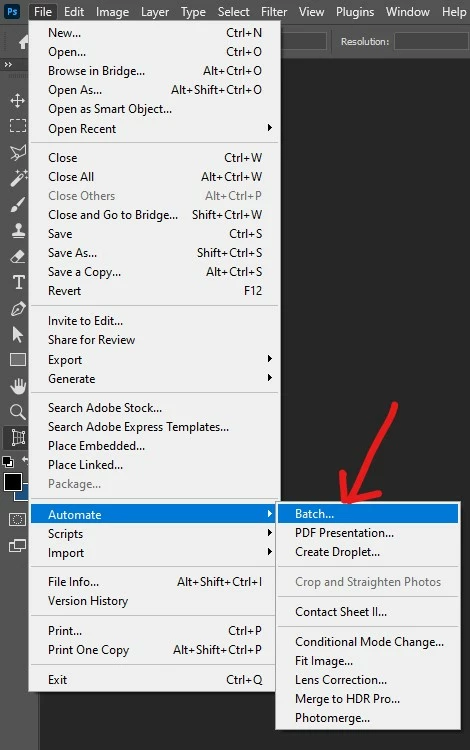
Step 7: Go to File -> Automate -> Batch


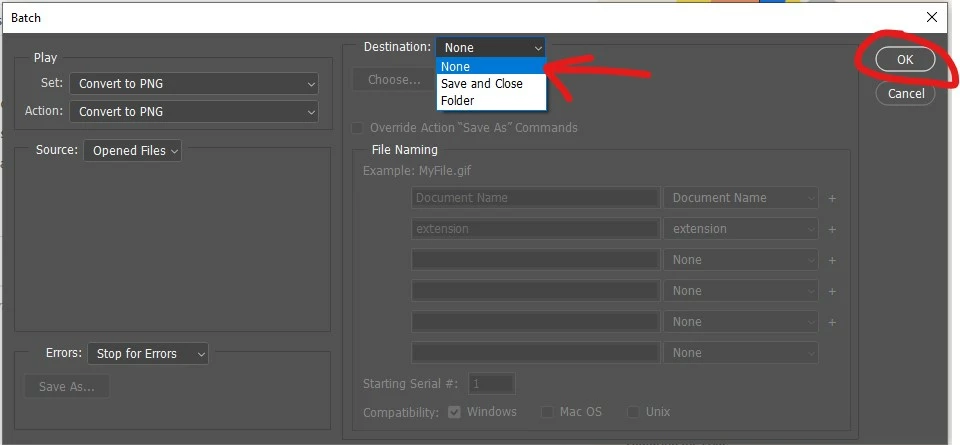
Step 8: Pick your action from the Set: and Action: dropdowns, and set your destination to NONE, then hit OK.

In the screenshot below, I happened to name my Action Set: Convert to PNG, and I also named the Action: Convert to PNG, but you can name them whatever you like of course.

(Note: Even if you pick FOLDER for destination, the exported PNGs will still go to the folder path set in the Action step no matter what.)
 

6 replies

Participating Frequently
September 15, 2025

Thank you for this!


I've been trying to find an action or tool that will help me make a batch process to remove the background from a large folder of images, and this is just the answer I needed.  


If I put "Volume Photography" and "Background Removal Batch Process" in this comment will more people find it!?? 

😀

Participating Frequently
May 22, 2025

Thank you so much for this info! I was also able to put in a reduction of 50% and it worked like a charm. I dropped the entire folder and there were jpgs and psd files, it skipped over the psd's and just kept going. Thanks again!

Participating Frequently
May 22, 2025

I have to take back what I said about the psd files. Sorry, it exported those as well with a transparent background. Two thumbs up!

Stephen Marsh
Community Expert
Community Expert
November 11, 2024
quote

(Note: Even if you pick FOLDER for destination, the exported PNGs will still go to the folder path set in the Action step no matter what.)


By @TestriteVisual


This is the issue with using Export > Save for Web


Using Save As allows the Batch commands "override action save as command"  to use a different folder and or file name than what was recorded in the action.


Stephen Marsh
Community Expert
Community Expert
November 11, 2024
Legend
April 11, 2024

Or, you can install Image Processor Pro which works great. Or if you look on these forums, there are numerous scripts available. Or you can use the Export feature in Adobe Bridge.

TestriteVisual
Inspiring
April 12, 2024

Thanks for mentioning about the Export window in Bridge. I didn't realize it was there.

Step 1: For convenience, make a preset similar to the one in the screenshot called "PNG Export"

Step 2: Drag the images to convert onto the preset


Step 3: Hit "Start Export"

Participant
November 11, 2024

Yes, but for some reason, transparent backgrounds don't save... Whether I export as 8 or 16 bit I get the same result. Weird. 

Joely10623436
Community Expert
Community Expert
April 11, 2024

oldie but goldie, thanks.

TestriteVisual
Inspiring
April 12, 2024

Welcome!