
Participating Frequently
January 16, 2025
Answered

How to create this background?

  • January 16, 2025
  • 2 replies
  • 568 views

How can I create this type of background ( not the lens all part) in photoshop?

Correct answer Conrad_C

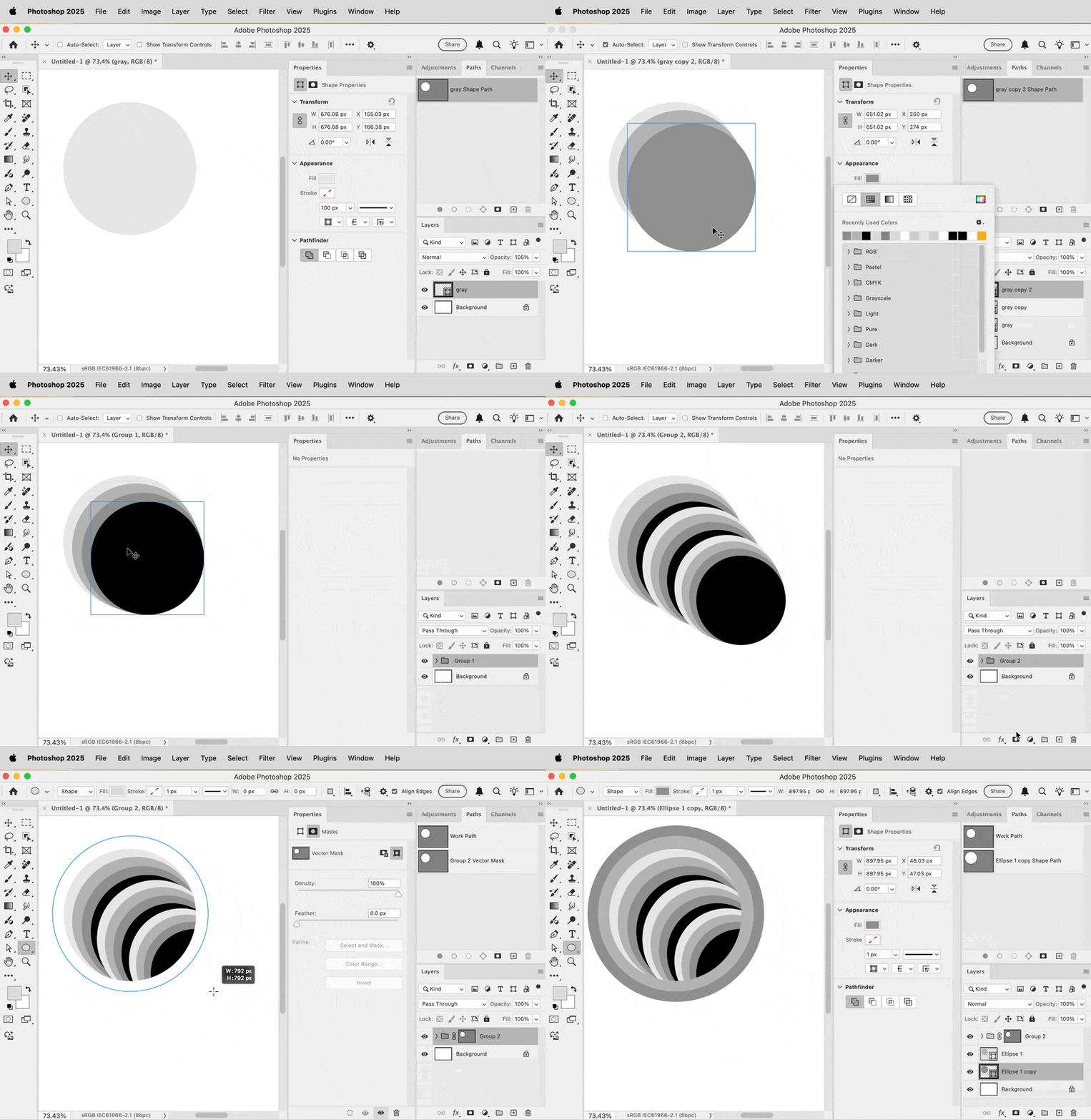
Compared to other things in Photoshop, creating the background is relatively simple. The demo below is sped up but shows you that it can be done. It’s basically a lot of duplicated ellipse shape layers with different fill colors. Mostly, you need to know about:

  • Drawing shapes with the Ellipse tool set to Shape mode. 
  • Grouping layers. 
  • Duplicating layers and layer groups. 
  • Resizing layers. 
  • Changing the fill color of shape layers. 
  • Changing the stacking order of layers. 
  • Drawing a circular mask with the Ellipse tool set to Path mode.
  • Applying a circular path as a vector mask to a parent group to mask the inner circles. 

When you’re done, if you want to make it look more like a painting as in the example that was posted, you can roughen the result using Photoshop filters.
 

2 replies

Conrad_C
Community Expert
Conrad_CCommunity ExpertCorrect answer
Community Expert
January 21, 2025

Compared to other things in Photoshop, creating the background is relatively simple. The demo below is sped up but shows you that it can be done. It’s basically a lot of duplicated ellipse shape layers with different fill colors. Mostly, you need to know about:

  • Drawing shapes with the Ellipse tool set to Shape mode. 
  • Grouping layers. 
  • Duplicating layers and layer groups. 
  • Resizing layers. 
  • Changing the fill color of shape layers. 
  • Changing the stacking order of layers. 
  • Drawing a circular mask with the Ellipse tool set to Path mode.
  • Applying a circular path as a vector mask to a parent group to mask the inner circles. 

When you’re done, if you want to make it look more like a painting as in the example that was posted, you can roughen the result using Photoshop filters.


JES1005Author
Participating Frequently
January 21, 2025

Thank you so much!   I did work out a solution but this way would have been so much easier!  I will have to try it this way.  I appreciate the time you took working on it on my behalf!


Conrad_C
Community Expert
Community Expert
January 21, 2025

What was your solution?

Bojan Živković11378569
Community Expert
Community Expert
January 16, 2025

It seems too complicated to explain here on the forum. It's usually a trial-and-error technique. Wait for someone to post a link to a tutorial if a similar one even exists.

Inspiring
January 16, 2025

By seeing the screenshot you are quicker to take a photo than to create it in Photoshop.