
Known Participant
March 15, 2019
Question

How to do it? Color Jitter

  • March 15, 2019
  • 4 replies
  • 3780 views

Hello everyone,

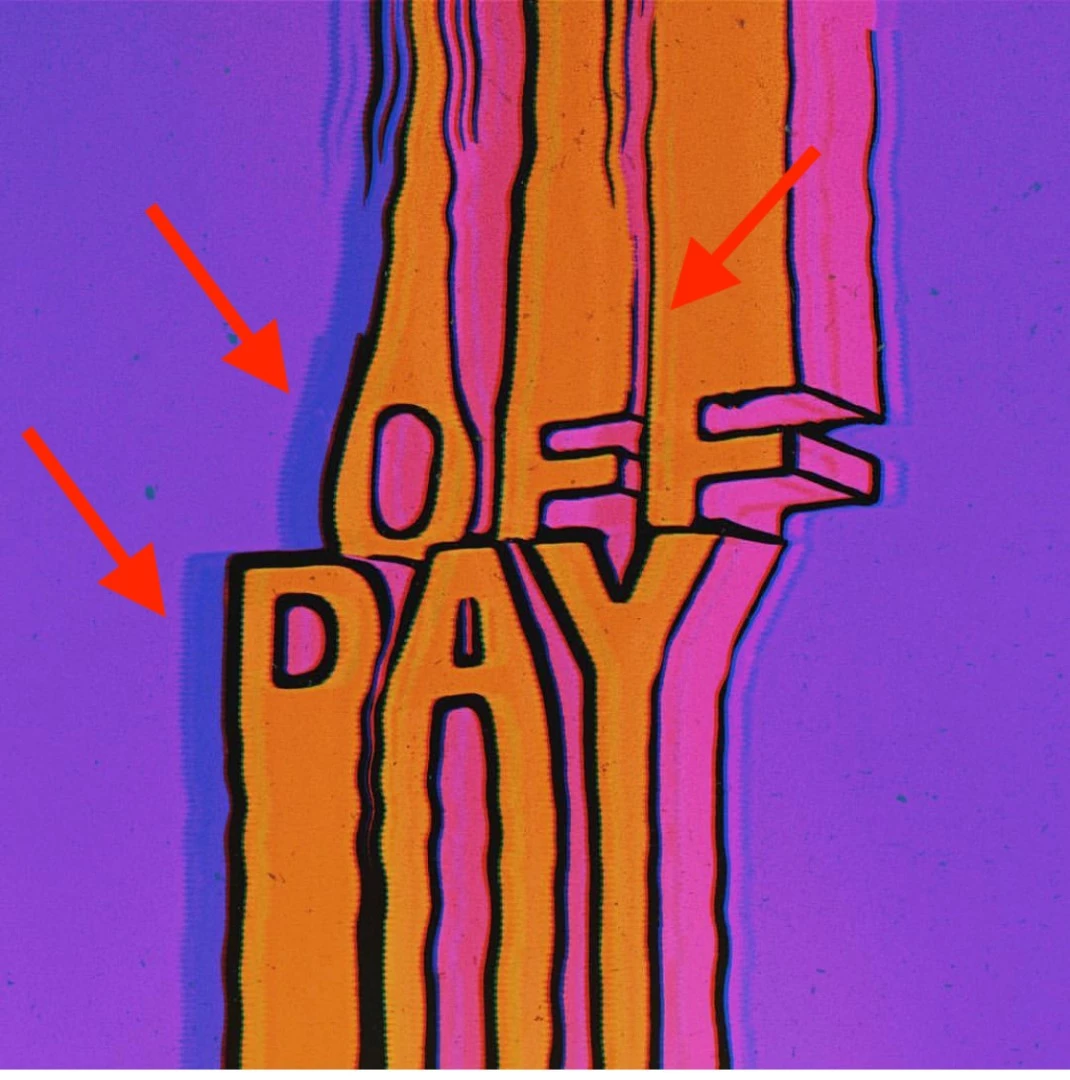
someone cold help me to understand how could be made the artwork below?

In particular  how have been realized the jitter of different shades of color.

Thanks in advance.
[Title edited for clarity by moderator. Was “how to do it.”]

This topic has been closed for replies.

4 replies

Known Participant
April 4, 2019

Please someone could tell me what does it mean when Trevor.Dennis​ say: "Copied lines layer as a selection" and "add a layer mask"

I miss just this step, but in that context i don't understand how to proceed.

Thanks.

Trevor.Dennis
Community Expert
Community Expert
April 4, 2019

Have the lines layer at the top of the stack so it is covering the rest of the graphic, and ctrl click any of the channels.

I've zoomed well in here for the sake of clarity.

Ask as many questions as you like.  We'll never get fed up answering.

Known Participant
April 4, 2019

I'm so sorry Trevor.Dennis​ but i can't understand the procedure to achieve the image you posted above:

Trevor.Dennis
Community Expert
Community Expert
March 16, 2019

Assuming you know how to use Free Transform to stretch some text.

Remember you'll need to rasterize the text and split it up into separate layers, or the horizontal components will become fatter.

Displacement Map would definitely do the distortion as Chuck says, but I was thinking Filter > Distort > Wave might be quicker.

I made that conditional, because I don't use Wave often, and find it a bit trial and error to get the settings I like.

So with that in mind, make the layer a Smart Object, so you can keep going back in and trying different settings.

I ended up with these settings on text 700 pixels wide

Which gave me this

Because you'll want to fine tune the shape etc. use Layer Styles to do the other effects

What you can't do with this approach, is change the text after distorting it.  The problem is that you can't make the text layer a Smart Object, because of the need to split into separate layers.

Known Participant
March 23, 2019

Thanks a lot  Trevor.Dennis​ it been very usefull,

but i'm in trouble in particular with the jitter/striped effect on borders of text.

davescm
Community Expert
Community Expert
March 23, 2019

Hi

You could try something like this

Starting with the wavy text as shown by Trevor, create another document the same size as your current and fill a layer with 50% gray. Go to Filter Gallery an choose Half-Tone pattern, with size 1 and pattern type "Line"

Go to the channels panel and Select the Green channel - and fill it with 50% gray. Repeat for the blue channel

This should leave you with a horizontal striped patten in the Red Channel.

Save this as DisplaceMap.psd (ensure Maximise compatibility is checked in Preferences File Handling)

In your text document put the text and background in a smart object and duplicate it.

On the upper duplicate use Filter Distort >Displace with scale set to 1 or 2 and choose the DisplaceMap.psd you made above as the displacement map.

Add a gaussian blur and change the blend mode to luminosity. Adjust the opacity to get the effect you need.

Dave

Leslie Moak Murray
Community Expert
Community Expert
March 16, 2019

They might have added an inner glow. im on my phone away from home right now, but will take a closer look when I get home.

Leslie Moak Murray
Community Expert
Community Expert
March 16, 2019

Never mind my reply above - I couldn't see it so well on my phone. Trying a drop shadow - stay tuned.

Chuck Uebele
Community Expert
Community Expert
March 16, 2019

Some options would be to use a displacement map or smudge tool.