Roland_Rick
Known Participant
December 5, 2016
Answered

How to exactly position center of Radial Blur Filter?

  • December 5, 2016
  • 2 replies
  • 23837 views

Has someone a method, how to exactly position the center of Filter / Blur / Radial Blur?

Will really appreciate any help!

Many thanks in advance!

This topic has been closed for replies.
Correct answer Trevor.Dennis

Roland

Here is a simplified version of what I showed earlier - using Trevor's crop tool suggestion but still using a smart objects so you can alter/redo the blur later if needed

1.Use the crop tool (in the options bar set it to Ratio 1 to 1 ) and extend it so that the centre point is over the desired centre point for the blur in your image

Then click on the tick icon to accept the crop
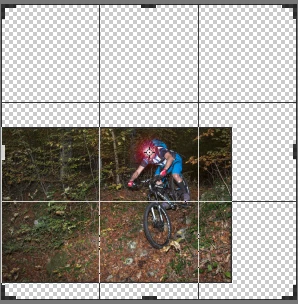
2. Convert to a smart object

3. Apply your radial blur to the SO
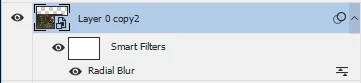
4. Convert that filtered layer to a smart object (in other words you now have a nested SO)

5 Crop as required
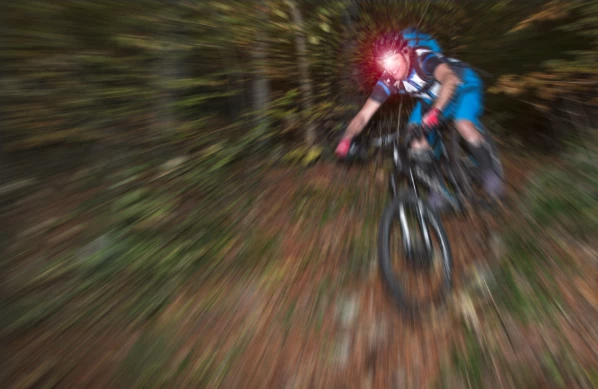
Dave


3am, and not asleep :-(

Roland, I'll add a tiny bit to what Dave said.

Select the Crop tool and set to 1:1
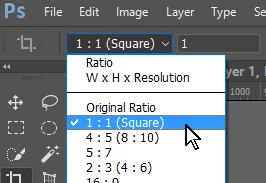
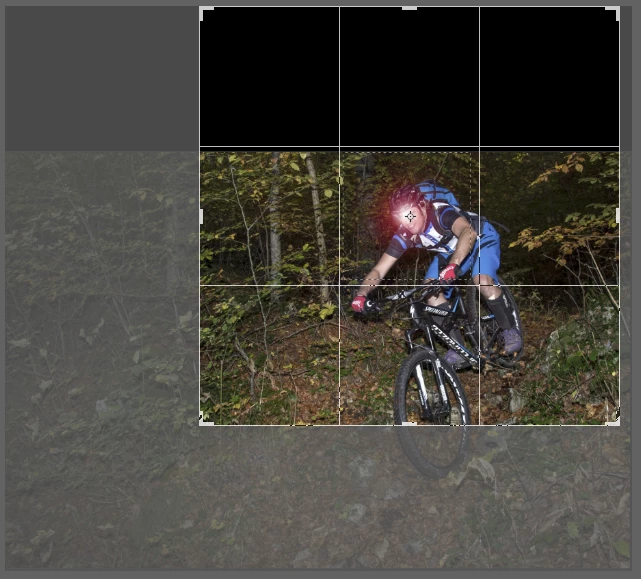
Nudge one of the corner handles to make it live. You will then be able to move the image so that the desired center point is aligned with the center handle.
Now hold down the Alt key, and drag any of the corner handles. This forces the Canvas to expand concentrically from the center point, and as the Crop tool is set to 1:1, you _must_ end up with a square perfectly centered over your desired point.
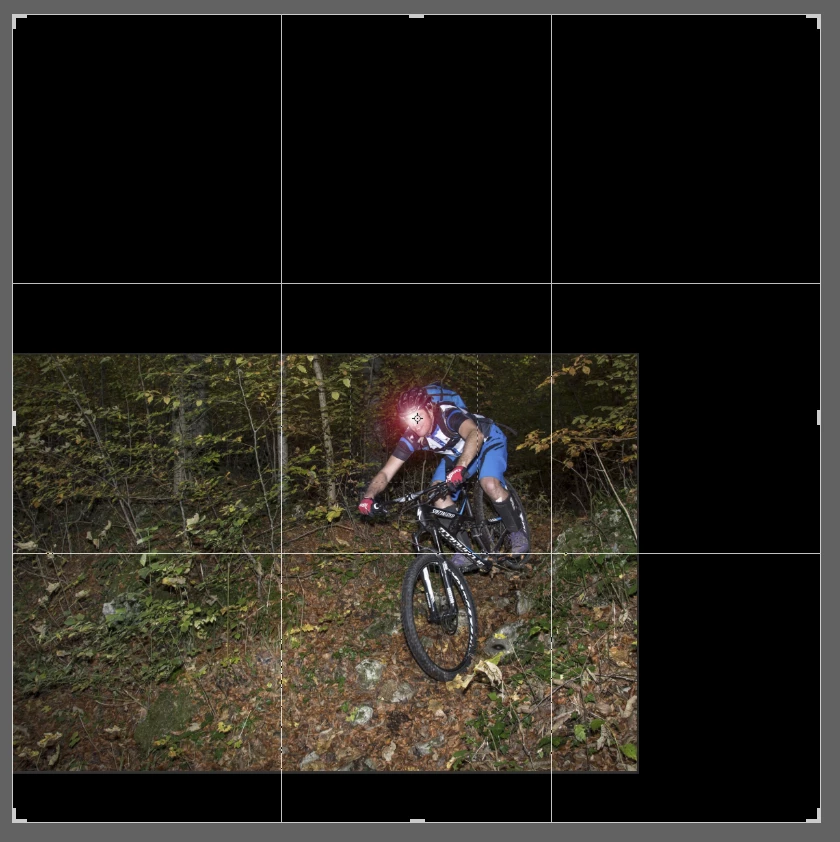
Byt all means make the layer a Smart Object, but be warned, Pixel Peeping is the first step to utter madness. Before you know it you'll be obsessing over colour look up tables and buying an Eizo.  Personally, I like to make nice pictures.

2 replies

davescm
Community Expert
Community Expert
December 5, 2016

Yes you can get it exact if you need to. This method relies on the default position being at the centre of the image

Convert your layer/s to blur into a smart object

Decide where you want to be the exact centre of your blur.

Look in the info panel and check the x y co-ordinates

Calculate the increase in canvas size you need to make that the exact centre of a larger canvas

Increase the canvas size (Image Canvas Size) within the smart object to make that original point  the centre of the canvas

Close the smart object (saving the changes)

Apply the blur

Move the SO layer complete with blur back to its original place in the image

Hope that helps

Dave

Trevor.Dennis
Community Expert
Community Expert
December 5, 2016

I like your thinking Dave, but wouldn't it be easier to Shift Alt drag out from the central point with the Marquee tool to make your square selection. Copy to new layer and make a smart object? That's what I do with things like aircraft propellers.

davescm
Community Expert
Community Expert
December 5, 2016

Hi Trevor

That works if you are only blurring part of the image (e.g. a wheel or propeller). However if you want to blur the entire image centered on a particular spot , (the way I did with my example where I applied a zoom blur using blur - radial blur )  I have not found a better alternative than extending the canvas.

Dave

Grant H
Community Expert
Community Expert
December 5, 2016

Convert the layer that you want to blur to a smart object. Then apply the radial blur. To edit the radial blur, right click on the effect on the layers panel and reposition until you have it perfect. G

Roland_Rick
Known Participant
December 5, 2016

Hi Grant, many thanks for the hint. But I'm afraid, I didn't get it. The field to reposition the center is square and something 500 x 500 pixels in size. My picture to apply the Radial Blur is not square, it's h x b 6000 x 4000 pixels and I can do what I want, I never hit precisely the center where I want to have my Radial Blur positioned. What do I make wrong?

Please have here some screen shots:

and

Is there a way how to activate some optical control/feedback in this tiny white box???

Cheers, Roland