
Inspiring
February 3, 2024
Answered

How to find specific Grayscale or RGB value in the image?

  • February 3, 2024
  • 4 replies
  • 8739 views

Hi, is it possible to find specific RGB value in the image in photoshop? For example I have an image with lots of differently colored rectangles and I need to find (select) the one that has specific [R:30 G:30 B:30] color. Is it possible? Thanks!
This topic has been closed for replies.
Correct answer Stephen Marsh

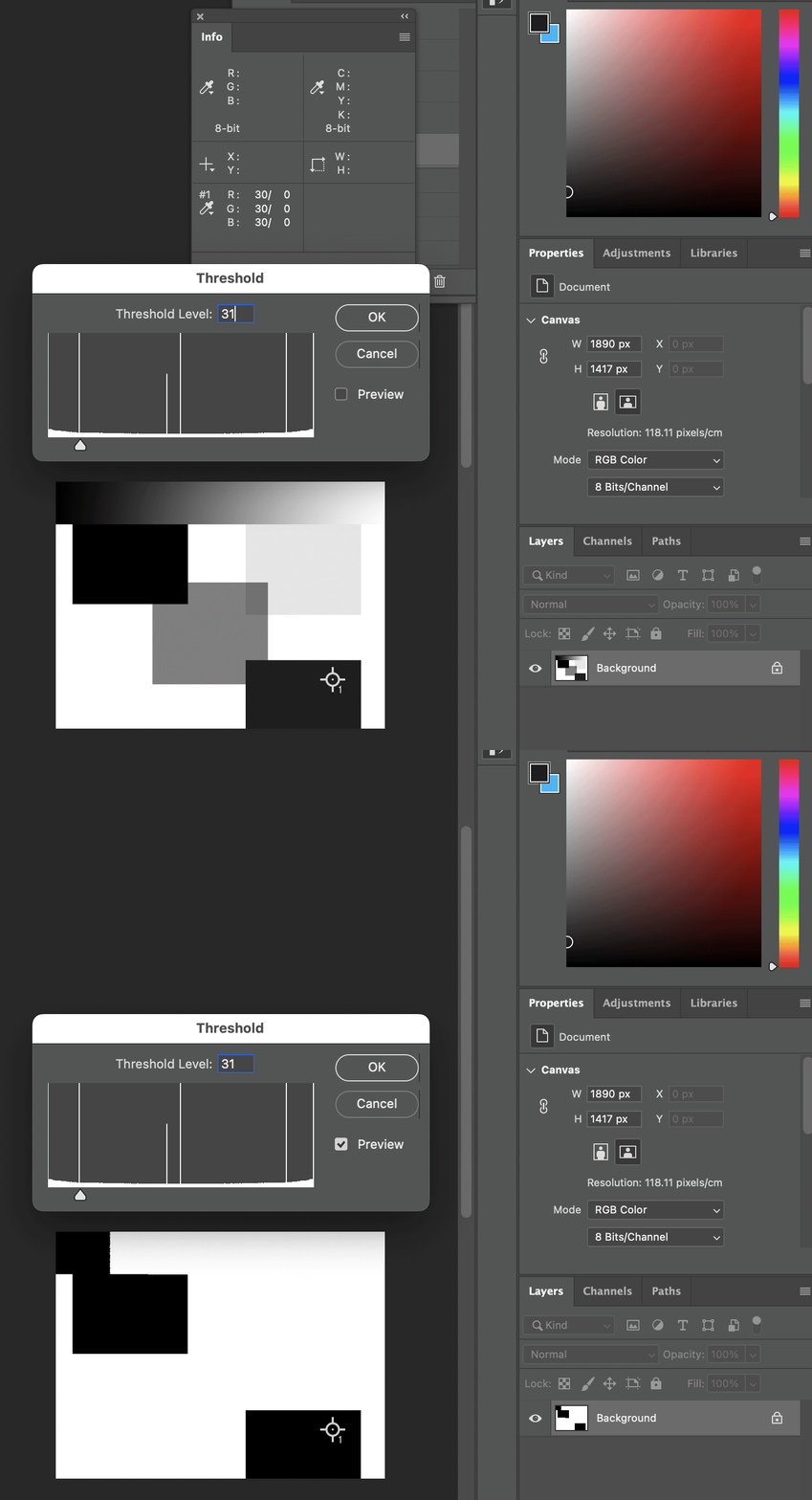
Another option is to use Image > Adjustments > Threshold and type in a value of 31 to help visually isolate a value of 30r30g30b.


4 replies

Stephen Marsh
Community Expert
Stephen MarshCommunity ExpertCorrect answer
Community Expert
February 3, 2024

Another option is to use Image > Adjustments > Threshold and type in a value of 31 to help visually isolate a value of 30r30g30b.


DefontenAuthor
Inspiring
February 3, 2024

Fantastic! This is also a great way of doing it! Thank you very much!

Semaphoric
Community Expert
Community Expert
February 3, 2024

If you have your desired color set as the Foreground Color, open Select > Color Range, and set the Fuzziness slider to zero. Now, click on the Foreground Color swatch in the toolbar, and it will select that color.

DefontenAuthor
Inspiring
February 3, 2024

This did the trick thanks a lot!

Stephen Marsh
Community Expert
Community Expert
February 3, 2024

@Defonten – Does this need to be automated? If so, please provide a screenshot of the document content with the layers panel visible.

DefontenAuthor
Inspiring
February 3, 2024

Here you go - I need to find and select areas in this image that contain let's say value 73. 


Semaphoric
Community Expert
Community Expert
February 3, 2024

Here's the method I described on the image you provided. I got the Foreground Color using the swatch in your Color panel:

KostFan2
Known Participant
February 3, 2024

1) On the left side panel select the eyedropper tool/click in the rectangle for which you want the value/On the right side panel click the Color Tab/select the three vertical lines and select RGB sliders.  The RGB numerical settings are displayed.
2) move to the next rectangle and click with eyedropper tool and its values are displayed


DefontenAuthor
Inspiring
February 3, 2024

Hey thanks for reply, but I meant smth different, I do know the RGB values I want to find, I just don't know where they are exactly (which colored ectangle exactly has this color) because there are let's say thousands of these rectangles in my image. So I need a way to find and select those areas in my image which contain that specific RGB color I'm looking for.