Participant
September 20, 2026
Question

How to get text over face effect

  • September 20, 2026
  • 2 replies
  • 23 views

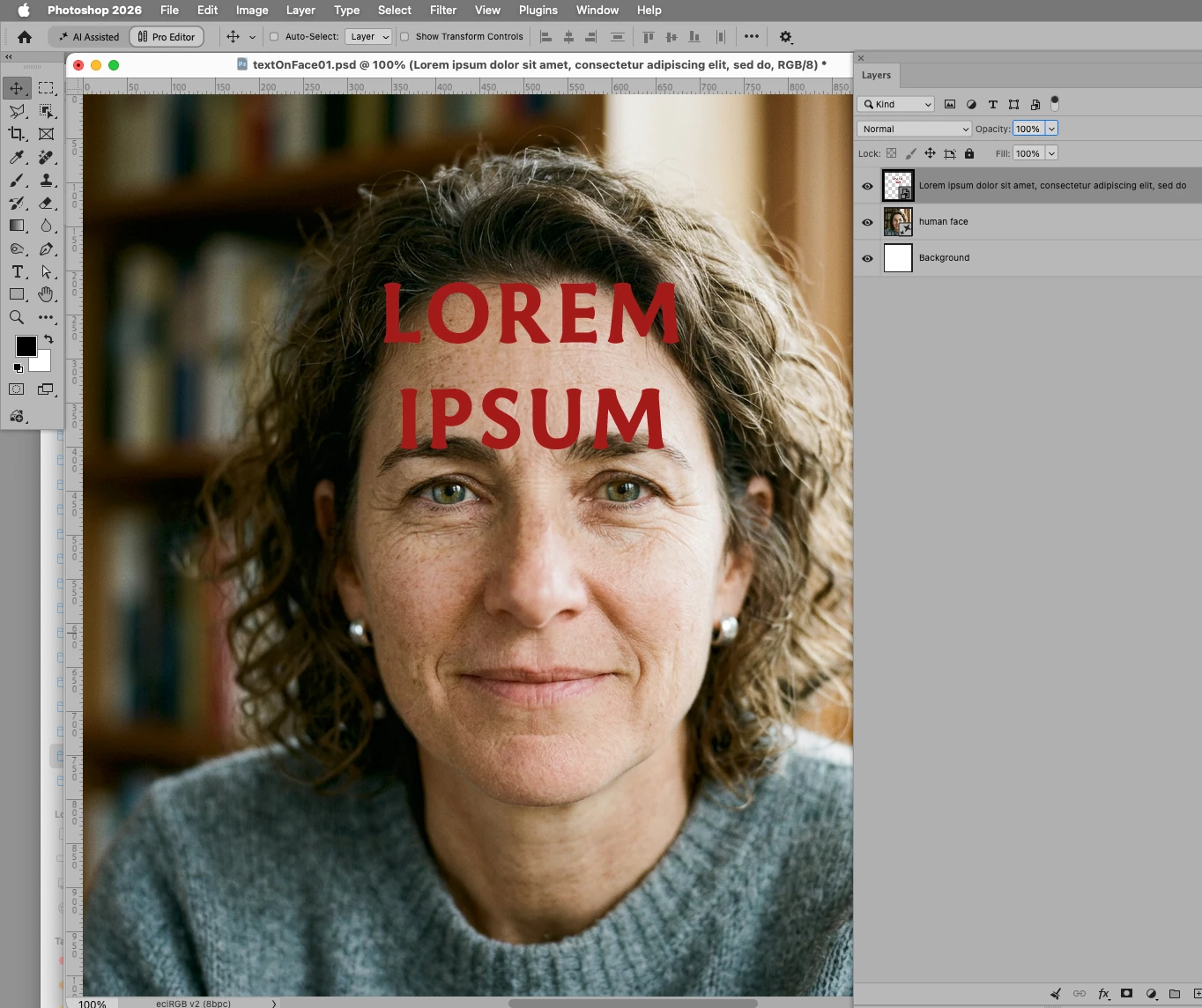
How to get this "$220B" on a characters face and as realistic as this. Getting big, small, curvy

 

    2 replies

    c.pfaffenbichler
    Community Expert
    Community Expert
    September 22, 2026

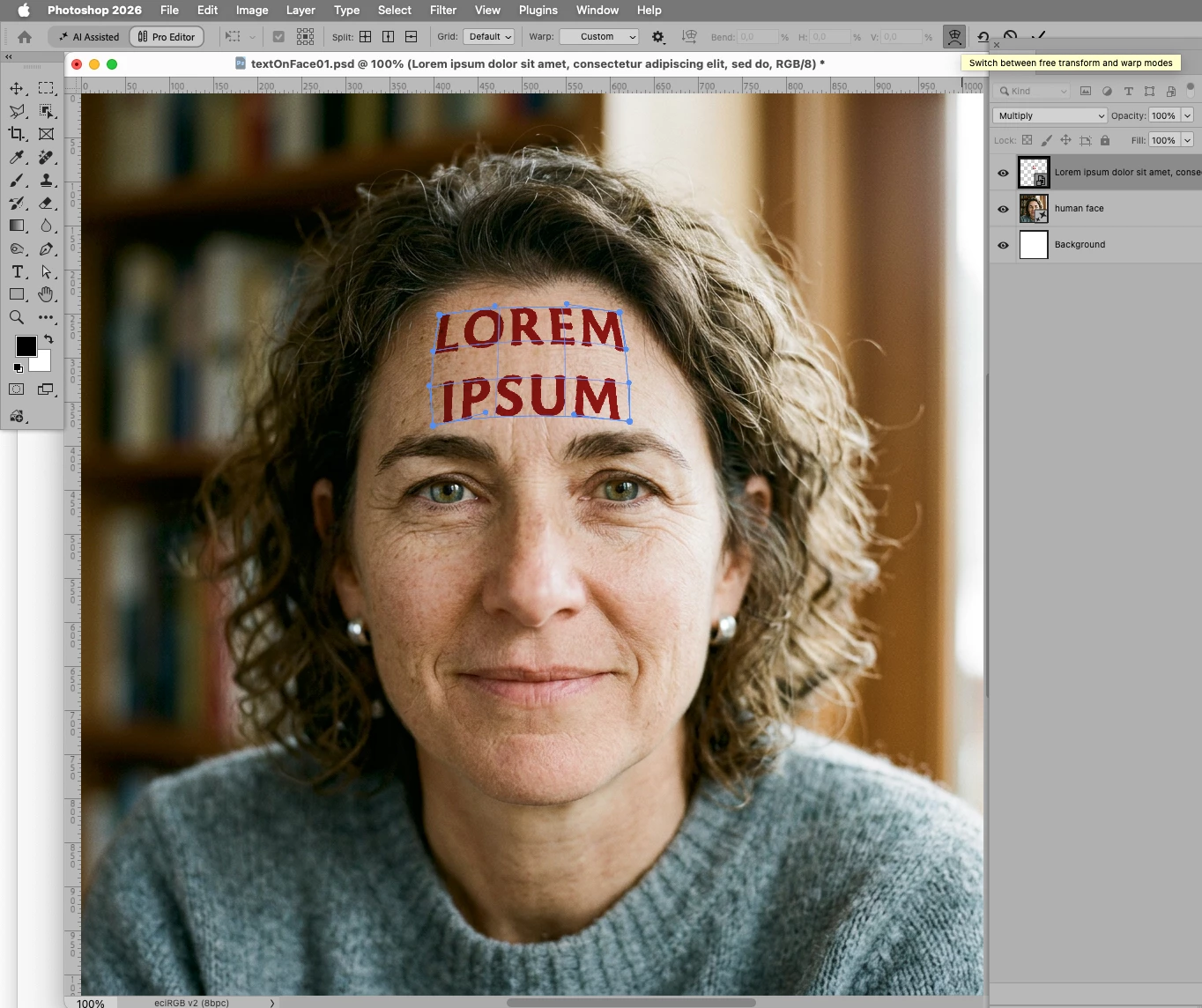
    With a »big« surface like the forehead Warp might also be an option. 

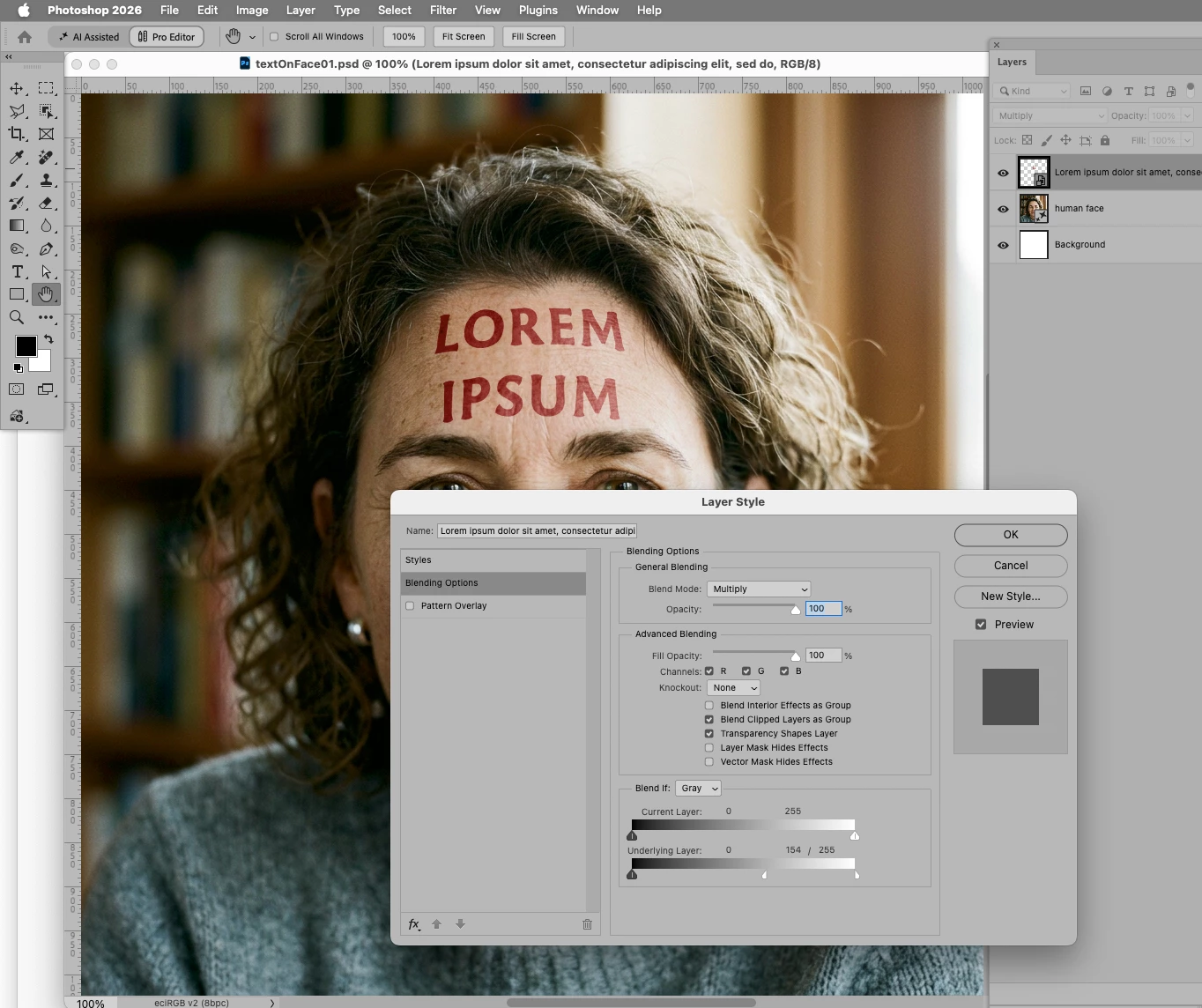
    The Blend Mode Multiply and a Blend if-setting might also help incorporate the element better. 


    CORCTON34033231
    Community Expert
    Community Expert
    September 22, 2026

    Use the Displace filter — that's the standard way to wrap text realistically onto a face so it follows the big, small and curvy contours:


    1. Place your text layer over the face and roughly position/scale it.

    2. Create a displacement map: copy the face area into a new document, desaturate it (grayscale works best), and save it as a PSD.

    3. Select the text layer, go to Filter > Distort > Displace, choose your saved map, and enter moderate Horizontal/Vertical Scale values — the text will conform to the face's contours.

    4. Finish by setting a suitable blend mode and masking the text to the face area.


    The Displace filter is documented in the official Filter effects reference: https://helpx.adobe.com/photoshop/using/filter-effects-reference.html