


Participant
September 20, 2026
Answered

How to I lock a tool to a brush preset? I want to set a brush to work with the Pattern Stamp tool so it doesn't keep switching back to the brush tool.

  • September 20, 2026
  • 5 replies
  • 32 views

I have a brush I like to use with the Pattern Stamp Tool. I made a copy of it and unlocked it so it picks up the pattern I have selected. When I leave the tool it reverts back to locked. I have to go through the process of unlocking it again, if I forget it paints with the foreground color instead of the pattern selected. I want to set this copy to work with the Pattern Stamp Tool and not the Brush Tool. How do I do that?

    Correct answer Trevor.Dennis

    Just to add to ​@Paolo Domeniconi spot on answer, when you create presets they initially exist in Photoshop settings file, and can be lost.  To protect one or more presets, regardless of their assigned tool, add them to a new Brush group and Export to a .abr file.  

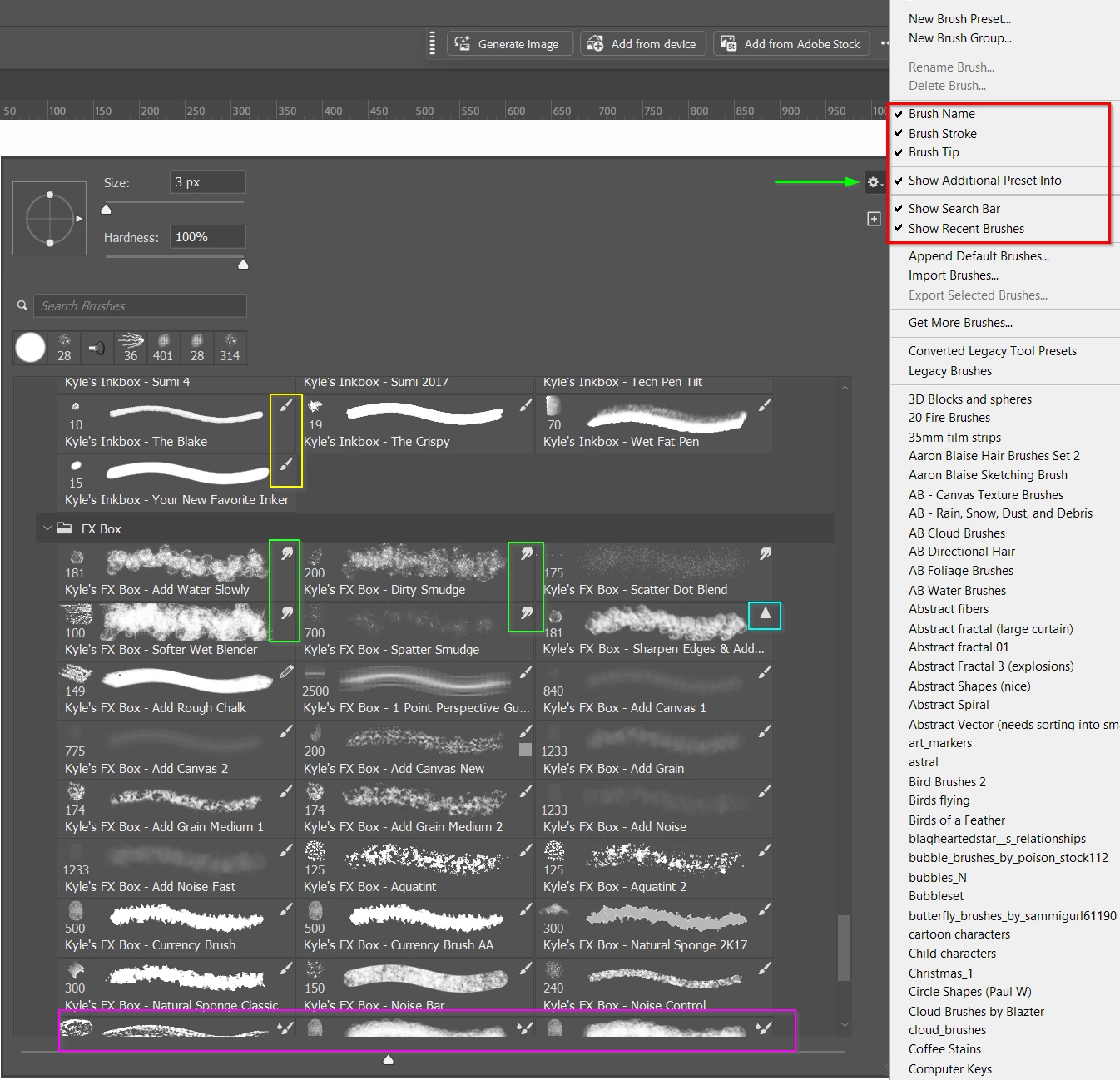
    You might like to open the brushes panel and click on the little cog icon, and enable all of the options (red highlight).  You can then see what tool is assigned to the presets.

    Yellow - Brush  

    Green  - Smudge

    Cyan - Sharpen

    Magenta - colour replace (I think).

    You would see the Pattern Stamp icon on any preset(s) you create.

    Note: you can select a preset without it changing to the assigned tool by Ctrl clicking it.


    5 replies

    MungieAuthor
    Participant
    September 21, 2026

    Thank you. This is helpful. I did know some of it. When I changed to the pattern stamp tool the brush kept changing back. I wanted a group of brushed that were set to use with that tool so I didn’t have to keep changing the settings. I will save the group.

    Paolo Domeniconi
    Known Participant
    September 21, 2026

    Let's see if I understood your question correctly.

    For example, say you have a "Leaf" brush in your Brushes panel that you want to use and save as a Pattern Stamp?

    Here's what you can do:

    1. Select the "Leaf" brush, click the + button to create a new preset (let's call it "Leaf 2"), and uncheck "Include tool attributes". This strips any tool assignments from the new brush.

    2. Select the Pattern Stamp Tool, click on "Leaf 2", and pick the pattern and any other settings you want to use.

    3. Finally, click the + button again to save it as a new preset—only this time, make sure to check "Include tool attributes".

    Now this new preset will automatically switch to the Pattern Stamp Tool with your selected pattern whenever you pick it.

    Trevor.Dennis
    Community Expert
    Trevor.DennisCommunity ExpertCorrect answer
    Community Expert
    September 21, 2026

    Just to add to ​@Paolo Domeniconi spot on answer, when you create presets they initially exist in Photoshop settings file, and can be lost.  To protect one or more presets, regardless of their assigned tool, add them to a new Brush group and Export to a .abr file.  

    You might like to open the brushes panel and click on the little cog icon, and enable all of the options (red highlight).  You can then see what tool is assigned to the presets.

    Yellow - Brush  

    Green  - Smudge

    Cyan - Sharpen

    Magenta - colour replace (I think).

    You would see the Pattern Stamp icon on any preset(s) you create.

    Note: you can select a preset without it changing to the assigned tool by Ctrl clicking it.