


How to link shape's color to the foreground color in Photoshop
Sorry for my bad English. Recently, I've been having issues with the Shape tool in Photoshop. Previously, when I used a shape, its color would always match the foreground color I selected. I could also quickly change the color using Coolorus to see which color fit my design best.
However, after updating to the latest version, I can no longer do that. Currently, my foreground color is blue, and it only applies correctly the first time I draw a shape. On the second attempt, even if I change to a different color, the shape still stays blue. Each time I draw a new shape, it creates a new layer with that same blue color.
I want to draw a different shape in red, but the shape always comes out blue—so I often have to manually fill the color after selecting the layer.
Is there a way to fix this issue? I’ve tried installing different versions, uninstalling and reinstalling Photoshop, but nothing has improved.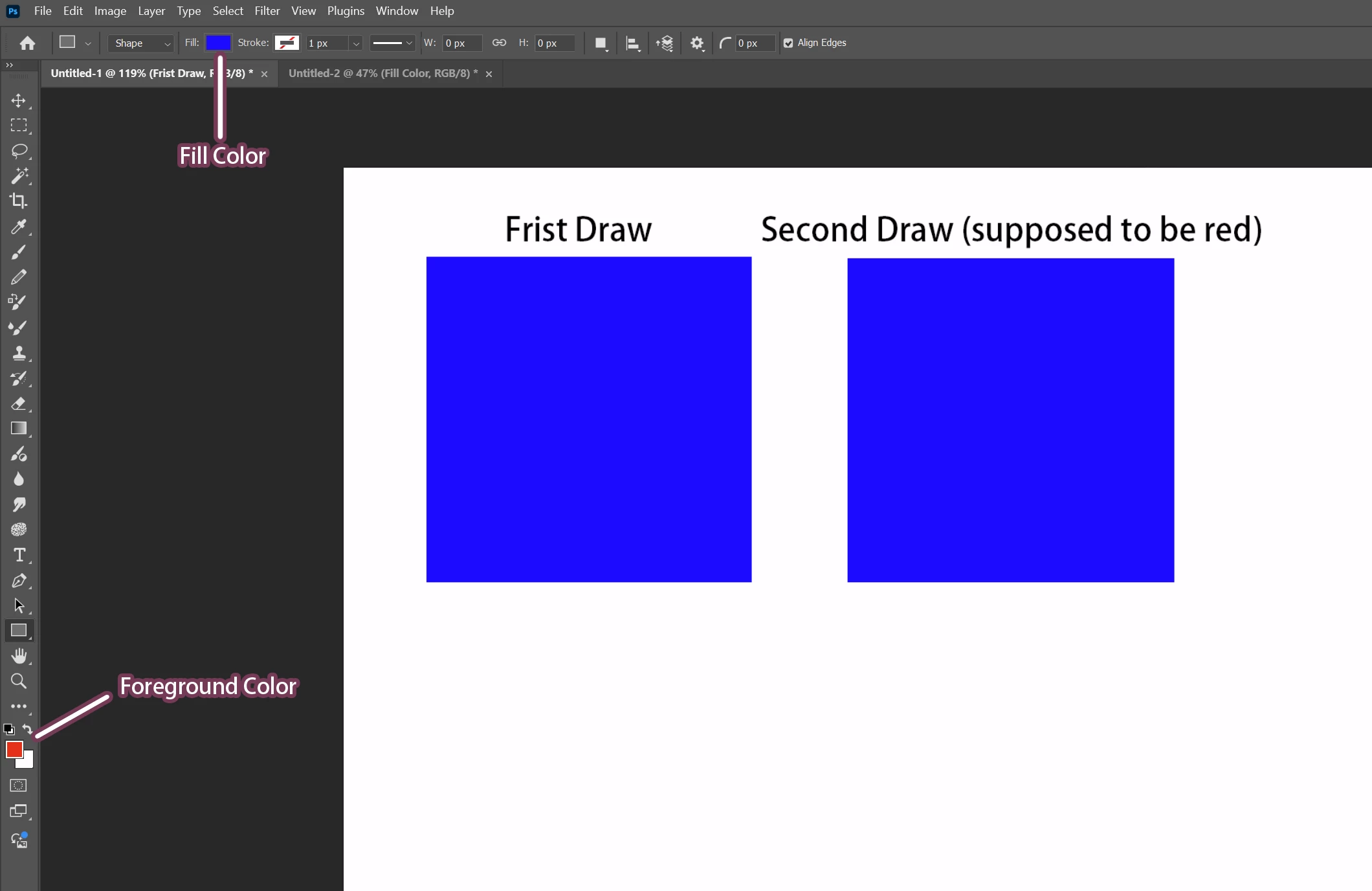

 AdChoices