Participant
September 12, 2025
해결됨

How to Make My Design Look Realistic on a Mockup in Photoshop?

  • September 12, 2025
  • 2 답변들
  • 590 조회

Hi everyone,

I’m working on creating a Cover Image and Feature Image for my Faire shop. I have a mockup of a person wearing a t-shirt, and I can place my design on it. The problem is that my design doesn’t “bend” or follow the contours and wrinkles of the shirt, so it looks flat and unrealistic.

Is there a way to do this in Photoshop? Can Harmonize or another tool help me achieve that effect?

It’s probably obvious that I’m not a graphic designer — I’m just trying to figure this out myself since I haven’t had luck hiring someone on Fiverr or Upwork. Any tips or guidance would be so appreciated!

Thanks so much,

Judy
최고의 답변: Trevor.Dennis

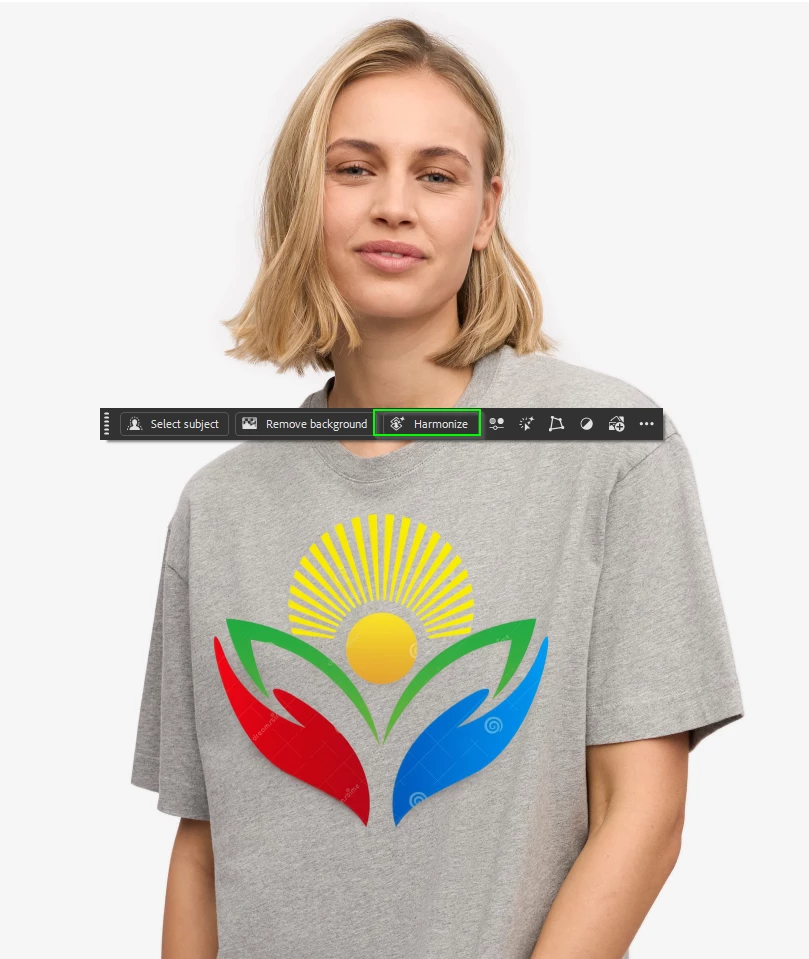
If you are using the beta version (least ways I think it is still only with the beta) try Harmonize from the Contextual Toolbar.  In this case it simply added some shading to the logo, but it is a very useful new tool.


Do you need any help with Displacement Maps?  They will shape the new content to the surface it overlays.

You can see it has distorted the design to follow the cfolds of the shirt.  Some manually added shading completes the effect.

2 답변

Trevor.Dennis
Community Expert
Community Expert
September 13, 2025

If you are using the beta version (least ways I think it is still only with the beta) try Harmonize from the Contextual Toolbar.  In this case it simply added some shading to the logo, but it is a very useful new tool.


Do you need any help with Displacement Maps?  They will shape the new content to the surface it overlays.

You can see it has distorted the design to follow the cfolds of the shirt.  Some manually added shading completes the effect.

judy_5034작성자
Participant
September 14, 2025

Thank you for your response, @Trevor.Dennis . I think you and @Semaphoric  are both correct in using Displacement Map. I am working on it right now. I am absolutely a newbie at this so, hopefully, I can figure it out. Thank you, again! I appreciate your help.

Semaphoric
Community Expert
Community Expert
September 12, 2025

Two ways come to mind. The first is the Liquify filter. The second is a Displacement Map (Filter > Distort > Displace). Do a Web search for Photoshop Displacement Map; there's lots of tutorials out there covering just this thing.

judy_5034작성자
Participant
September 12, 2025

Thank you so much! I appreciate your feedback. I'll give that a try.