Known Participant
October 1, 2026
Question

How to mask the certain layers so only effects can be seen on text.

  • October 1, 2026
  • 5 replies
  • 51 views

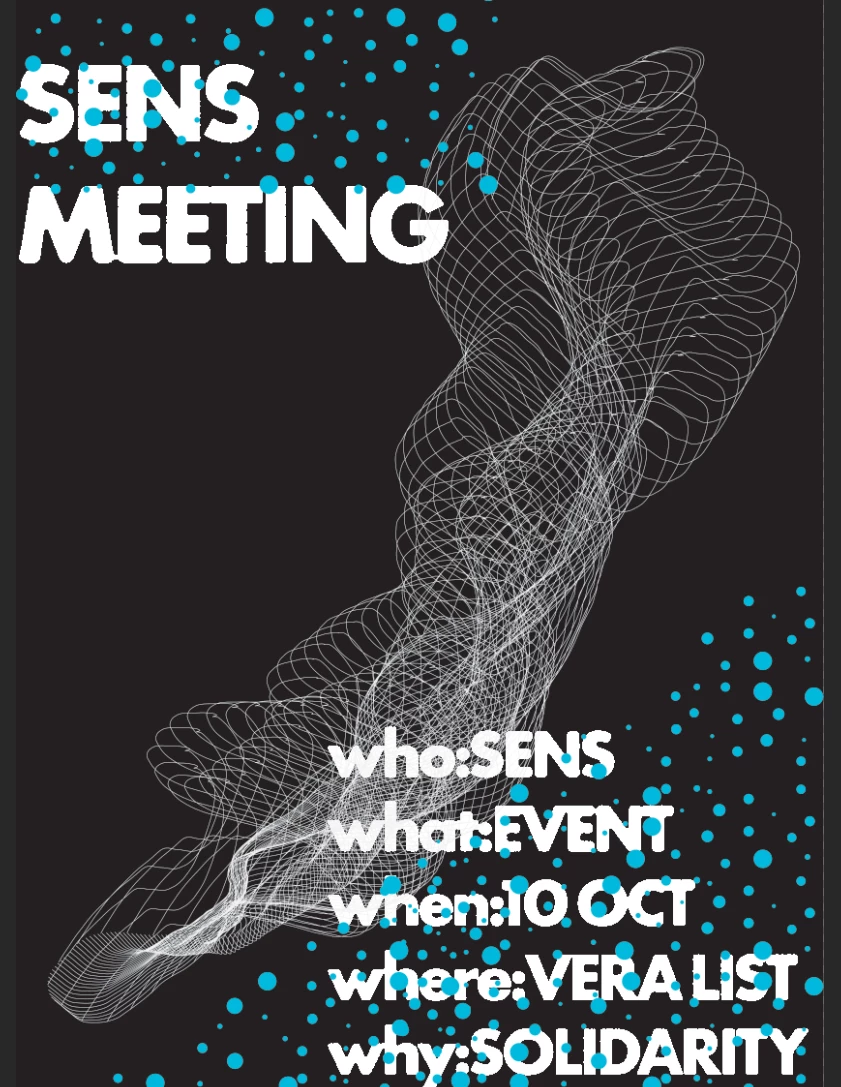
I am trying to get an inkbleed effect on just the text not the whole image. I have threshold and the blurs activated how I like but its effecting the whole image. I tried doing a clipping mask but nothing happened so I took it off. What is the option here? Thank you.
 

    5 replies

    Participating Frequently
    October 4, 2026

    Apply your Threshold and inkbleed Smart Filters directly to the text Smart Object instead of a merged layer, so nothing else in the image is affected. If the effect needs to stay on a separate layer, Alt-click the line between the two layers to clip it to the text below. Then use the Smart Filter mask to paint the bleed exactly where you want it.

    c.pfaffenbichler
    Community Expert
    Community Expert
    October 1, 2026

    Could you please post a screenshot taken at View > 100% with the pertinent Panels (Toolbar, Layers, Channels, Options Bar, …) visible? 

    Again: View > 100% 

    Known Participant
    October 4, 2026
    The above image is at a 100%. The only thing I want effected by the smart filters are the words. I want the circles behind the text and the rest of the design not effected by the filters.


    c.pfaffenbichler
    Community Expert
    Community Expert
    October 4, 2026

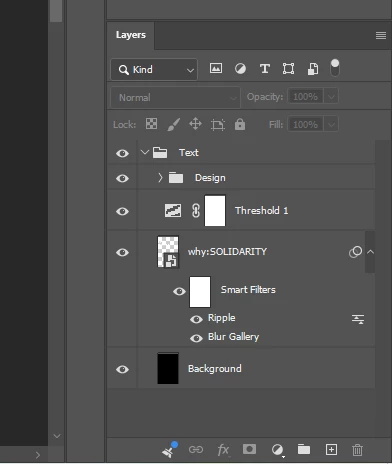
    Thank you for the screenshots but I am afraid I do not understand the Layer-setup anyway. 

    What is contained in the Smart Object »why:SOLIDARITY«, what is contained in the group »DESIGN«, …? 


    I think it would be easiest if you provide the layered file itself (feel free to X-out the texts and black out sensitive elements). 

    Conrad_C
    Community Expert
    Community Expert
    October 1, 2026

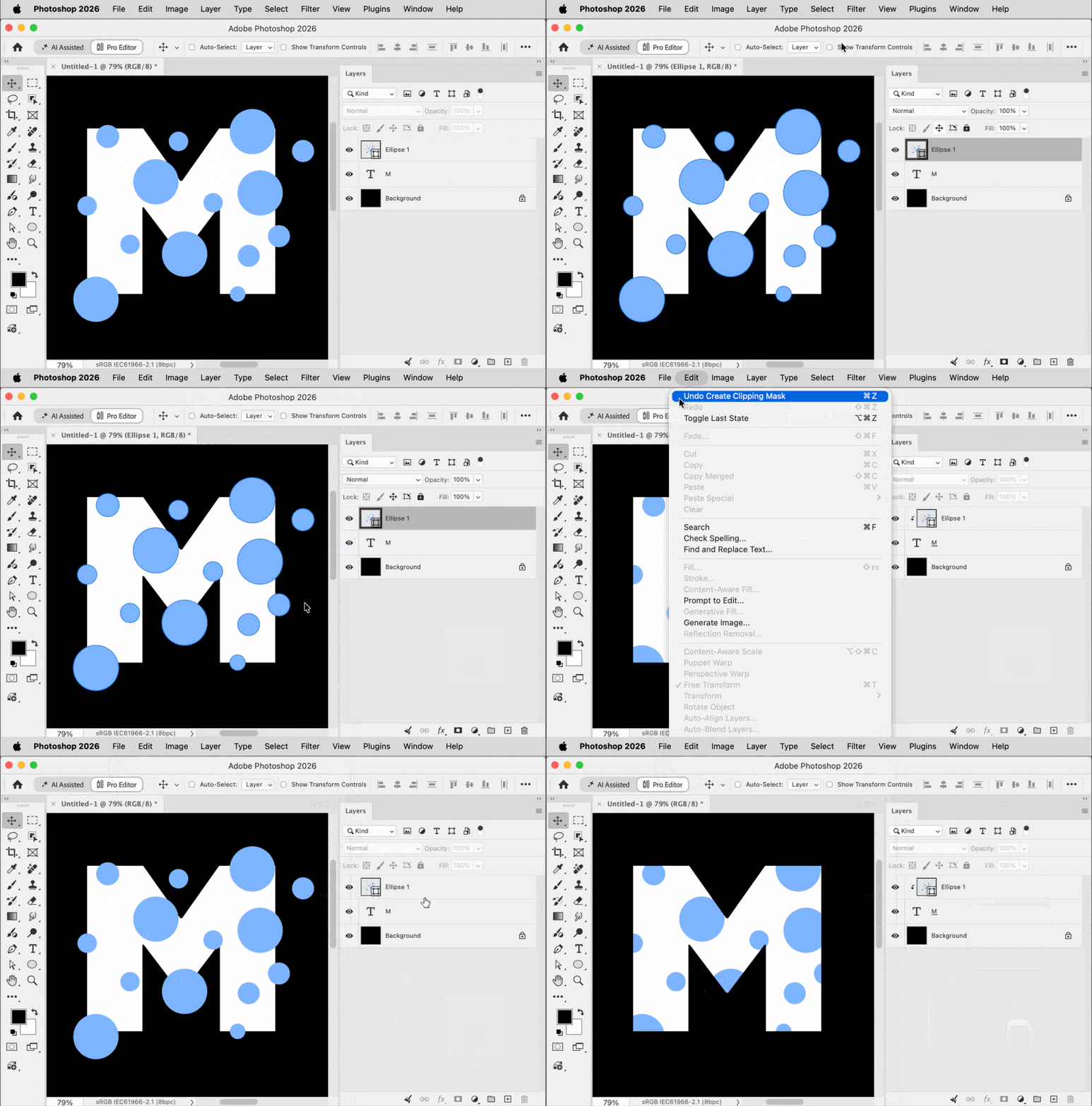
    To use a clipping mask correctly, in the Layers panel the layer of circles must be immediately above the layer of type. Then, you select the command Layer > Create Clipping Mask. The shortcut is to hold down the Option key (macOS) or Alt key (Windows) as you click the dividing line between the two layers in the Layers panel.

    The demo below first shows using the Create Clipping Mask command, then it shows the Option/Alt-click shortcut, both with the correct layer stacking order.